

Import your WhatsApp Cloud number
Connect a WhatsApp Cloud API number to OmniDimension using your four Meta credentials, then attach an AI agent.
Once you have your four Meta credentials, importing a number into OmniDimension takes a couple of minutes. This is the recommended way to connect WhatsApp for production: the number stays connected, and your AI agent can both send and reply.
Before you start
You need the four values from Get your Meta Cloud credentials:
- WhatsApp Business Account ID
- Meta App ID
- Meta Business ID
- A permanent Meta Access Token
If you do not have these yet, set them up first. The import will not complete without all four.
Import the number
Open the connect dialog
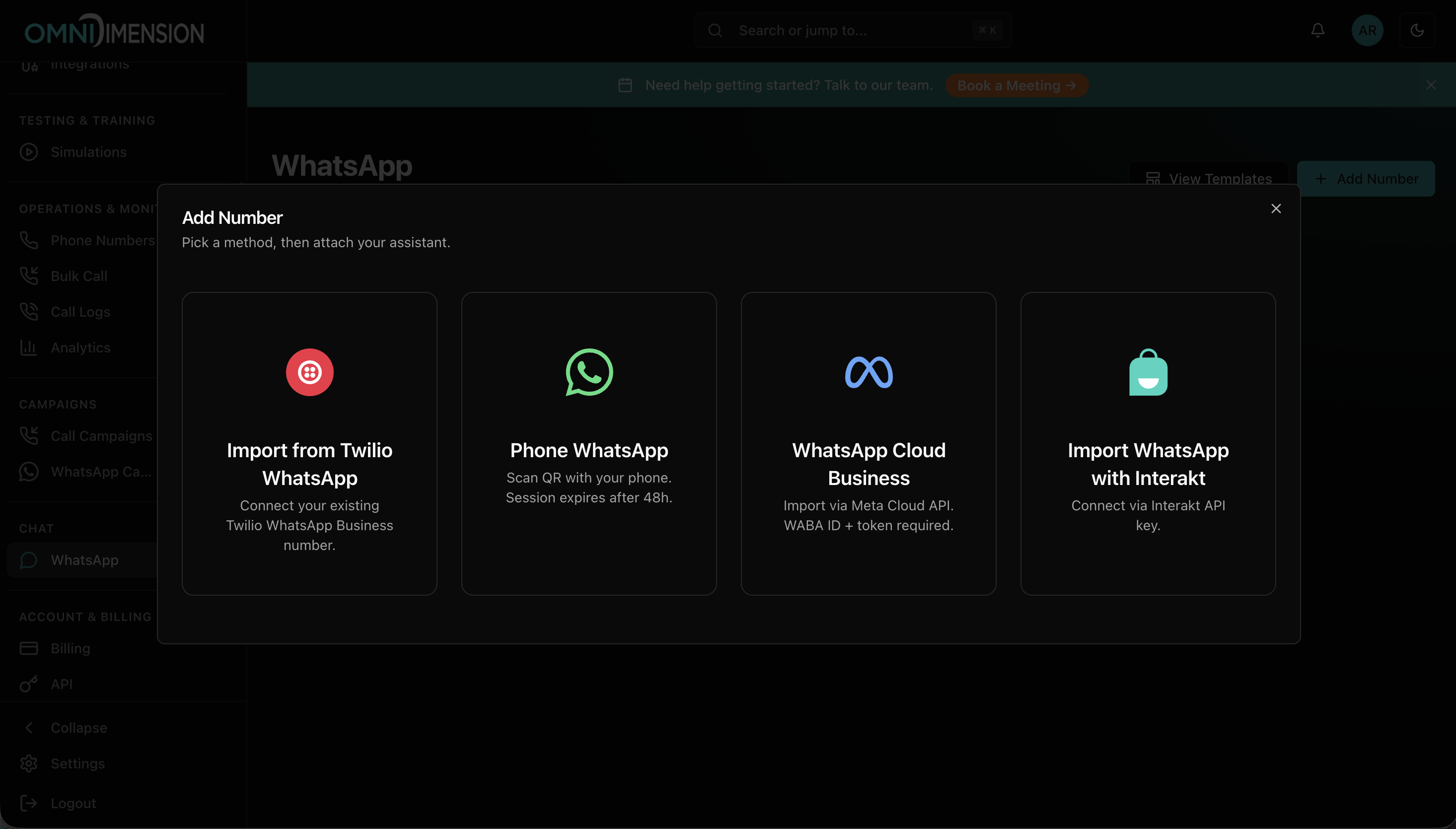
In your OmniDimension dashboard, go to Phone Numbers, click Add Number, and choose WhatsApp Cloud Business.
Paste your four credentials
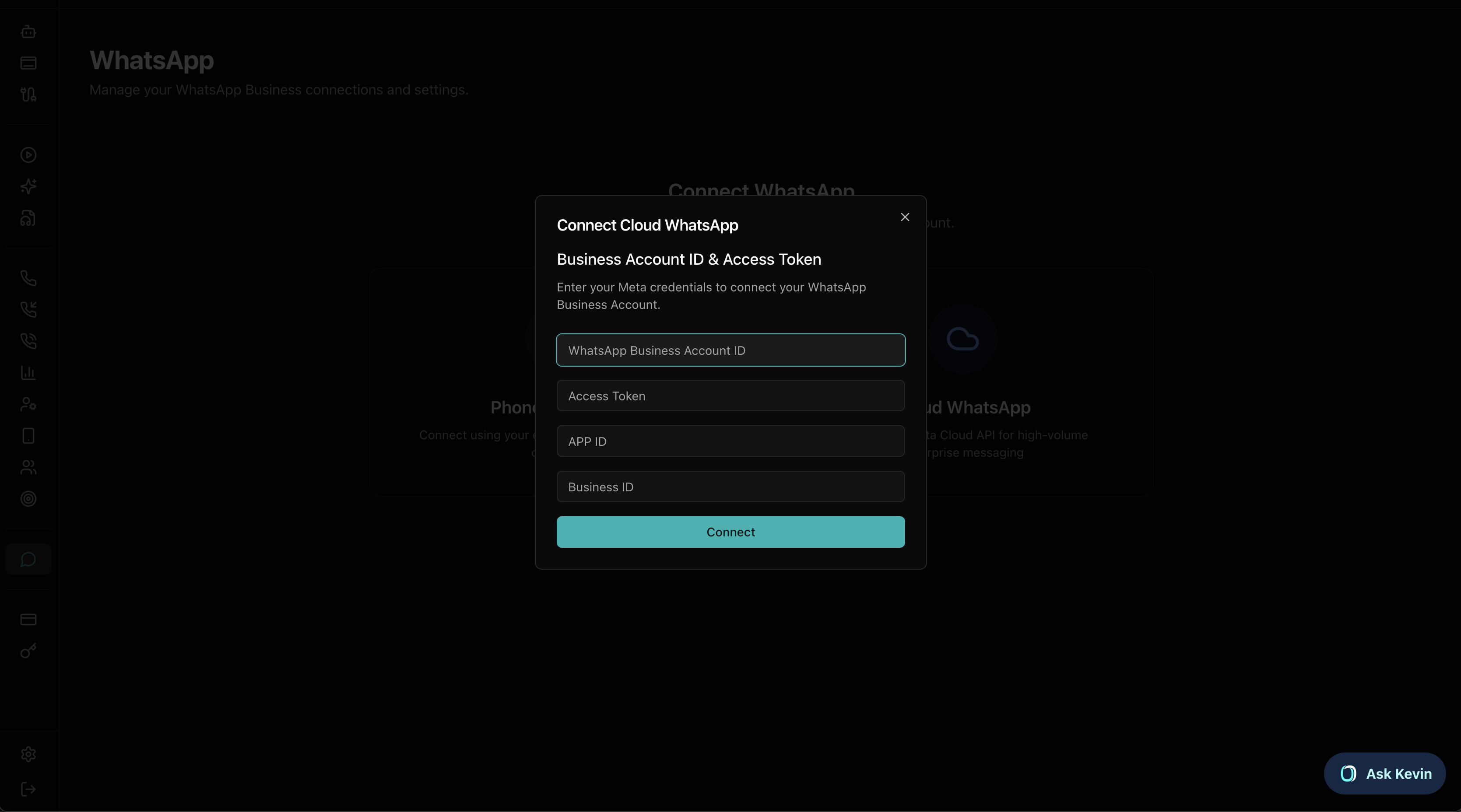
Fill in the form with the values you collected from Meta:
- WhatsApp Business Account ID
- Meta Access Token (your permanent System User token)
- Meta App ID
- Meta Business ID
Then click Connect.
Pick the number to import
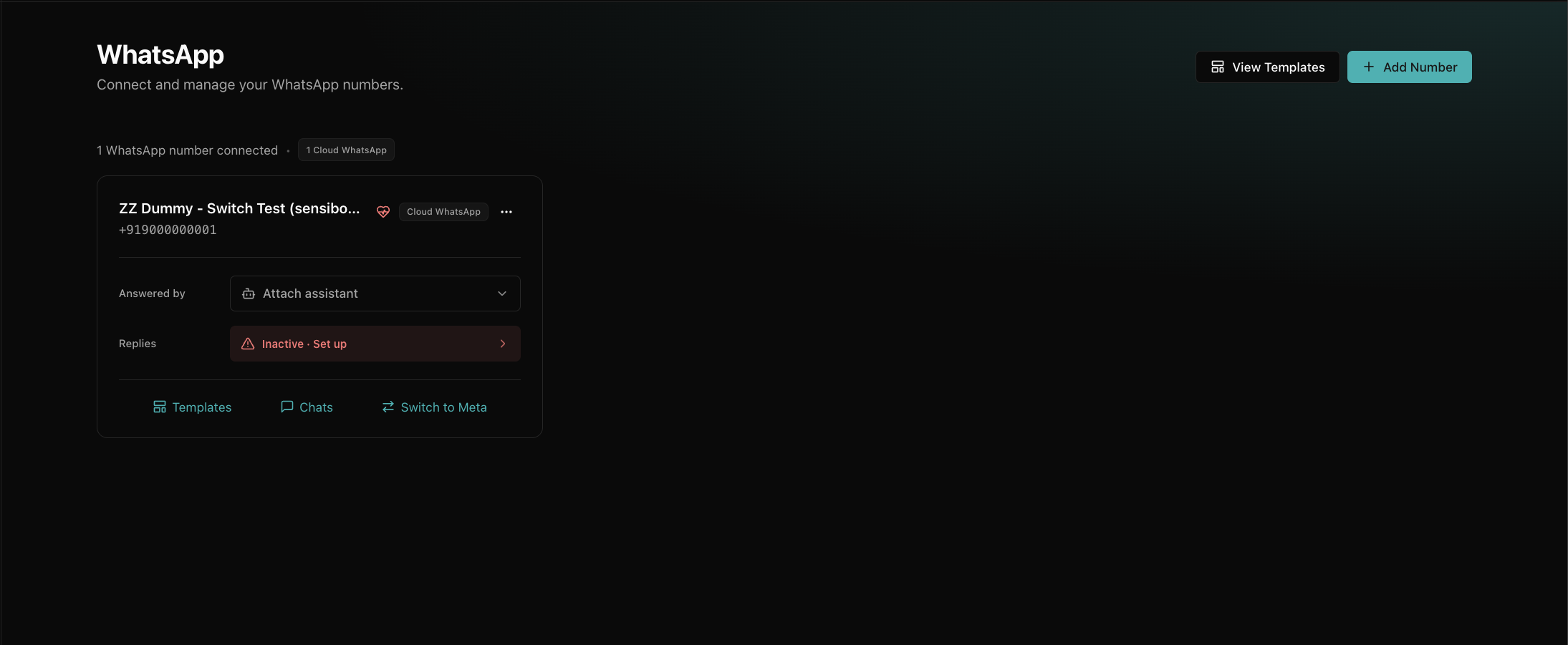
OmniDimension authenticates with Meta and fetches the phone numbers on your WhatsApp Business Account. If your account has more than one number, choose the one you want. If it has just one, OmniDimension connects it directly. The number then appears in your WhatsApp numbers list.
Check send-readiness
After connecting, OmniDimension runs a quick health check and shows whether the number is ready to send. If anything needs attention (for example, the number's display name is still pending Meta review), it is listed here so you can fix it before your first message.
Attach an AI agent
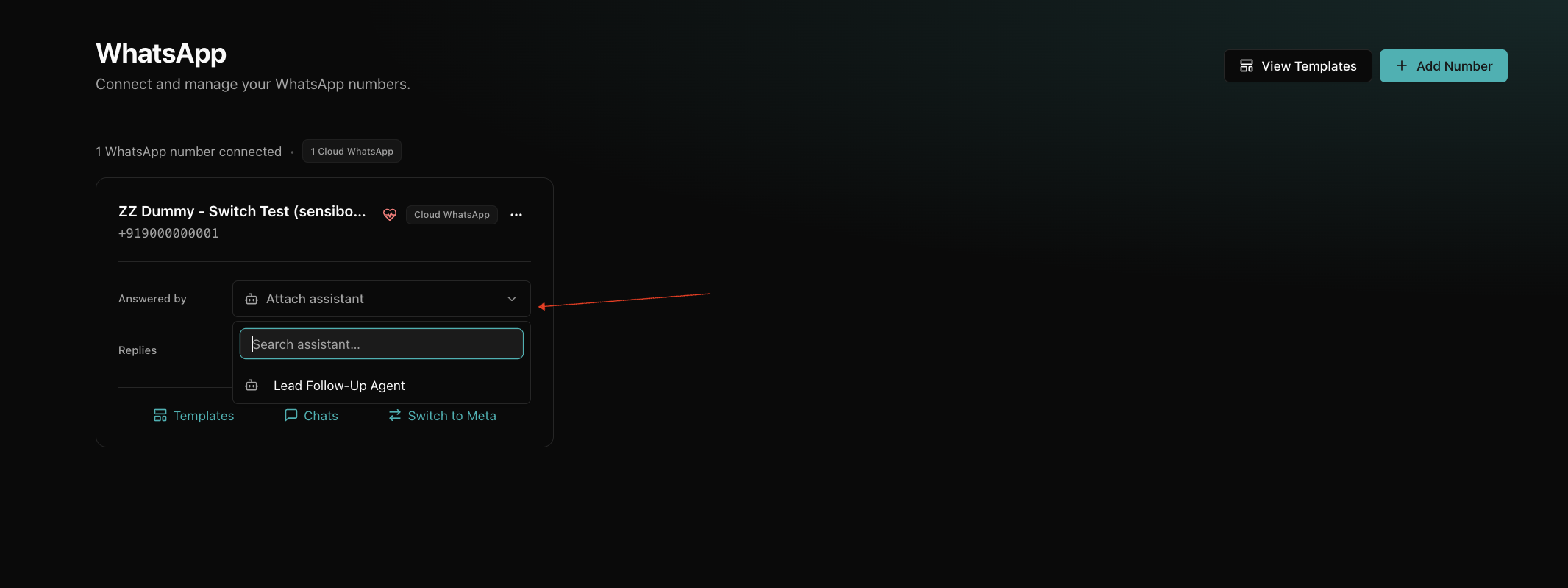
Find the connected number and open the Attach assistant dropdown on its card, then pick the agent you want to handle this number. The agent's prompt and language decide how it talks to customers. Once you pick one, its name shows under Answered by.
Turn on AI replies
Importing the number lets your agent send messages and run campaigns. To also let it reply when a customer messages you, you do a one-time activation so Meta forwards incoming messages to OmniDimension.
Right after import, OmniDimension shows a Let your AI reply to messages step. You can do it then, or anytime later from the number's menu, where an inactive number shows an Inactive · Set up button.
Common errors and what they mean
If the import fails, the message usually points to one of these. Each has a quick fix.
Account not registered (error 133010). The number is still live on the WhatsApp Business app, not the Cloud API. Add it through Meta's API Setup or migrate it off the app first. See step 3 of the credentials guide and Meta's Register a business phone number.
Invalid or expired token (401 or 190). You most likely pasted the temporary token from API Setup, which expires in 24 hours. Generate a permanent system user token instead and try again. See step 5 of the credentials guide and Meta's access tokens guide.
WhatsApp account not assigned to your system user. The token is valid but the system user does not have access to this WhatsApp account. In Business settings → System users, select the user, click Add assets, and assign your WhatsApp account with Full control.
Missing permissions. The token was generated without whatsapp_business_messaging and whatsapp_business_management. Regenerate it with both permissions enabled.