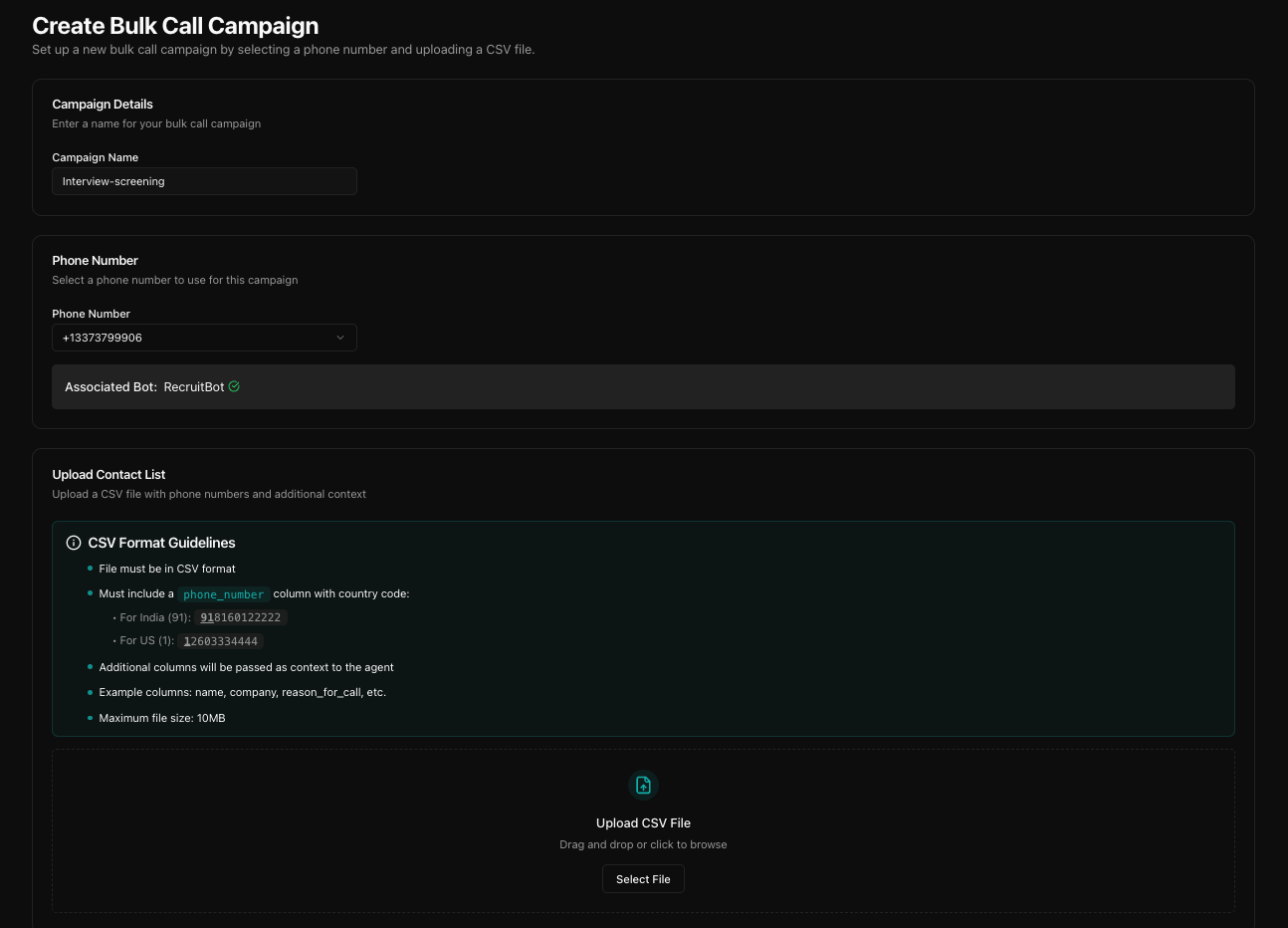

Recruitment screening bot
Build an outbound voice agent for initial job applicant screening calls, with bulk call campaigns.
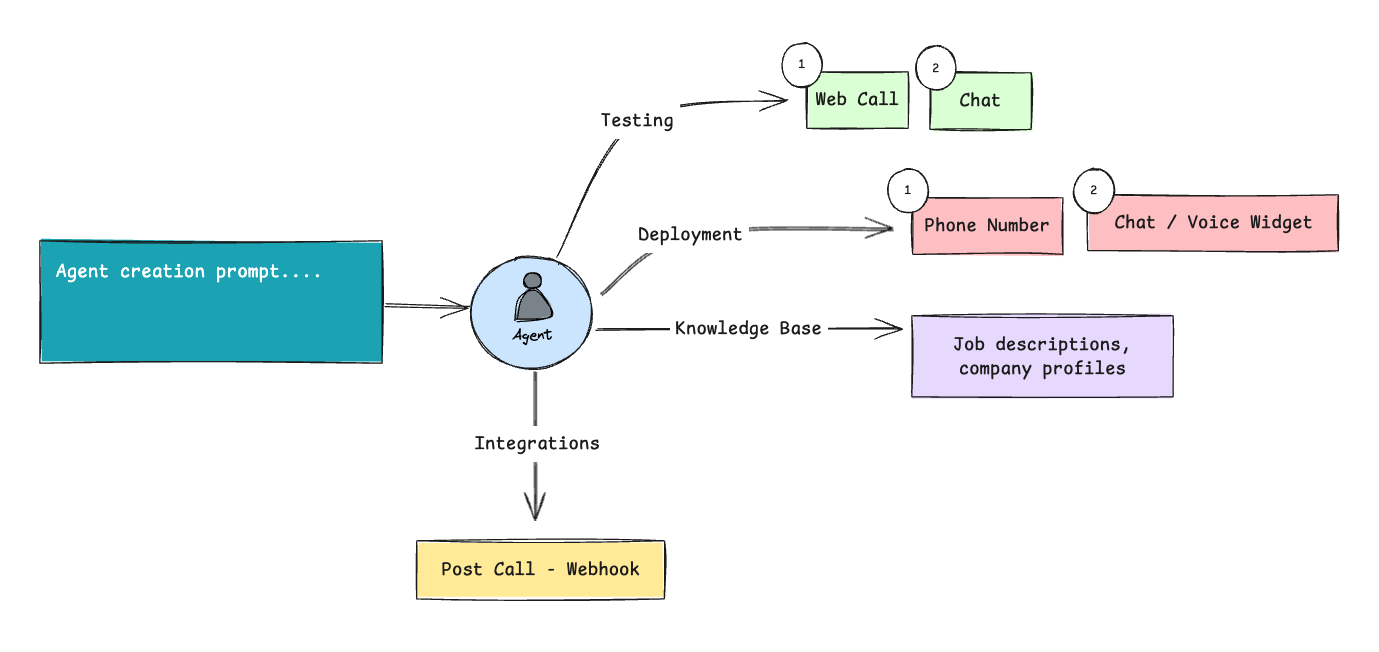
Walk through building an outbound recruitment bot. The agent calls candidates, runs through screening questions, captures structured data, and pushes results to your webhook. Ships with a bulk-call workflow for recruitment drives.
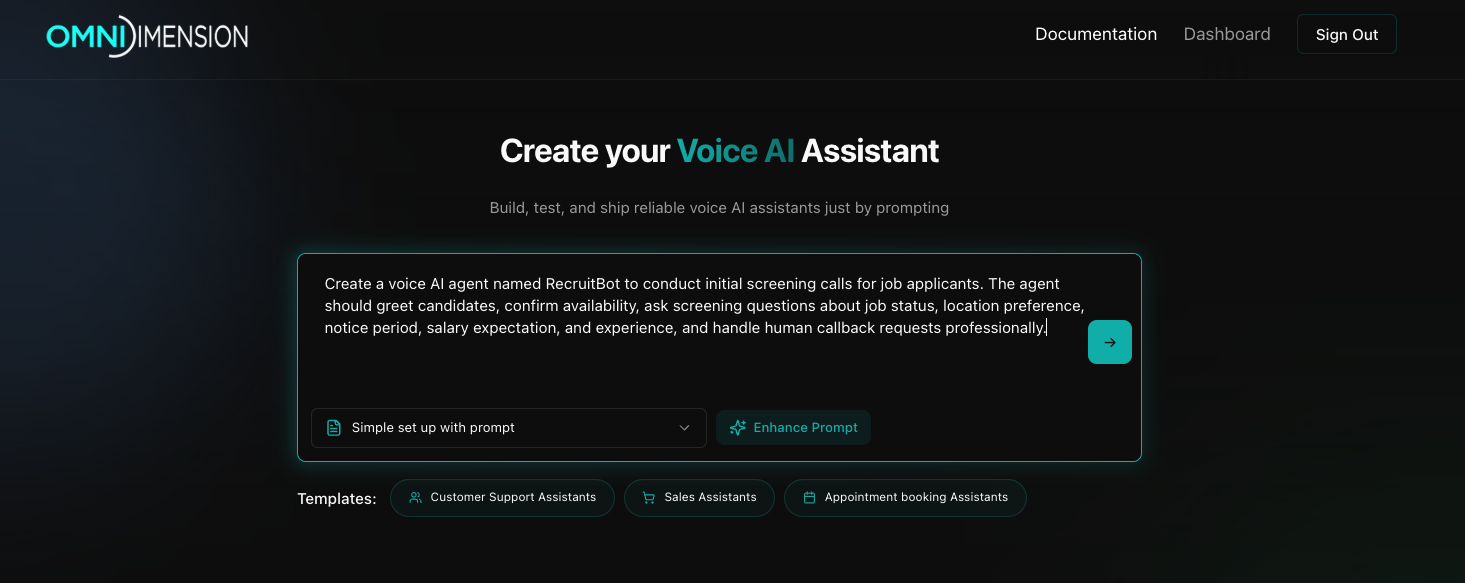
Write the prompt
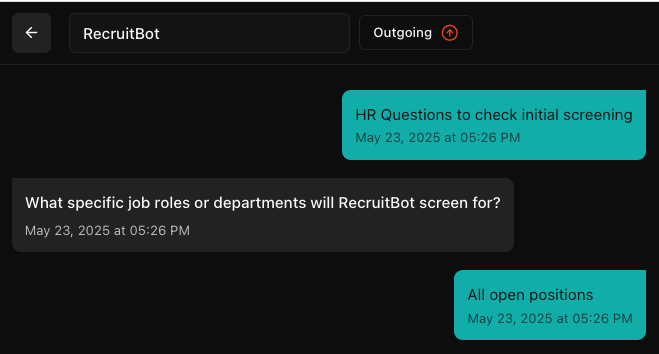
Start by writing a clear initial prompt that defines the purpose of your recruitment bot. Click the Enhance Prompt button to refine your prompt.
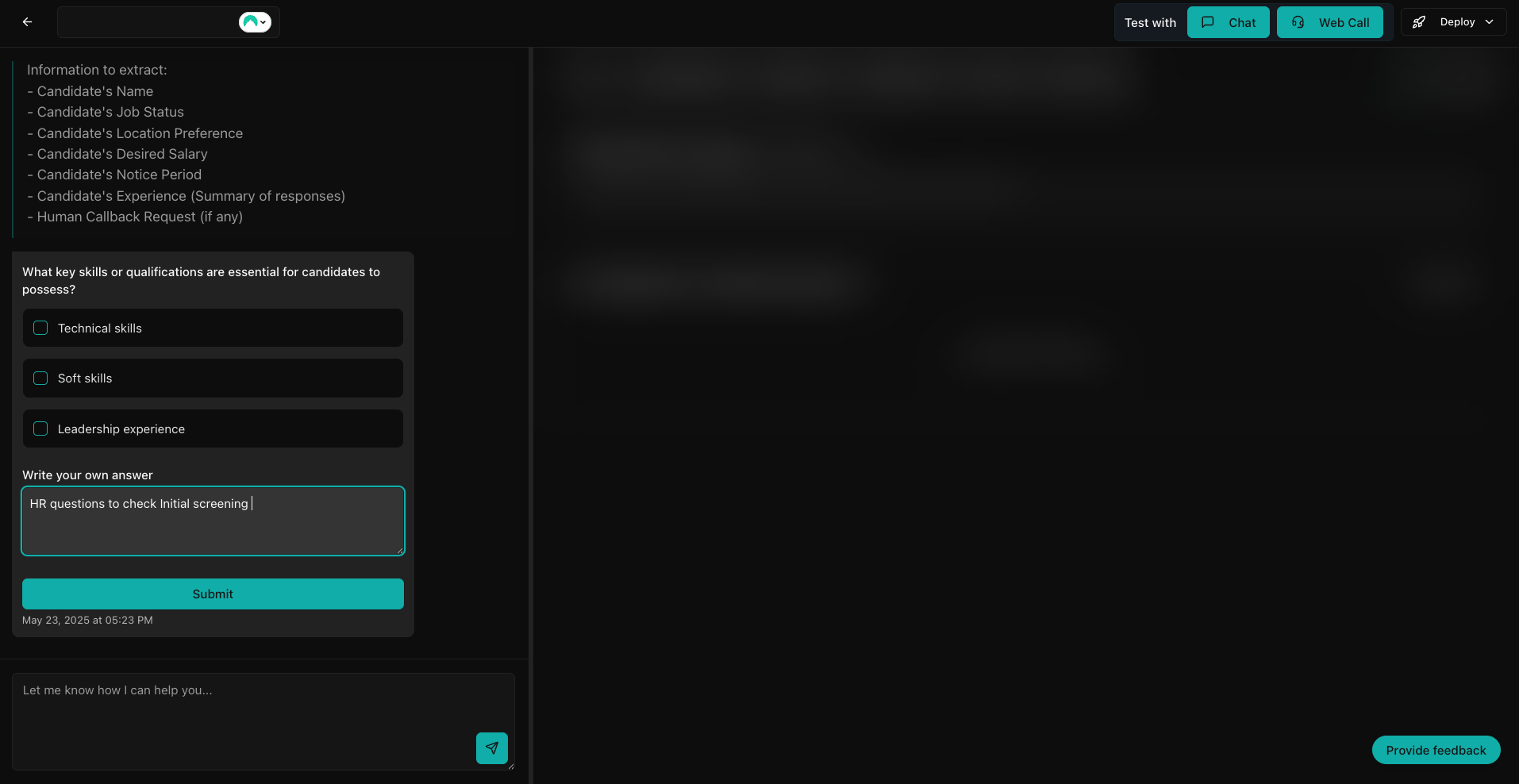
Answer clarifying questions
The platform will prompt you with clarifying questions about your recruitment process. Answer these precisely to help tailor the voice agent for your specific recruitment workflow. You can select from provided options or write your own custom answers if the options don't match your needs.
Automatic agent creation
Based on your prompt and answers, the system generates an initial version of RecruitBot. This includes greeting and availability confirmation, screening questions, candidate data extraction, and call summary generation.
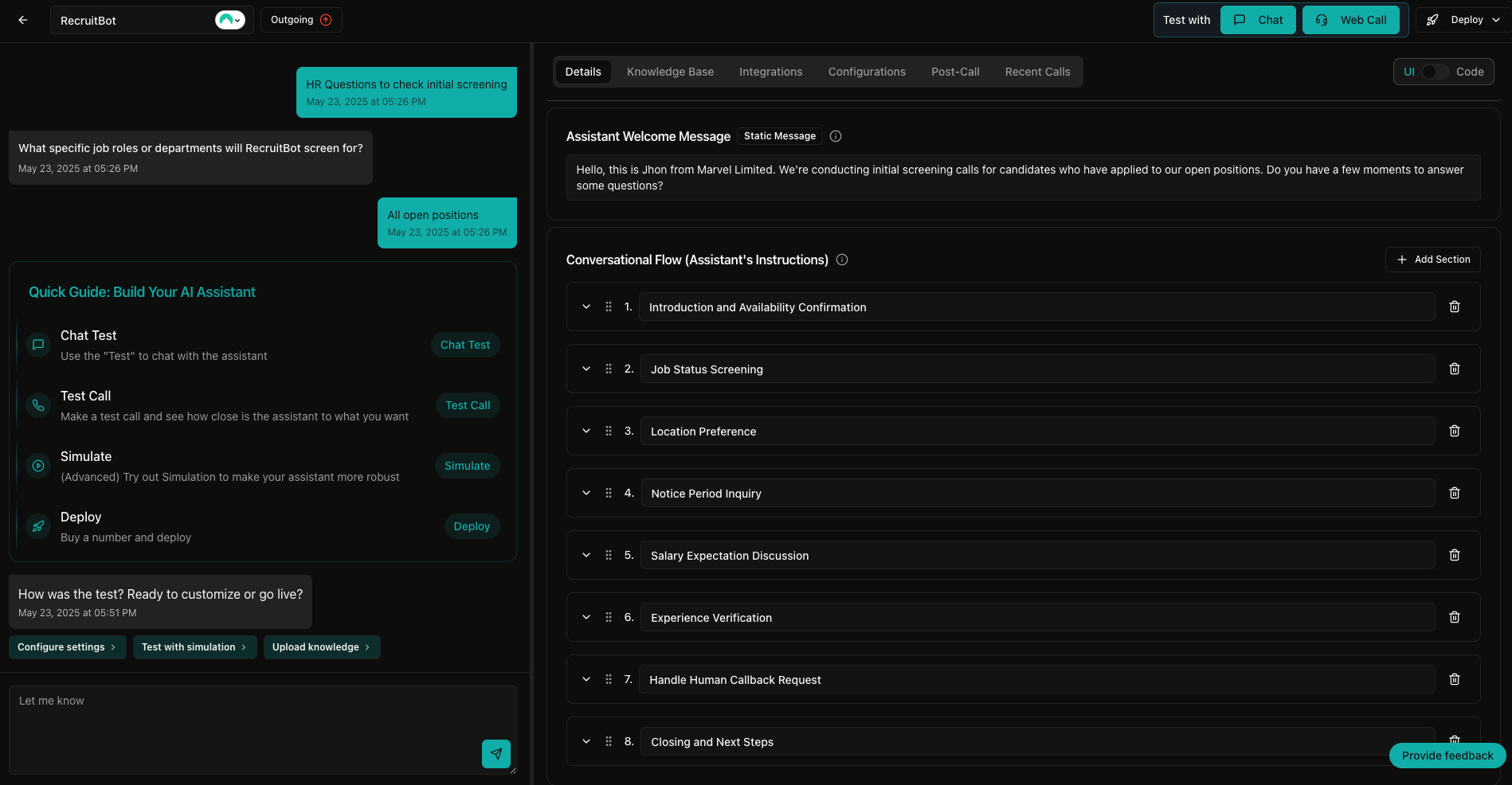
Review and customize agent details
- Navigate to the Details section of the platform
- Edit the welcome message to align with your company's tone and branding
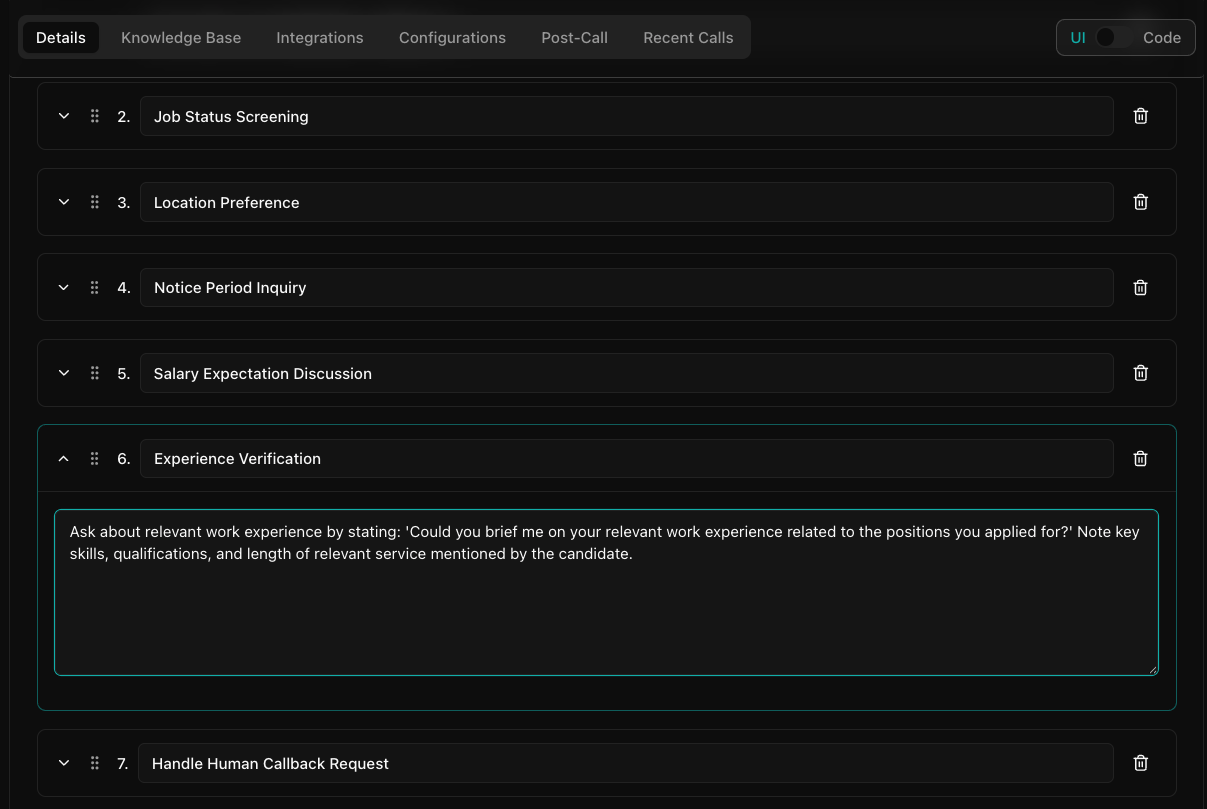
- Review and refine each step of the screening process (greeting, availability check, screening questions)
- Add additional prompts or sections to handle edge cases or specific recruitment scenarios
Test the agent
Use the platform's testing tools in the top-right corner.
- Test With Chat to validate text-based conversation flows
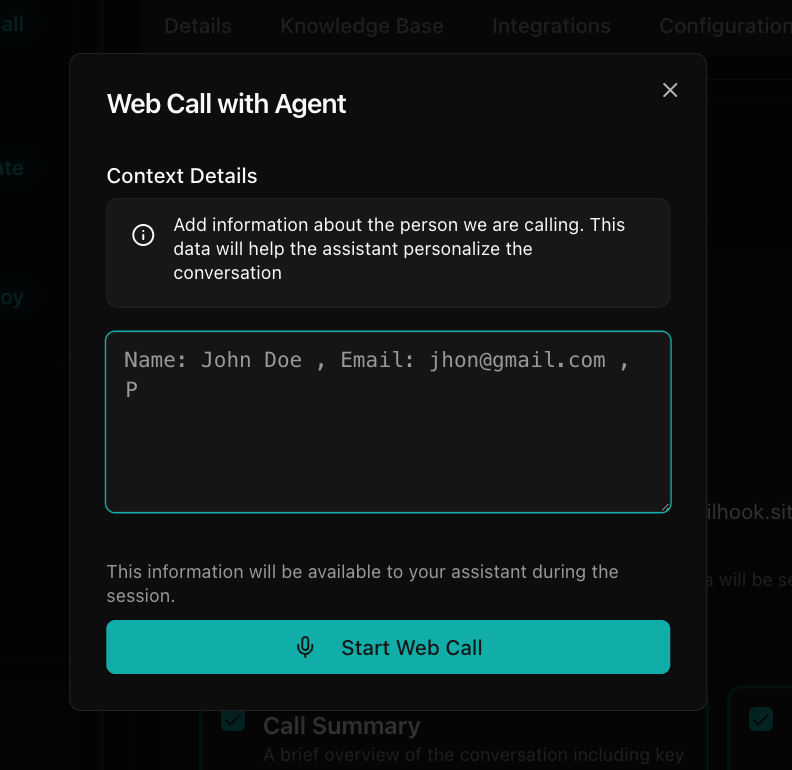
- Test With Web Call to simulate real voice calls
- RecruitBot is an outgoing agent that will call candidates directly
- During testing, you'll need to provide candidate details as call context
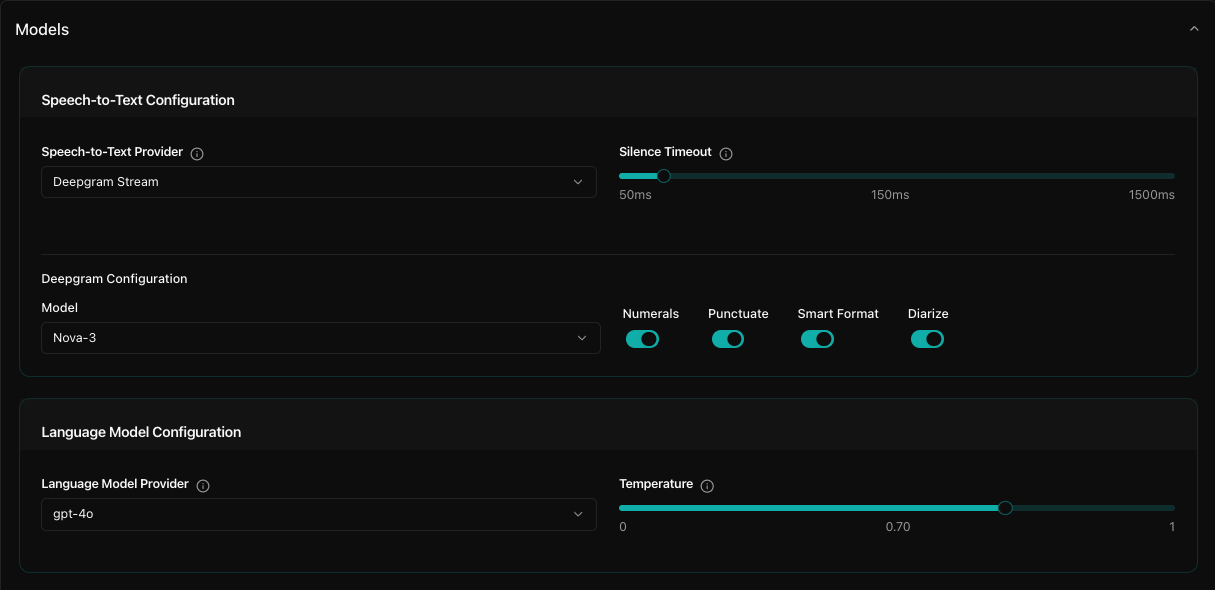
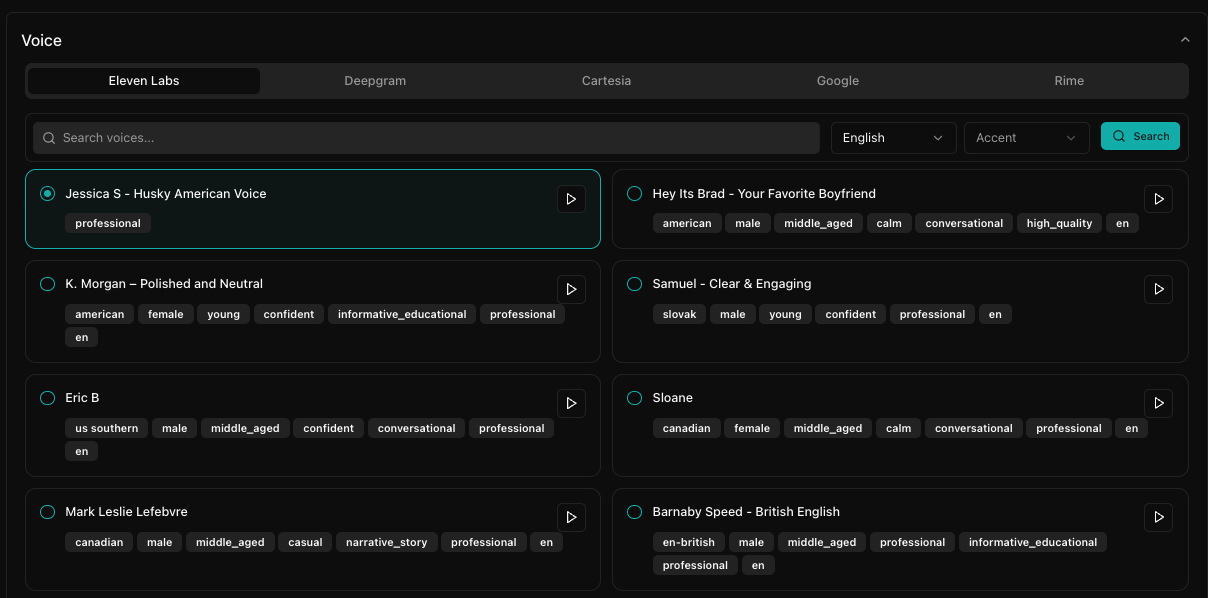
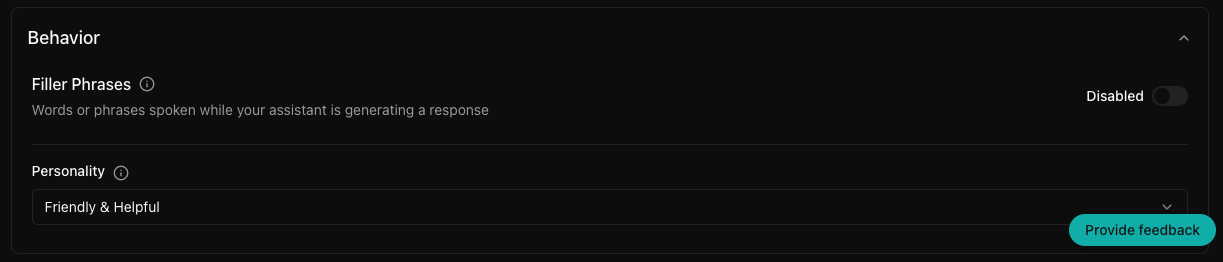
Configure model, STT, voice, and personality
Adjust your agent settings for optimal performance.
- Model: choose GPT-4.0 for sophisticated conversation handling
- Speech-to-Text: select Deepgram with the Nova 3 model and enable advanced features such as number conversion, punctuation, smart formatting
- Text-to-Speech: choose Eleven Labs voice (Jessica S, Husky American Female) for a professional tone
- Personality: set to Professional to maintain appropriate tone for recruitment calls
Knowledge base
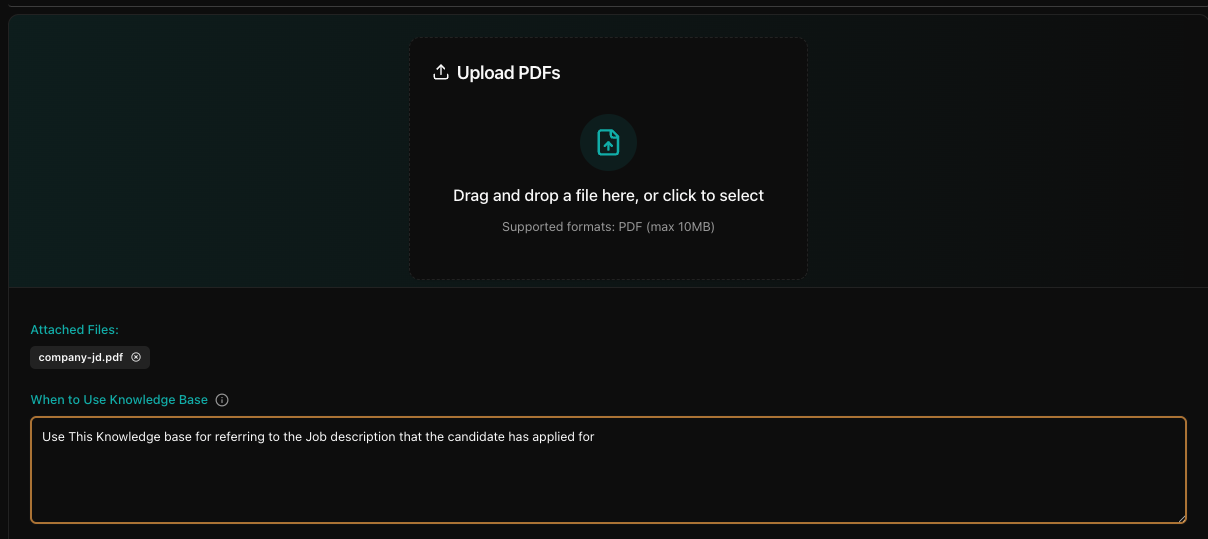
Equip your bot with job or company-specific knowledge.
- Upload relevant documents (job descriptions, company profiles, benefits information)
- These documents help the bot answer candidate queries accurately
- Set rules for when the knowledge base should be utilized during calls
Post-call actions
Configure what happens after each screening call.
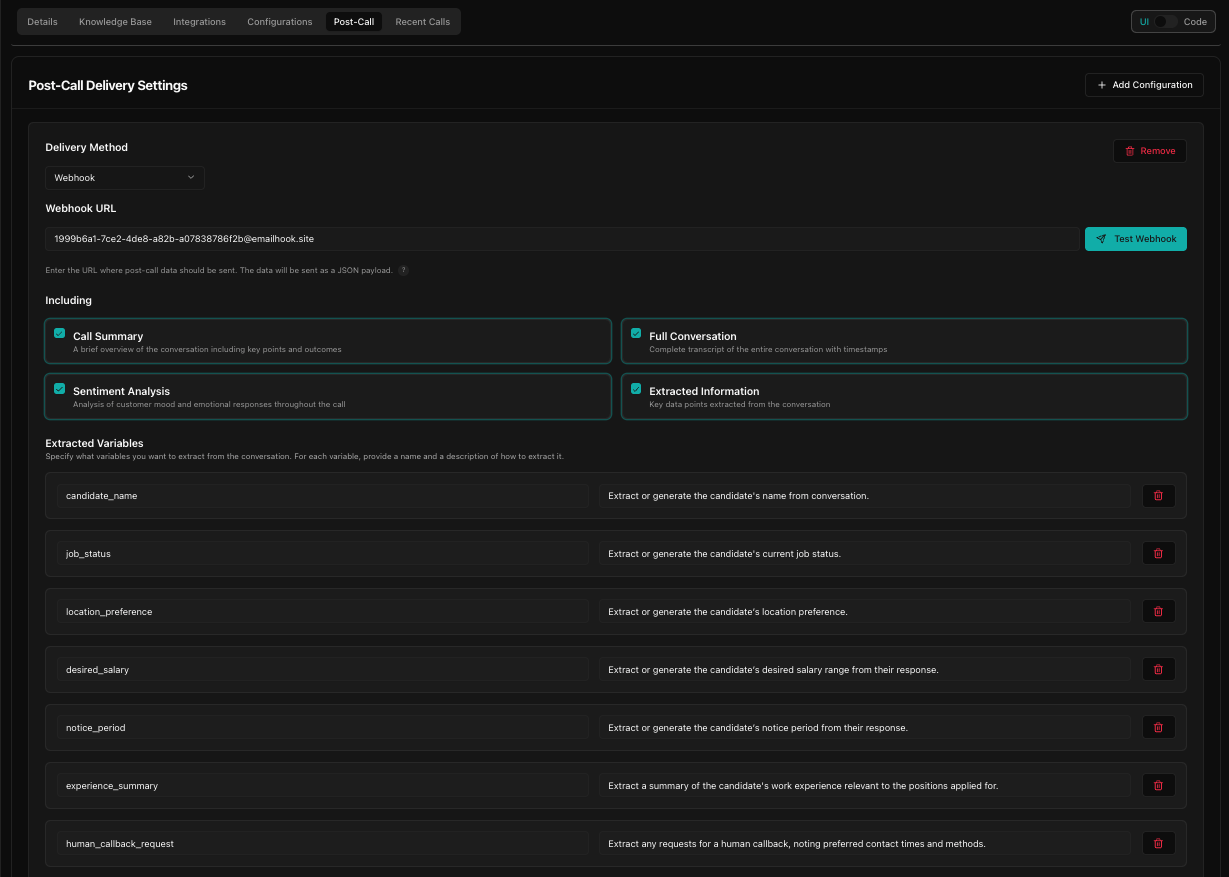
- Go to the Post Call section
- Select Webhook Delivery as a post-call action
- Add your webhook URL to receive call data
- Choose what to include: call summary, full transcript, and extracted candidate information (job status, location preference, notice period, salary expectations, experience)
- After the call ends, the entire payload will be sent to your webhook URL. From there you can use your own logic to process the data and take appropriate actions.
Final testing and monitoring
- Perform a complete test run to validate all screening questions
- Test fallback responses and human escalation flow
- Verify TTS clarity and pacing for a natural conversation experience
- Use Call Logs to track conversations, review AI evaluations, and refine the bot based on real interactions
Deployment
Deploy your RecruitBot to start screening candidates.
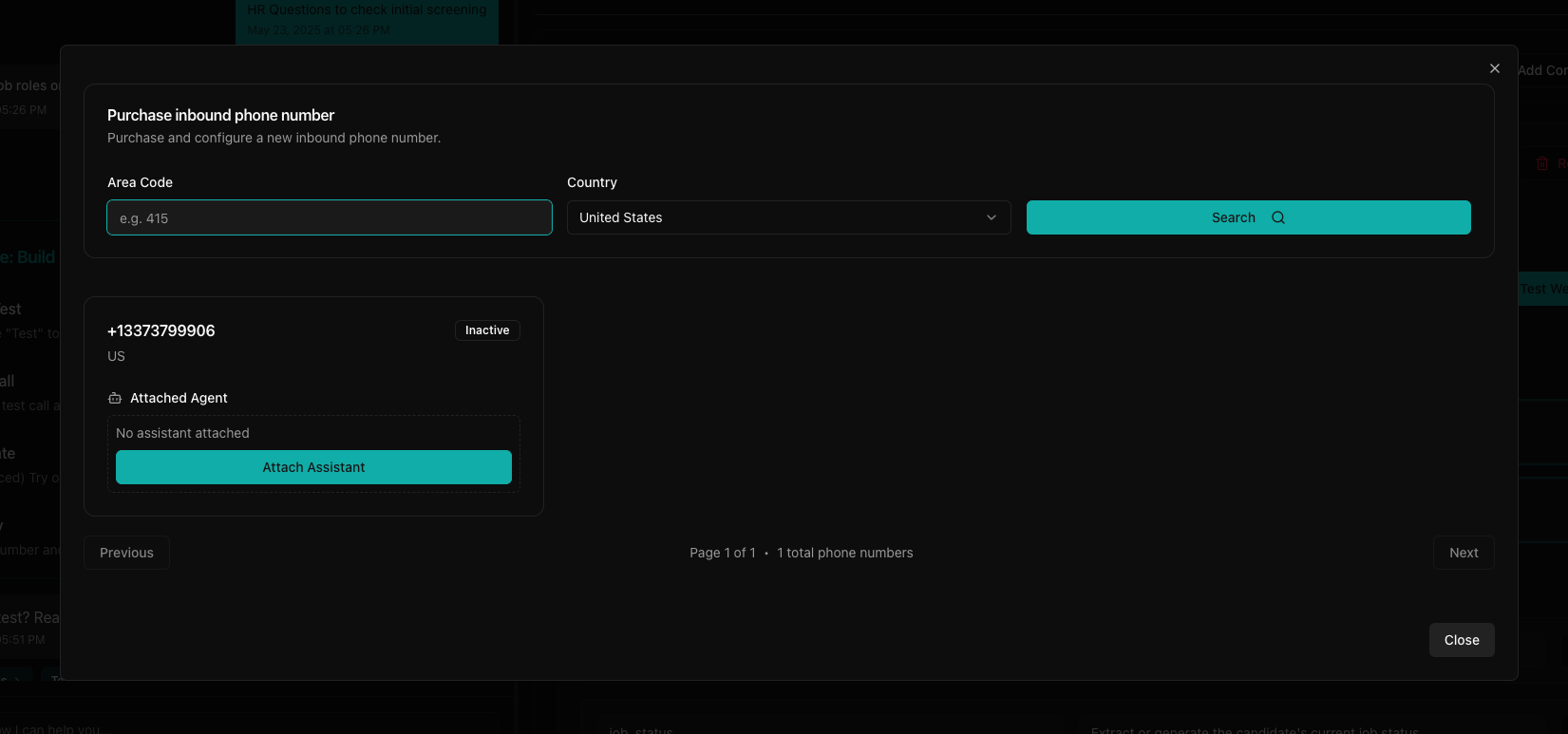
- Click the Deploy button in the top-right corner
- Purchase or select an existing phone number
- Attach the number to your RecruitBot by clicking Attach Assistant

Set up a bulk call campaign
After deploying your RecruitBot, you can set up bulk call campaigns to screen multiple candidates efficiently. See bulk calls for the full reference.
- Navigate to the Bulk Call section in the dashboard
- Create a new campaign with a descriptive name for your recruitment drive
- Select your RecruitBot's phone number from the dropdown menu
- Prepare a CSV file with candidate information including:
- Required:
phone_numbercolumn with country code (for example, 1 for US, 91 for India) - Optional but recommended: name, position_applied, resume_link, and other relevant context fields
- Required:
- Upload your CSV file (max 10MB) and review the preview to ensure data is correctly formatted
- Click Create Campaign to schedule all calls and track results in the campaign dashboard