

Agent versioning and publishing
Save named versions of an agent, publish one as what your live traffic runs, and roll back anytime while your draft stays editable.
Versioning lets you keep working on an agent without changing what your live agent does. You save named snapshots of the whole setup, publish the one you want live, and keep editing safely in a draft that only reaches traffic when you choose.
If you have never touched any of this, nothing changes. Every agent starts in live-edits mode, where each change you make is live on the next call or message. Versioning and publishing are there when you want a safety net.
How changes reach live traffic
There are three things to keep straight: your draft, your saved versions, and the published version.
- Your draft is the agent as you are editing it right now. In live-edits mode, the draft is also what live traffic gets.
- A saved version is a snapshot you keep. You can save as many as you like and restore any of them later.
- The published version is the one locked in for live traffic. Once you publish, your edits stay in the draft and only reach live traffic the next time you publish.
Testing always runs your draft, so you can try changes with a chat, web call, or phone call before anyone else hears them.
A post-call action added over the API to a published agent lands in the draft too, and starts running after your next publish.
You control all of this from Version history in the top row of the agent editor. The chip shows the version your draft is on, and turns amber when your draft has moved ahead of what callers get. Everything else, saving, restoring, and publishing, happens inside the panel it opens.

Save a version
A version is a snapshot of the entire agent setup at one moment: the prompt and its sections, voice, model, transcriber, transfer rules, post-call actions, knowledge base, and integrations. Open Version history from the top of the editor, name the snapshot in the form at the bottom, add an optional note, and save.
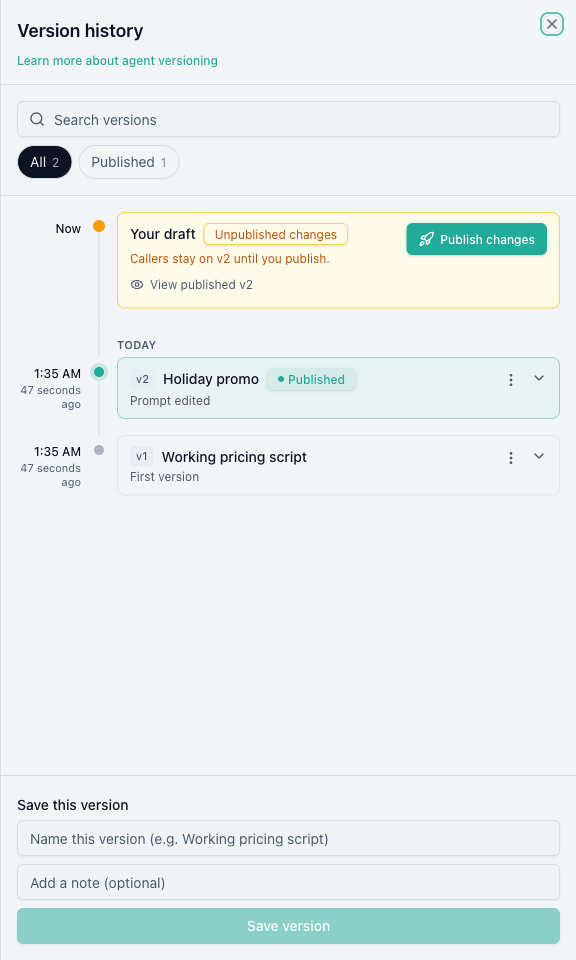
- Version numbers (v1, v2, v3, and so on) never change and are how you refer to a snapshot. Names carry the story: your own names, plus automatic ones like "Saved at publish" and "Automatic backup".
- The top of the panel always tells you what callers get right now, and which version your draft is on.
- Search by name or number to find one fast, for example type
v4. - Filters appear when they would actually narrow the list, so you never get a row of pills that all select the same versions.
- Rename or delete any version you no longer need. The published version cannot be deleted while it is live, so publish another version or unpublish first.
See exactly what changed
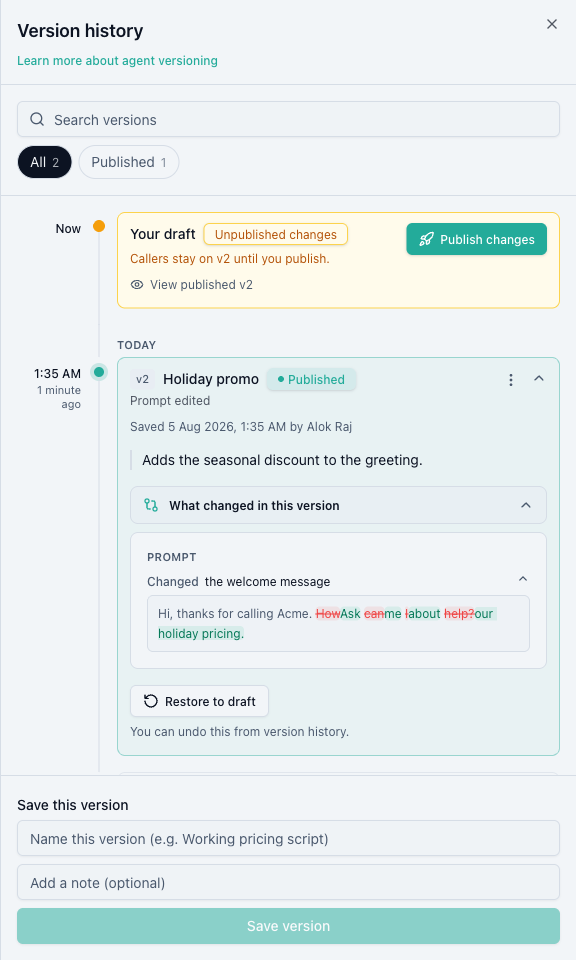
Expand any version and open What changed in this version for a plain summary of what moved. Expand a change to read the edit itself, with removed words struck through and added words highlighted in place, so you can see the wording change at a glance.
Publish a version
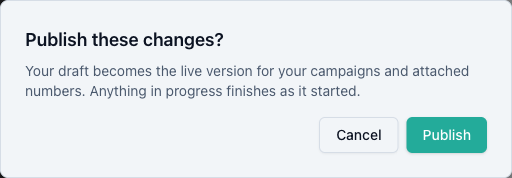
Publishing locks a version as what your live traffic runs: phone numbers, campaigns, WhatsApp, SMS, email, and the web widget. Open Version history, then use Publish at the top of the panel and confirm.
If your plan does not include publishing, that control reads Upgrade to publish. Everything else on this page keeps working, and every edit you make stays live as you make it.
Once published, the top of the panel names the version callers are on, with a link to view it.

After that, your edits stay in the draft. The Version history chip turns amber and the panel spells out which version callers stay on until you publish again, so you always know your draft is ahead of what live traffic gets.

A few things worth knowing about how a publish takes effect:
- Calls already in progress finish as they started. Publishing never interrupts a live call.
- New calls, the remaining calls of a running campaign, and the next message in a thread use the newly published version.
- Testing still runs your draft, so a test call after publishing exercises your latest edits, not the published version.
- You can publish the current draft or publish any older saved version straight from history. Publishing an older version does not touch your draft.
- When you start a bulk campaign, the review step shows which version the campaign will run, so you can confirm before it goes out.
View the published version
To check what live traffic is getting without leaving your draft, use View published. The agent opens read-only with a banner across the top, and your draft is untouched while you look. Choose Back to draft to return to editing.

Restore a version
Restoring brings a saved version back into your draft so you can keep editing from there. Restoring never deletes anything: an automatic backup of your current setup is taken when needed, so a restore can always be undone from version history. Restoring changes your draft only. It does not change live traffic until you publish. Restoring also resets that version's expiry, so a version you keep coming back to stays available.
Common workflows
Iterate safely while a campaign is running
- Publish the script you trust, so your running campaign keeps using it.
- Rework the prompt in your draft. The campaign is unaffected.
- Test your draft with a chat or a test call until it sounds right.
- Publish when ready. The remaining calls pick up the new version.
Keep seasonal or promo scripts ready
- Save your everyday script as a version named, for example, "Standard".
- Save your campaign script as "Holiday promo".
- Publish whichever one applies today. Swap them by publishing the other.
Recover from a bad edit
- Open Version history and find yesterday's version.
- Restore it into your draft, or use View published first to compare what is live against what you have now.
- Publish once you are happy.
Roll back live behavior instantly
- Open Version history and find the previous good version.
- Publish it straight from history. Live traffic moves back immediately and your draft stays exactly as it was.
Review before go-live
- A teammate opens View published to read the current live agent, read-only.
- You keep editing your draft at the same time.
- Publish when the review is done.
FAQ
Was this page helpful?