

WhatsApp Integration
Connect your WhatsApp number to OmniDimension so an AI agent can send messages, run campaigns, and reply to customers automatically.
Connect a WhatsApp number to OmniDimension and an AI agent can send messages, run campaigns, and reply to incoming customer messages automatically.
Ways to connect
You add a WhatsApp number from the Add Number button. Pick the method that matches how you use WhatsApp.
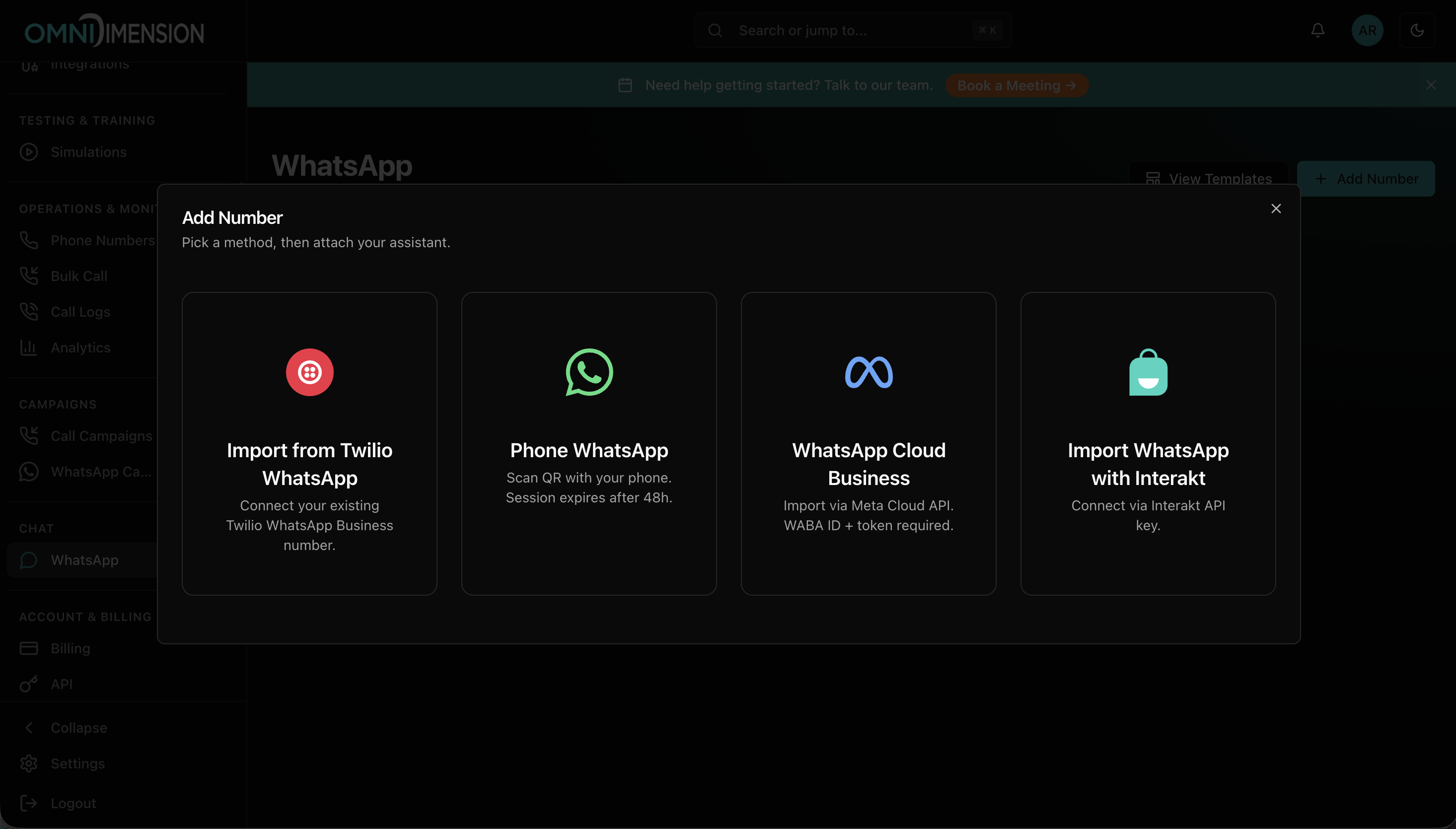
| Method | Best for | Notes |
|---|---|---|
| WhatsApp Cloud Business | Production (recommended) | Import via the Meta Cloud API. Stable, sends and replies, and supports campaigns. |
| Phone WhatsApp | A quick test | Link an existing number by QR code. The session expires after about 48 hours and needs re-linking. |
| Import from Twilio | A number already on Twilio | Enter your Twilio credentials, then attach an agent. |
| Import with Interakt | A number already on Interakt | Connect with the Interakt API key, then attach an agent. |
Set up WhatsApp Cloud (recommended)
The Cloud API is the production path. There are three short stages: get your credentials from Meta, import the number, then turn on AI replies.
1. Get your Meta credentials
Find the four values Meta gives you, and set up your Meta account from scratch if you are starting fresh.
2. Import your number
Paste the four credentials into OmniDimension, pick your number, and attach an AI agent.
3. Turn on AI replies
A one-time activation so Meta forwards incoming messages and your agent can reply.
Phone WhatsApp (quick test)
Want to try WhatsApp in a couple of minutes without any Meta setup? Link an existing number by QR code. This is good for testing, not production: the linked session expires after about 48 hours and has to be re-linked.
Start the connection
From Add Number, choose Phone WhatsApp.
Scan the QR code
A QR code appears on screen. On your phone:
- Open WhatsApp.
- Go to Settings (or Menu on Android).
- Tap Linked Devices, then Link a Device.
- Point your camera at the QR code.
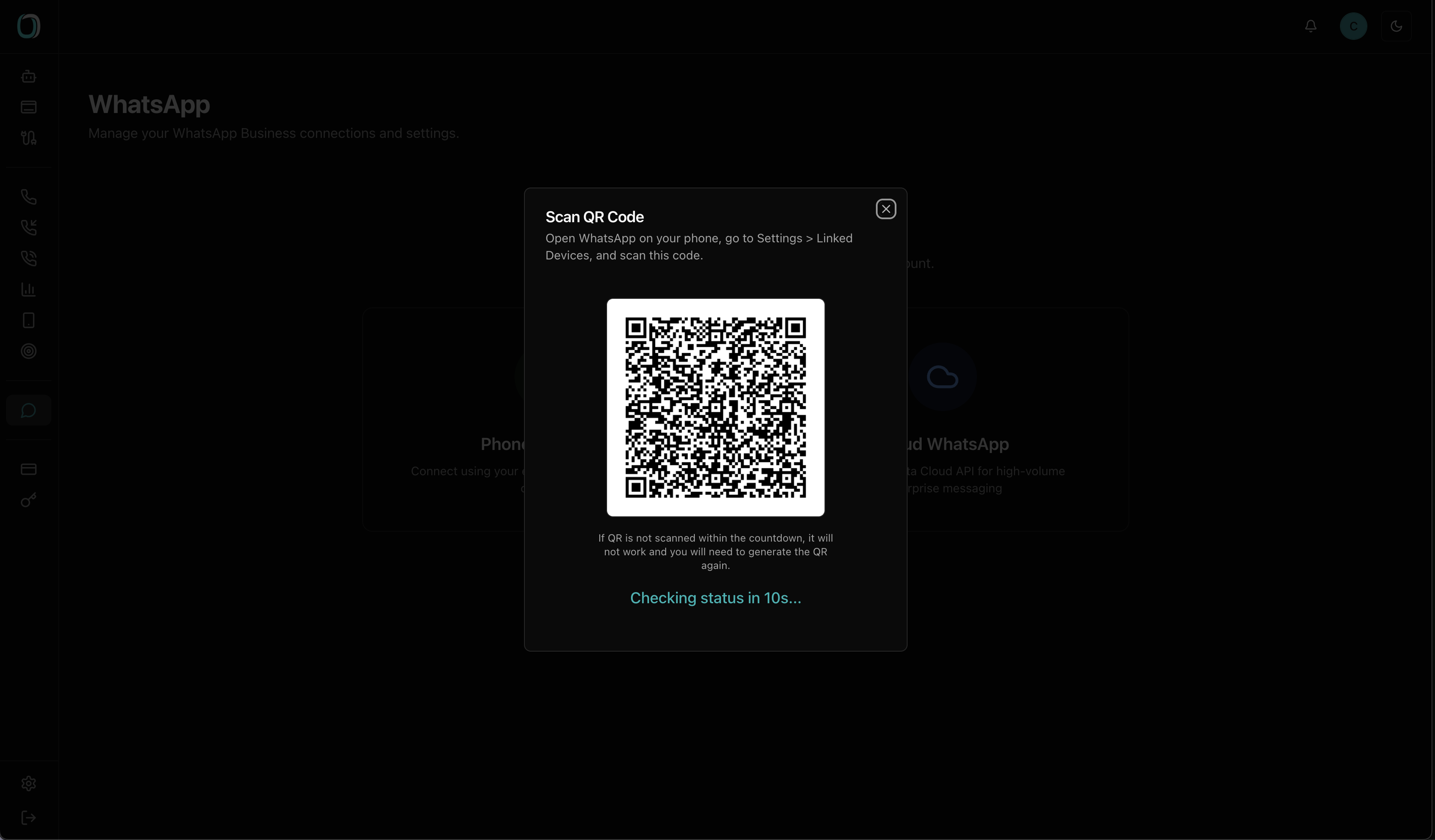
The QR code is valid for about 15 seconds. If it expires, regenerate it and scan again.
Attach an agent
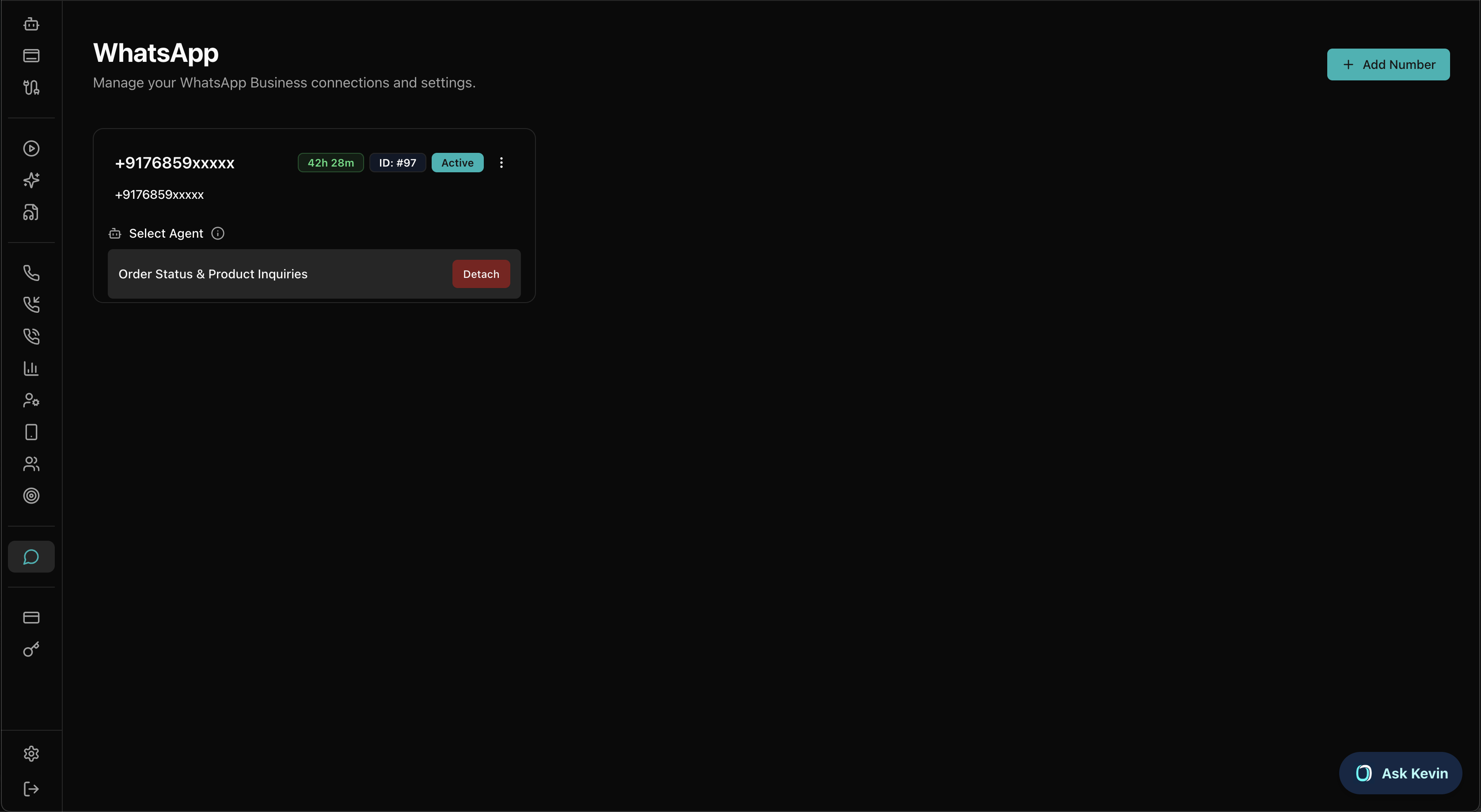
Once linked, your number appears in the list. Click Attach Assistant on its card and pick an agent. Any message to that number is now handled automatically.
Twilio and Interakt
If you already run WhatsApp through Twilio or Interakt, choose that method under Add Number, enter the provider's credentials, and attach an agent. The flow is the same shape as the Cloud import above.
Pricing
- WhatsApp is included on the Jump Starter plan and above. Accounts created before feature tiers were introduced keep the access they already had.
- Every outgoing WhatsApp message, whether an agent reply or a campaign message, is billed from your wallet balance at a flat per-message rate, currently $0.006. Incoming messages are free.
- Meta bills its own per-message charges separately to your WhatsApp Business account. Those are not included in the OmniDimension rate.
For current rates, check the live pricing page at omnidim.io/pricing.