

Agent replies
Choose the agent that answers a WhatsApp number, turn its replies on or off, and change how its replies feel to customers.
Each WhatsApp number has one agent that answers its chats.
Before you start
Receive messages is set up on the number. What the agent says comes from its prompt (Configure your agent).
Attach the agent
On the number card, open Choose agent next to Answered by and pick your agent. Remove agent in the same menu stops replies.
Turn agent replies on or off
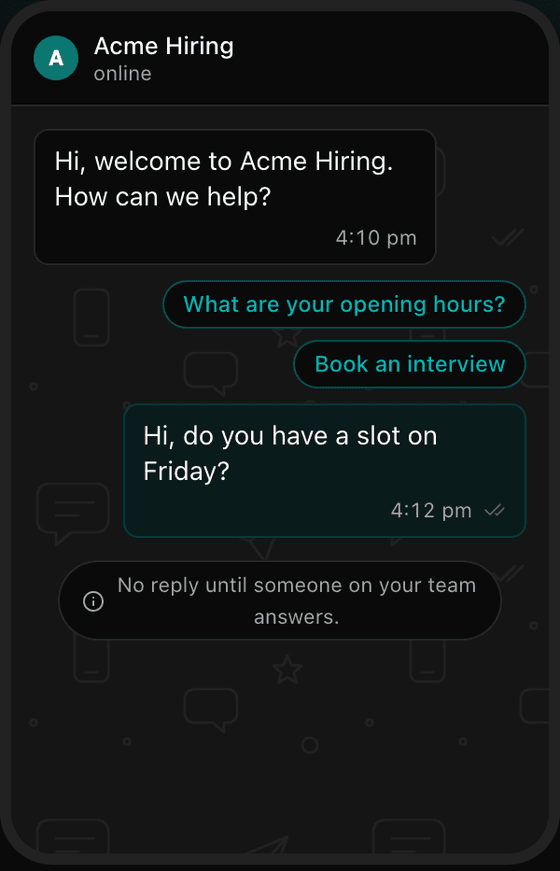
In Number settings (gear icon on the card), Replies has the Agent replies switch. Off means the agent stays quiet and your team answers from the chat inbox.
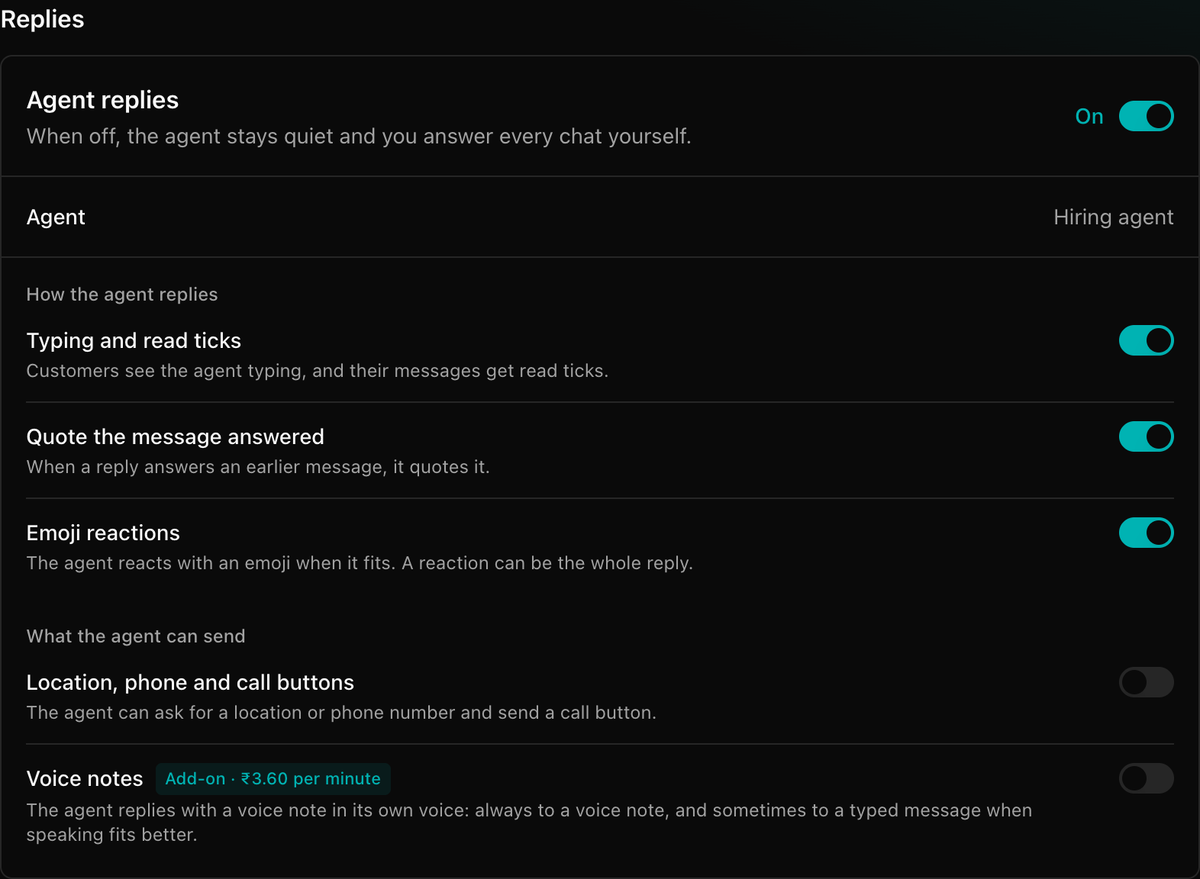
How the agent replies
These only work while Agent replies is on.
| Switch | What the customer sees |
|---|---|
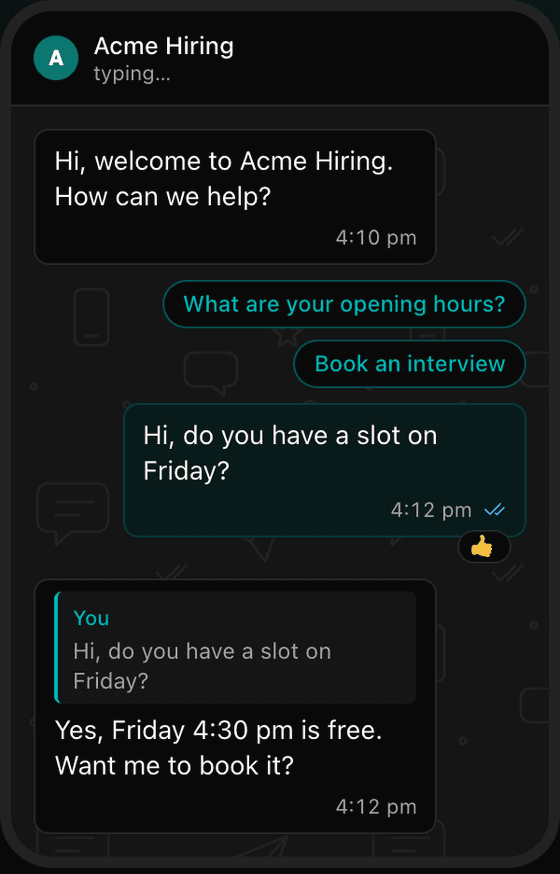
| Typing and read ticks | Blue ticks on their message, and a typing indicator while the agent writes. |
| Quote the message answered | A reply to an earlier message quotes it, like people do in WhatsApp. |
| Emoji reactions | The agent can react with an emoji, for example 👍 to "thanks". |
What the agent can send
| Switch | What it does |
|---|---|
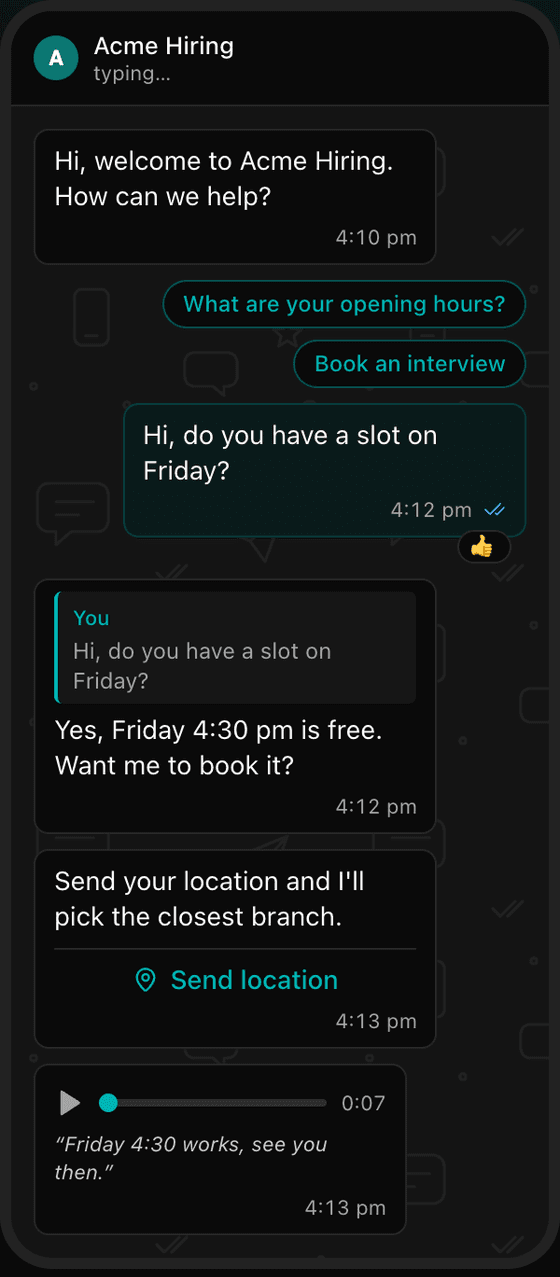
| Location, phone and call buttons | The agent can ask for the customer's location or phone number, and send a call button when WhatsApp calls are on. |
| Voice notes | The agent answers a voice note with a voice note. |
Voice notes are a paid add-on; the rate shows next to the switch before you confirm. A switch you can't use shows Not on your plan or Not on this number.
What the customer sees
The phone beside the settings in the dashboard updates as you switch things on or off.
When your team steps in
If your team takes over a chat, the agent stays quiet in that chat until it's handed back.