

Chat with customers
Read every WhatsApp conversation on a number, reply yourself, take a chat over from the agent, and hand it back.
Each number has its own chat inbox, with every conversation the agent and your team have had.
Open the inbox
Click Open chats on a number card.
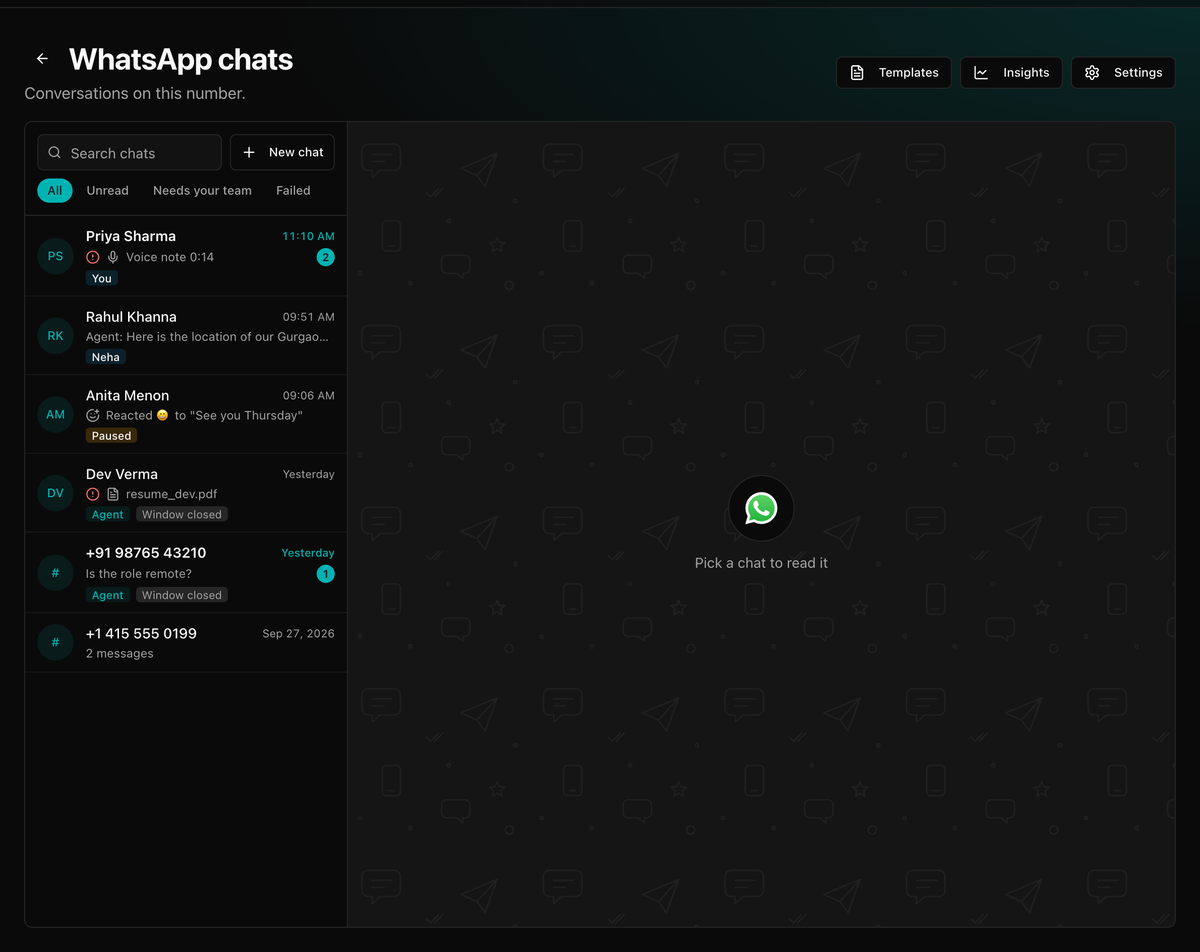
Find a conversation
Conversations are listed newest first, with who is handling each: Agent, Paused, You, or a teammate. Window closed means the 24-hour window has ended.
Use Search chats or the filters:
| Filter | Shows |
|---|---|
| All | Every conversation. |
| Unread | Messages you haven't opened. |
| Needs your team | Chats your team is handling, or where the agent is paused. |
| Failed | A message wasn't delivered. |
| Campaign replies | Customers who replied to a broadcast. |
Click the customer's name in an open chat for Details: their number, time left in the window, message count, and what the chat has cost.
The 24-hour reply window
The bar above the message box shows You can reply for and the time left. Once it closes, you can only Send a template. See the 24-hour window.
Take over a chat
Take over
Click Take over chat. The agent stays quiet until you hand it back. Sending a message yourself also takes the chat over.
Reply
Type and click Send. Your messages show as sent by you.
Hand back
Click Hand back to agent. The agent answers the customer's next message.
While your team handles a chat, nothing automatic goes to that customer: no agent replies, broadcasts or workflow messages.
Send photos, documents, and templates
Click + next to the message box:
- Photo or document. Photos up to 5 MB; PDF, Word, Excel or text files up to 16 MB.
- Template. Opens the template picker. See Send a template in a chat.
Start a new chat
New chats start with a template. Click New chat, then follow Send a template in a chat.
Reading messages
- Ticks show sent, delivered and read, as in WhatsApp.
- Reply on a message quotes it.
- Voice notes play in the chat, with a transcript below.
- Reactions show under the message they were added to.
- Not delivered means a message failed. Click Details for the reason and a link to its error code.
Why the agent did that
Click the sparkle button (Show agent insights) at the top of a chat. When the agent reacts, sends a voice note, or asks for a location, a line under its reply explains why.
Who can reply
Anyone with WhatsApp access can read chats. Replying and taking over need edit access.