

Number settings
Advanced options for a WhatsApp number, including welcome prompts, commands, image workflows, QR codes, blocked contacts, and calls.
Each number has one settings page that applies to all its chats. Open it with the Settings (gear) button on the number card.
Some sections only show when they apply to your number or plan.
Receive messages
Lets customer messages reach the agent. See Receive messages.
Replies
The agent reply switches. See Agent replies.
Welcome prompts and commands
- Welcome prompts: up to 4 tappable suggestions shown in a new chat, like "What are your opening hours?" (80 characters each).
- Commands: shortcuts customers type after a slash, like
/menu.
Click Save prompts and commands when done.
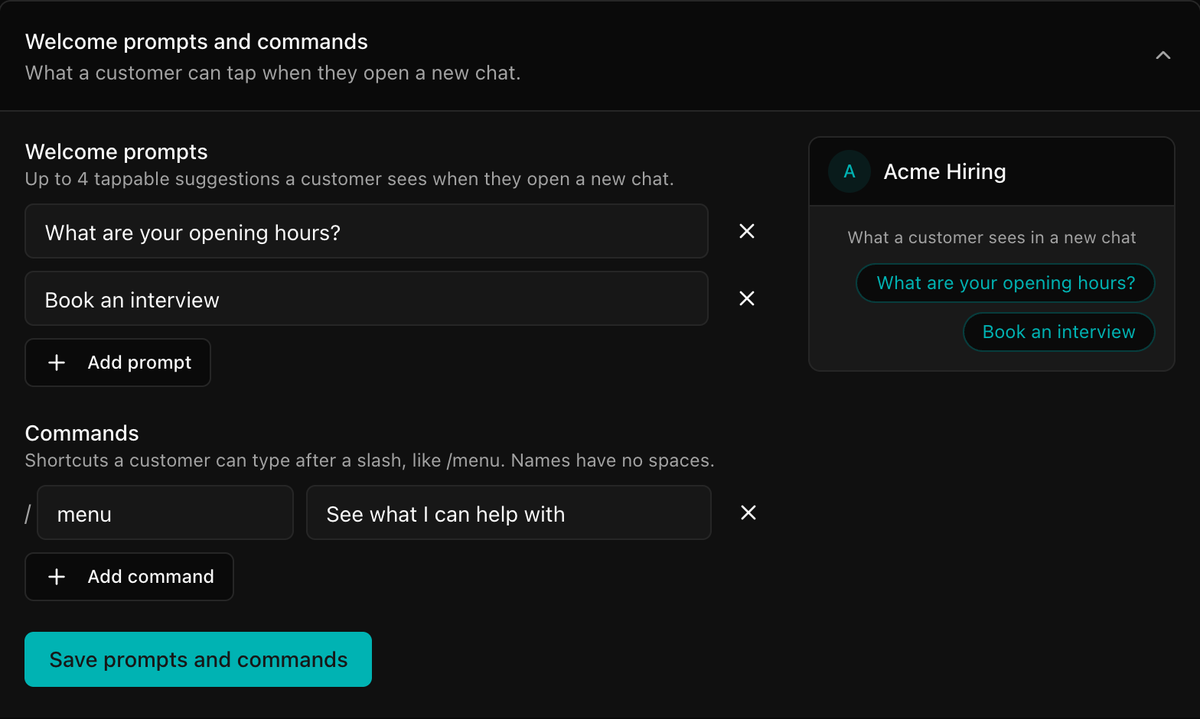
Image messages
Run a workflow when a customer sends a photo, for example to read a receipt. Click Attach image workflow and pick a published workflow that starts from a WhatsApp inbound trigger. Needs a plan with workflows.
QR codes and links
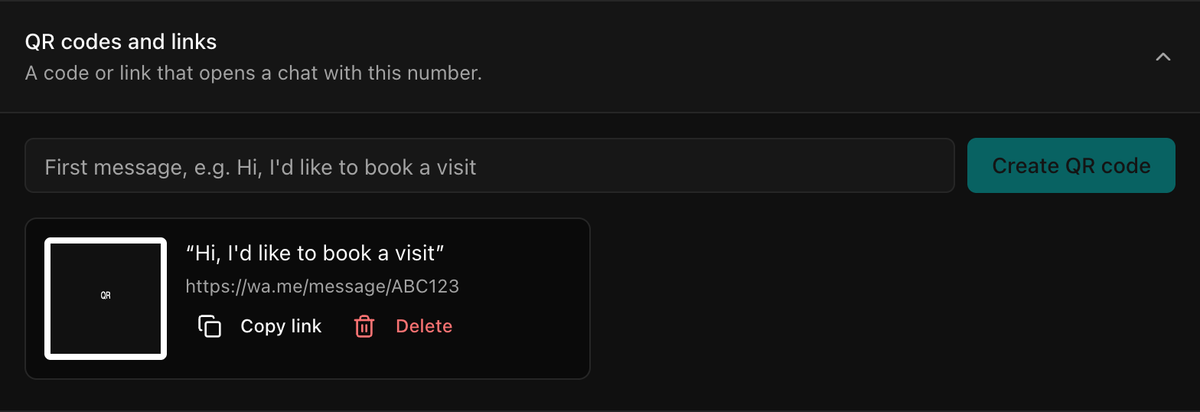
Create a QR code or link that opens a chat with this number, with the first message typed in. Type the message, then click Create QR code. Use Copy link to share the link instead.
Blocked contacts
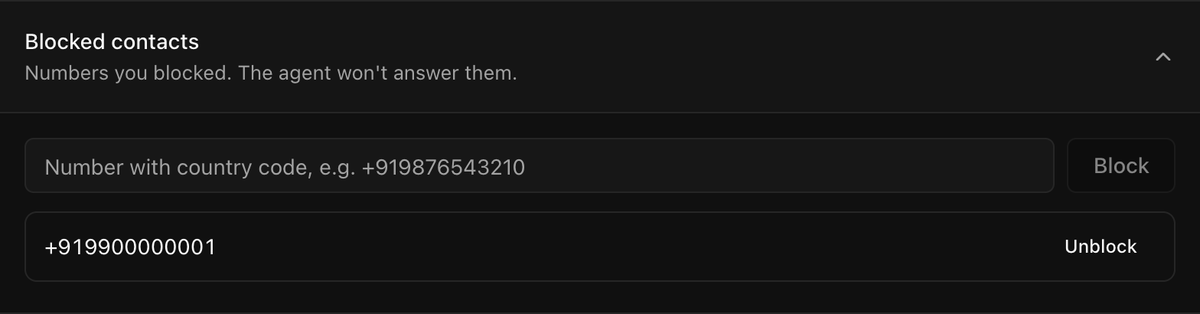
Blocked numbers can't message this number. Enter the number with country code and click Block; Unblock reverses it.
Customers who opted out
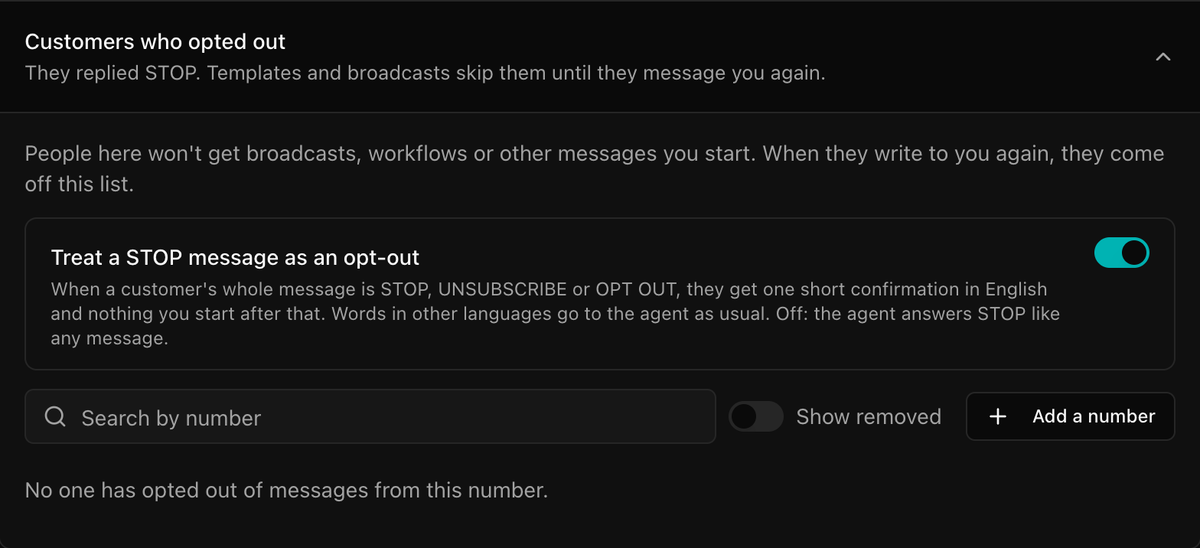
Customers who replied STOP. Templates and broadcasts skip them until they message you again (how opt-outs work).
- Treat a STOP message as an opt-out: on by default. Turn it off and the agent answers STOP like any message.
- Add a number: opt someone out by hand, for example if they asked on a call.
- Remove: lets them receive your messages again.
Calls
Let customers call this number. See WhatsApp calls.
Who can change settings
Changing settings needs edit access to WhatsApp.