

Insurance claim status and filing
Build a voice agent that handles insurance claim status checks, new claim filing, and customer inquiries.
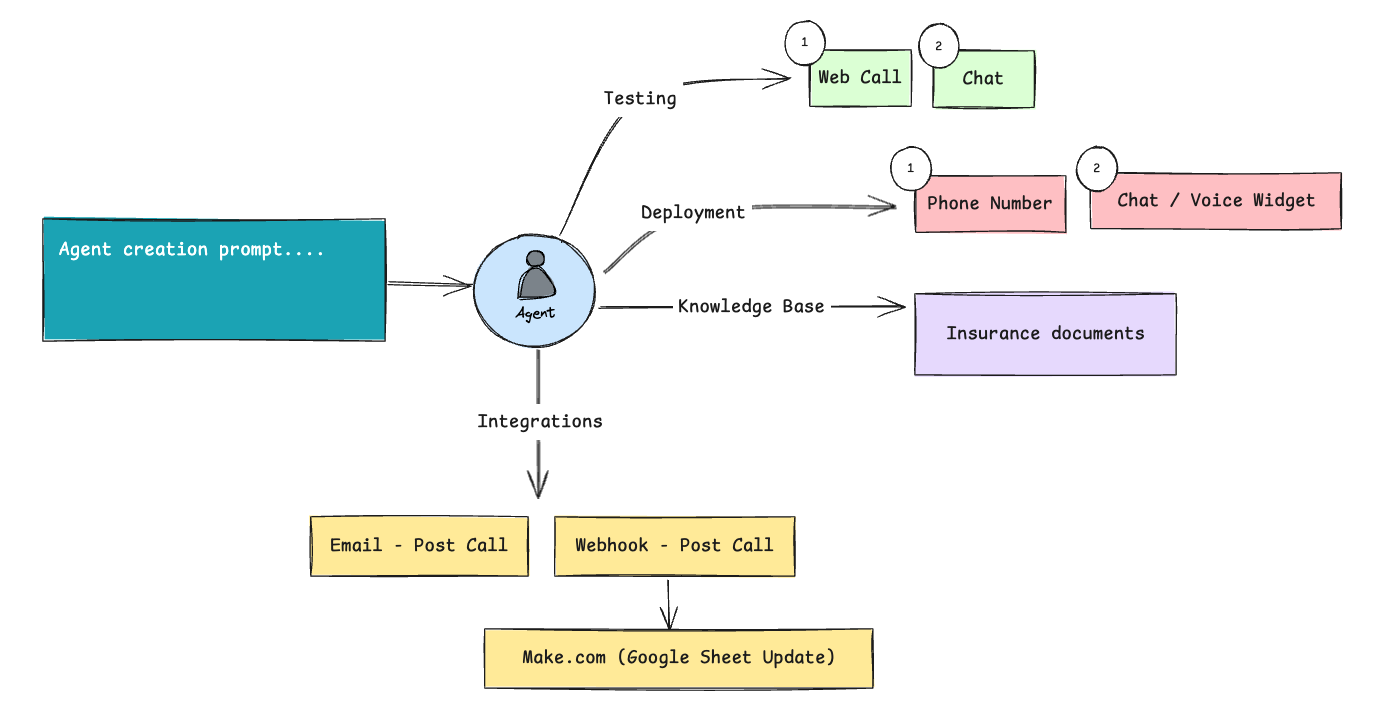
Create a complete insurance claim voice agent on OmniDimension. The agent checks claim status, files new claims, answers policy questions from a knowledge base, and logs every call to a Google Sheet via Make.com.
Configure your agent prompt
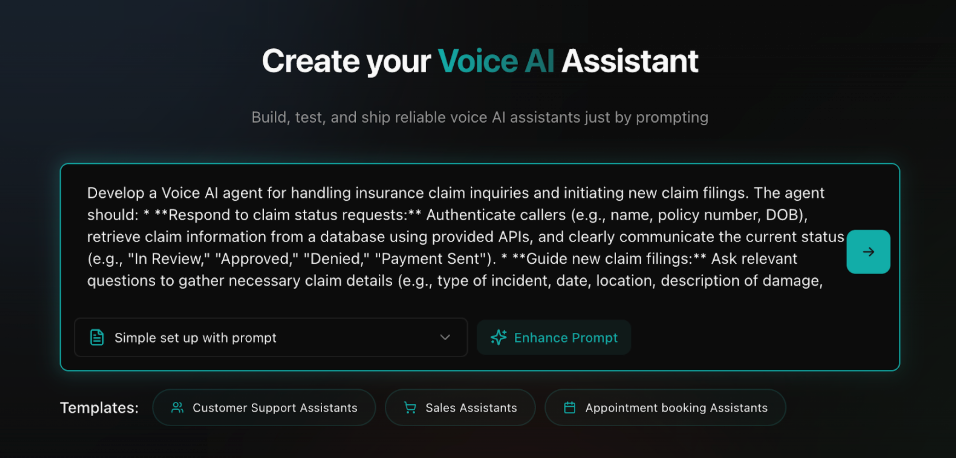
Start by creating your voice agent with an insurance-specific prompt, or write a simple prompt and use the Enhance button to make it more descriptive.
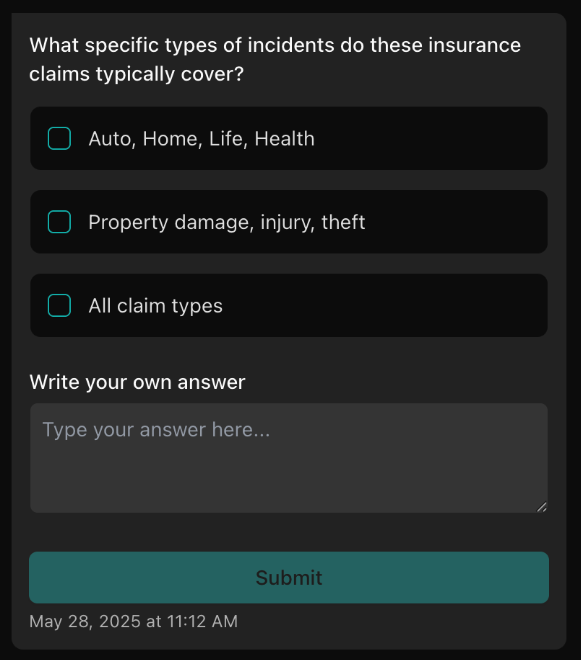
Answer clarifying questions
Complete the agent setup by answering important questions about your insurance company, claim types, and verification procedures.
Test your agent via web call
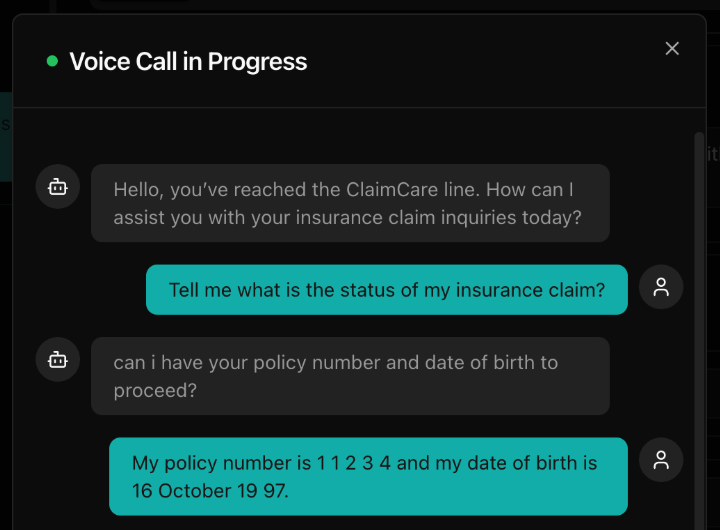
Once your agent is configured, test it through a web call to verify its functionality.
- Navigate to the testing interface
- Click Test with Web Call to initiate a test conversation
- Speak with your agent to verify proper greeting and introduction
- Test claim status requests and new claim filing scenarios
- Verify natural conversation flow and appropriate responses to policy questions
Enhance with knowledge base PDFs
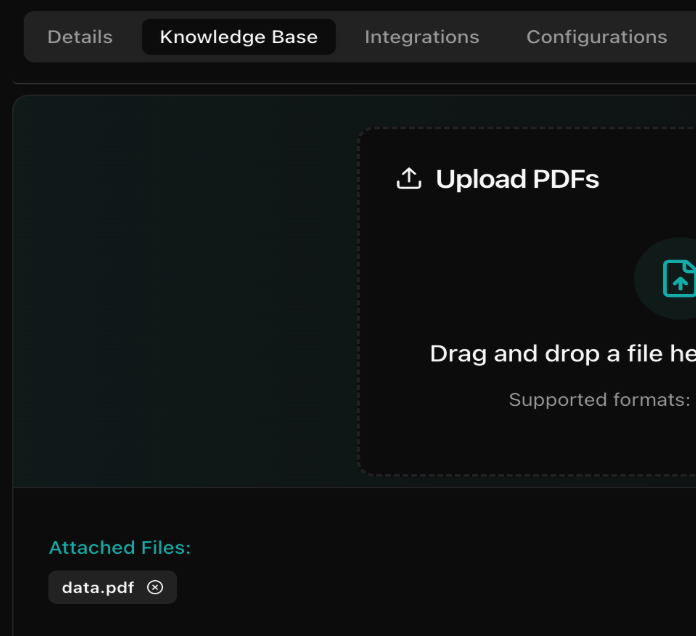
Upload relevant documents to improve your agent's knowledge about insurance policies and claims processing.
- Navigate to the Knowledge Base tab
- Click Upload PDFs
- Drag and drop or select your insurance documents
- PDFs must be under 10MB in size
Configure post-call settings
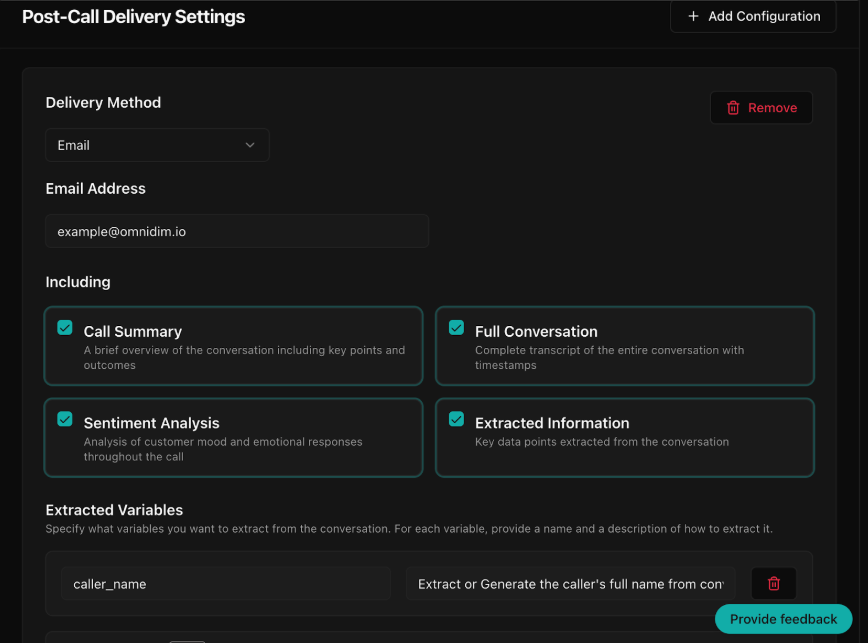
Set up data extraction for valuable insights from customer calls.
- Navigate to the Post-Call tab
- Set delivery method to Email and enter the recipient address
- Choose data to include: Summary, Full Conversation, Sentiment, Extracted Info
- Add extracted variables like caller name, policy number, claim number, incident date, and claim type
Customize speech-to-text
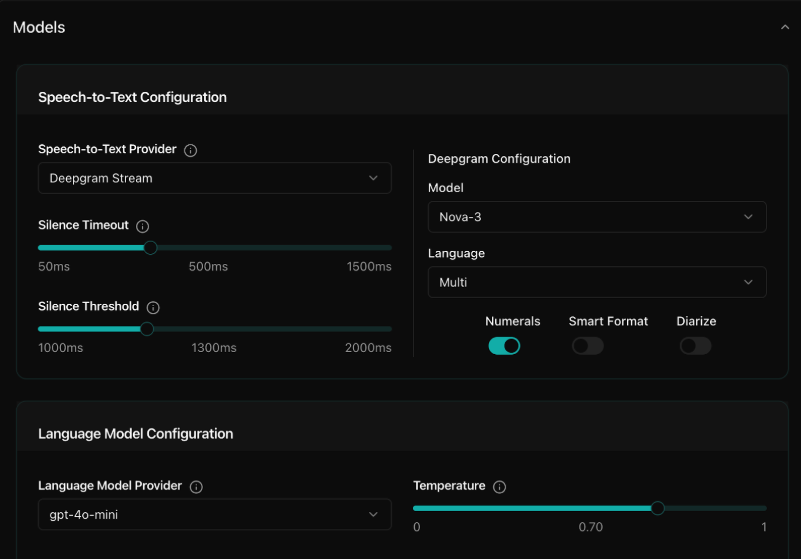
Fine-tune the speech recognition for insurance terminology.
- Navigate to the Models section
- Under Speech-to-Text Configuration:
- Select provider (for example, Deepgram Stream)
- Adjust Silence Timeout
- Set Silence Threshold
Customize voice and behavior
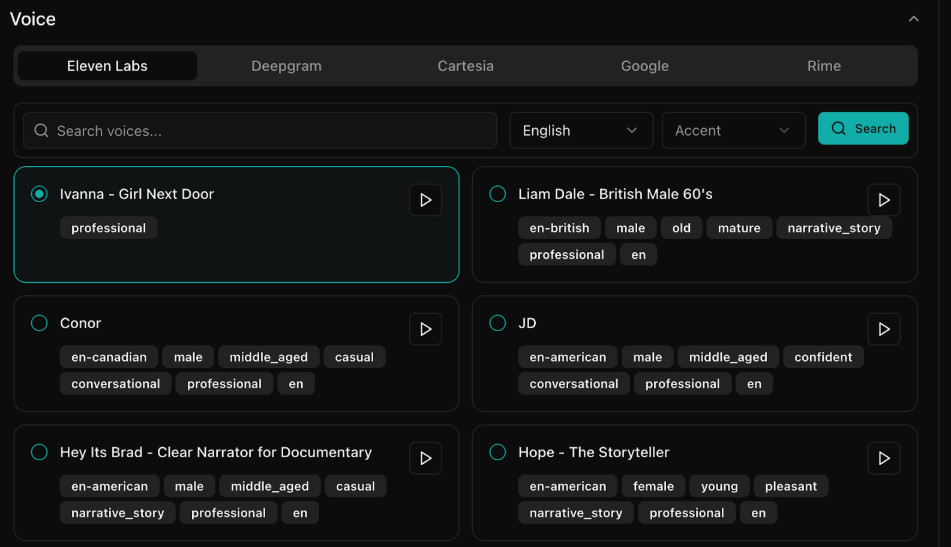
Personalize your agent's voice and interaction style to match your insurance brand.
- Go to the Voice section and select a provider (for example, Eleven Labs)
- Browse, filter, and test voices to match your brand tone
- Choose a voice with a professional, friendly, or empathetic style
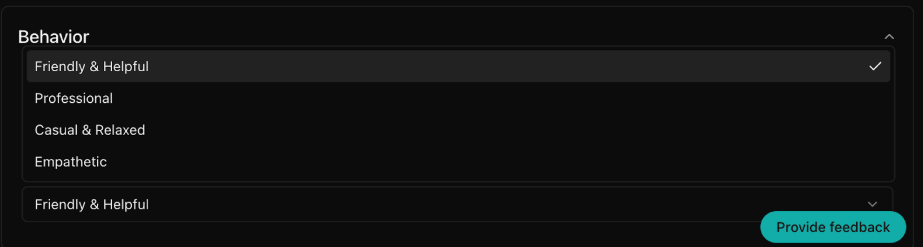
- Configure behavior to match your service style (Friendly and Helpful, Professional, Casual, Empathetic)
Set up Make.com webhook integration
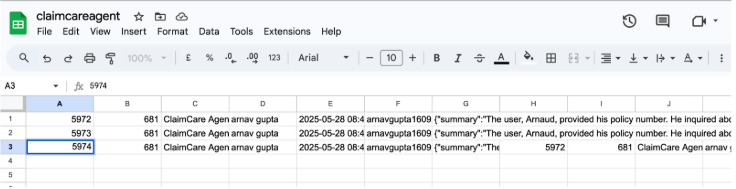
Enhance your agent with webhook integration to automatically log all call data in a spreadsheet.
- Log in to your Make.com account and create a new scenario
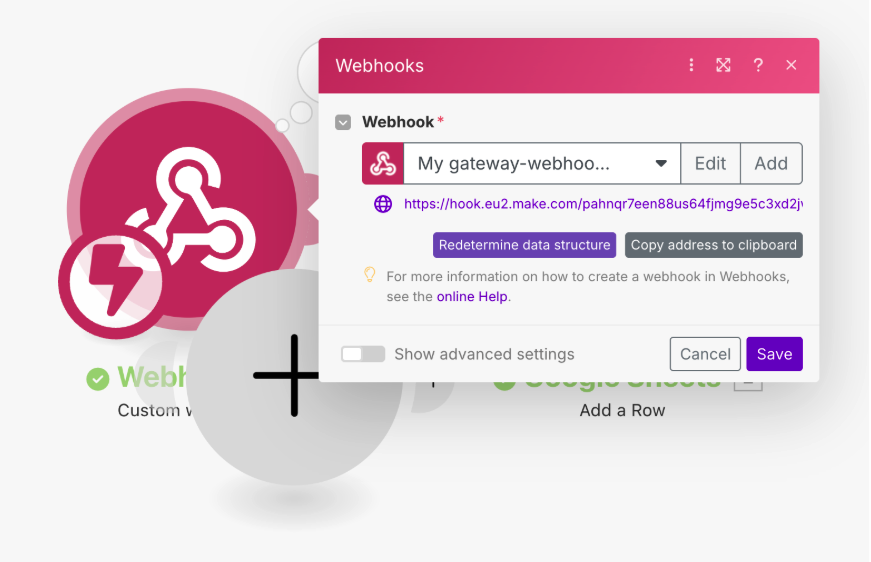
- Start with a webhook trigger and copy the generated URL
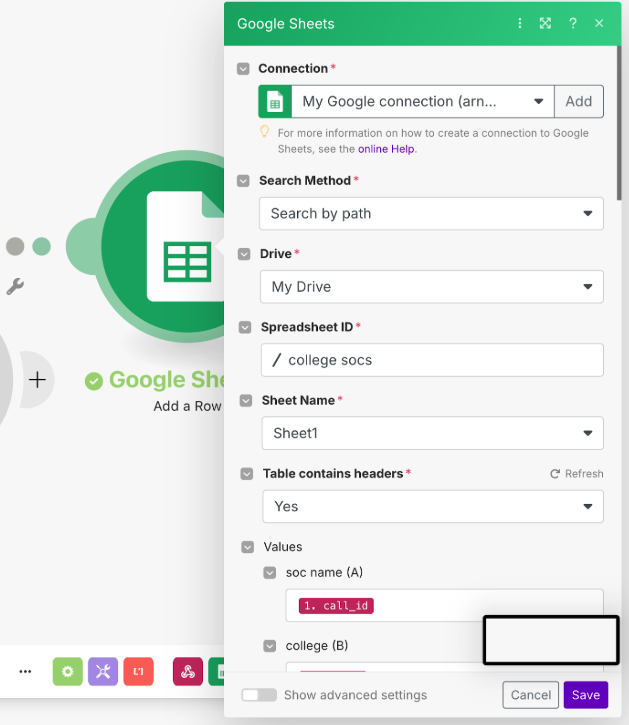
- Add a Google Sheets module and connect your Google account
- Map webhook data to the spreadsheet columns
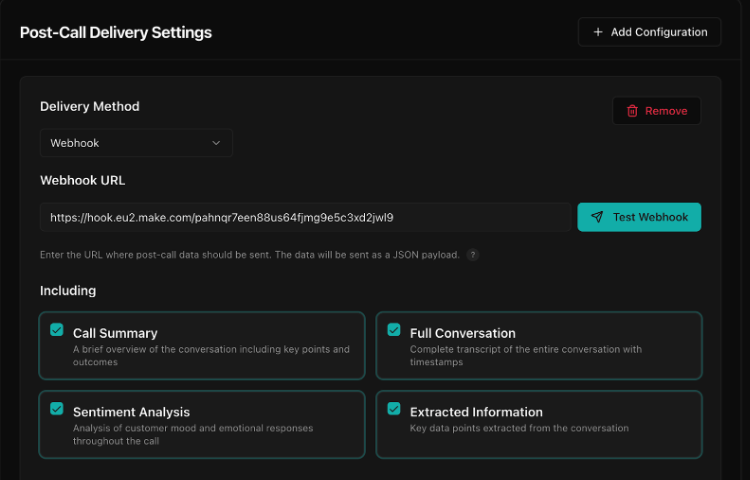
- In OmniDimension, set Webhook as the delivery method and paste the URL
- Select data to include: Summary, Full Conversation, Sentiment, Extracted Info
- Test the webhook to ensure call data is recorded properly
See Make, Zapier, n8n, GHL and post-call actions for the full integration reference.
Final testing and monitoring
Before deploying your agent to production, conduct thorough testing and set up monitoring.
- Conduct thorough testing with various claim scenarios
- Validate all integrations are working properly
- Check post-call delivery to ensure data is being correctly captured
- Monitor initial calls and adjust configuration as needed
- Review call logs and analytics to identify improvement opportunities