

Google Calendar
Integrate Google Calendar with your agent to schedule and manage meetings automatically.
Google Calendar integration allows your agent to check calendar availability and book appointments automatically using OAuth-based secure access.
Key benefits
- Automated appointment scheduling
- Real-time calendar availability sync
- Avoid scheduling conflicts
- Customize meeting names, duration, and working hours
Setup option 1: from the main dashboard
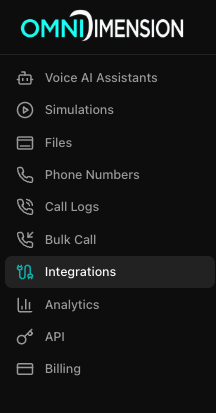
Open the integrations page
Go to the Integrations page in your dashboard and select the All Integrations tab.
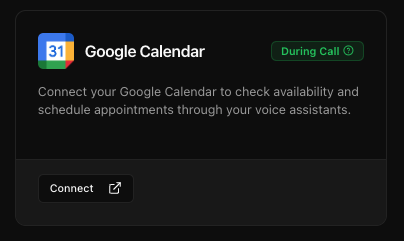
Connect Google Calendar
Find the Google Calendar card and click Connect. Authorize access through Google OAuth login. Once authenticated, your Google Calendar will connect automatically.
Setup option 2: from agent configuration
Open the agent's integrations tab
Go to your agent's edit page and select the Integrations tab.
Connect Google Calendar
Find Google Calendar under Connect New Integrations and click Connect. Follow the OAuth login process. Once verified, the integration will auto-attach to your agent.
Configuration modal
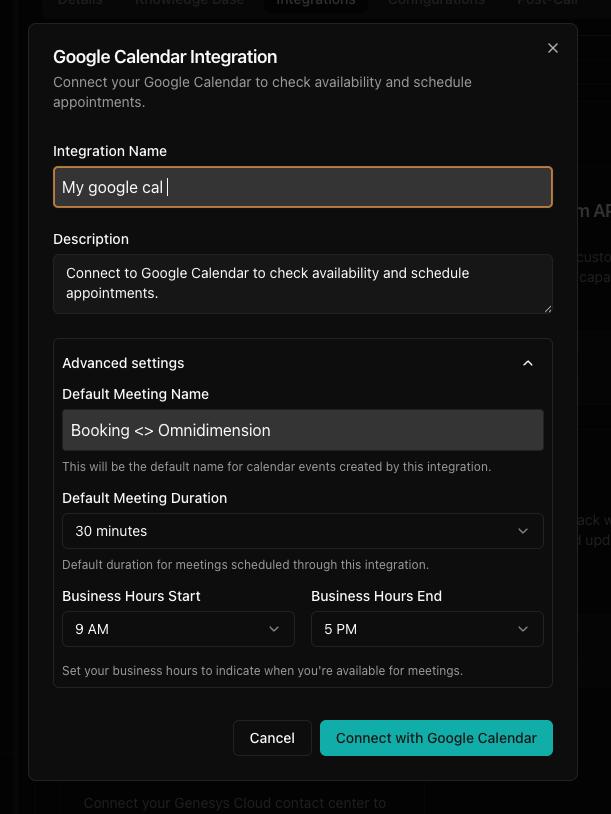
After connecting, you can customize your calendar settings via the configuration modal.
- Integration Name: a label to identify this integration
- Description: purpose of the integration
- Default Meeting Name: title used for all scheduled events
- Default Meeting Duration: choose between 15, 30, 60 minutes, etc.
- Business Hours: set your availability window (start and end time)
Using with your agent
- The agent will automatically fetch available time slots and suggest appointments
- Events will only be scheduled within the defined business hours
- Meeting invites will be auto-created in your Google Calendar
- The user receives a confirmation and calendar link instantly
Best practices
- Use descriptive integration names to manage multiple calendars
- Update business hours as your availability changes
- Test the calendar booking flow using simulated queries
- Ensure you have granted correct permissions during OAuth login