

Custom API
Connect your agent to any external service using custom API integration.
Custom API integration connects your agent to external services through REST APIs, allowing it to fetch data or perform actions using third-party services.
Key benefits
- Access external data sources in real-time
- Connect to your own backend services
- Integrate with virtually any REST API endpoint
- Extend your agent's capabilities with custom functionality
Setup option 1: from the main dashboard
Open the integrations page
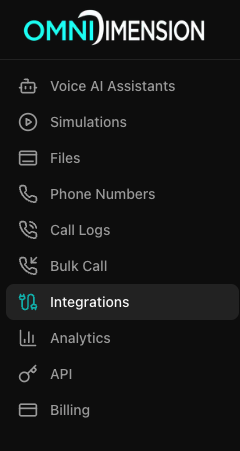
Go to the Integrations page in your dashboard and select the All Integrations tab.
Connect a Custom API
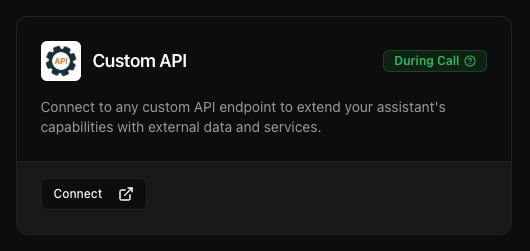
Find the Custom API card and click Connect. Configure your API (see configuration details below) and test it in the Test tab.
Attach to your agent
Go to your agent's edit page, open the Integrations tab, and attach the integration from the dropdown.
Setup option 2: from agent configuration
Open the agent's integrations tab
Go to your agent's edit page and select the Integrations tab.
Connect a Custom API
Under Connect New Integrations, find Custom API and click Connect. Configure and test your API. The integration will automatically attach to your agent.
Setup option 3: from the chat interface
Ask in chat
Use natural language like "Connect my CRM api" or "Connect my Airtable api". A connection widget will automatically appear.
Add the integration
Click Add integration to navigate to the integration tab. Under Connect New Integrations, find Custom API Integration and click Connect. Configure your integration.
Configuration guide: basic settings
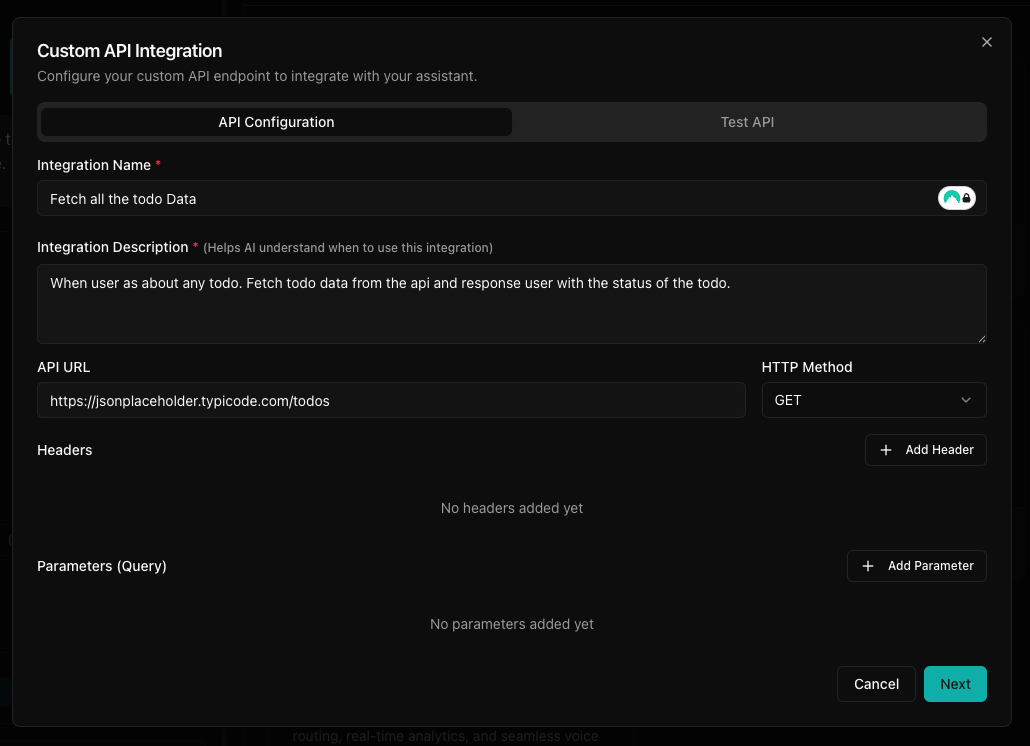
- Integration Name: choose a descriptive name (for example, "Weather API")
- Description: explain the API's purpose and usage. This is important for LLM tool calling.
- URL: full endpoint URL (for example,
https://api.example.com/data) - Method: select HTTP method (GET, POST, PUT, DELETE)
Configuration guide: headers
- Authorization tokens
Content-Typespecifications- API keys
- Custom headers
Configuration guide: parameters
Specify both query parameters (GET) and body parameters (POST or PUT).
- Name: parameter identifier
- Description: purpose of this parameter
- Required: toggle between optional and required
- Data Type: select from dropdown
- AI Generated: toggle whether the AI should dynamically generate values
Testing your integration
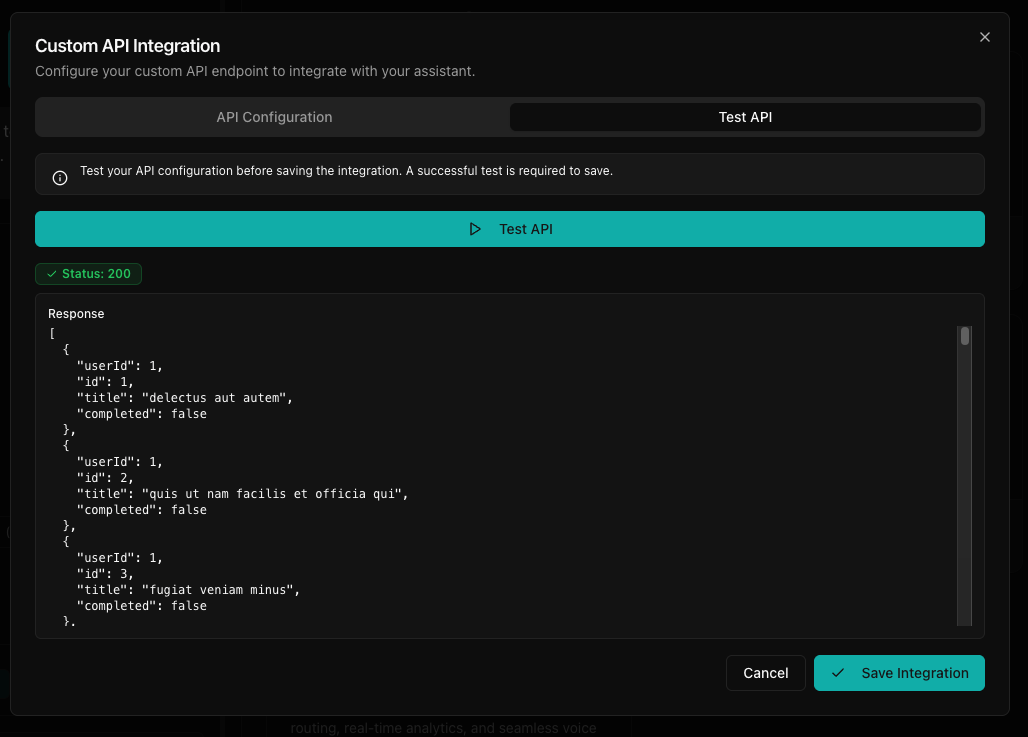
Open the test tab
Navigate to the Test tab.
Save the integration
After successful testing, click Save Integration.
Using with your agent
- Once connected, your agent will automatically use this API when appropriate
- Usage is determined based on the API description you provide
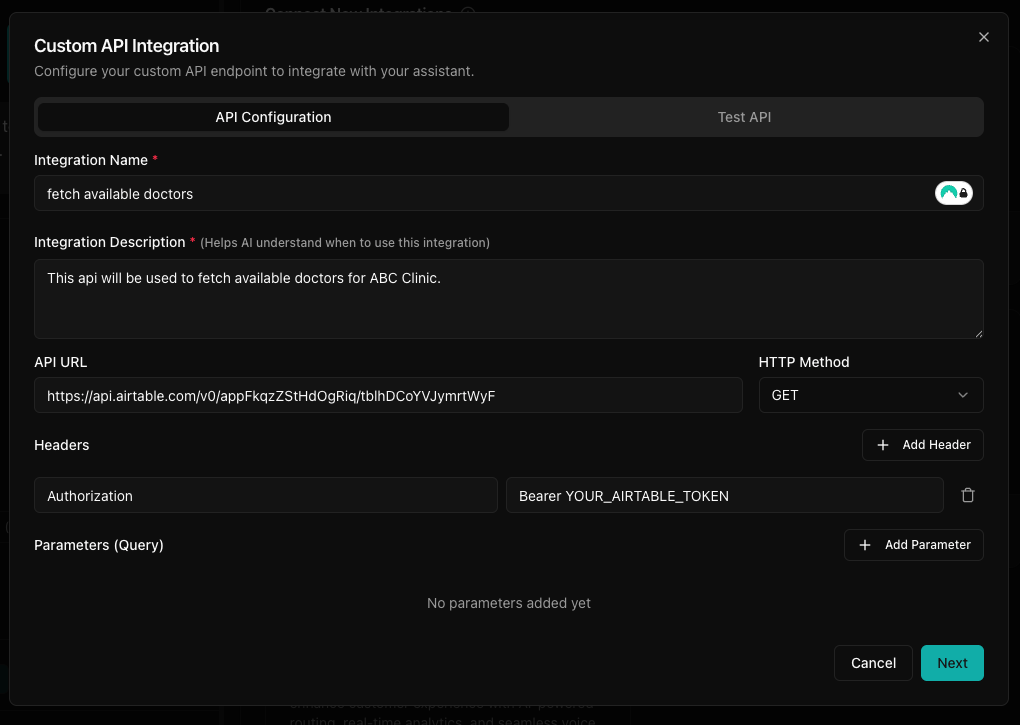
Example: Airtable
Example of using Airtable with custom API integration.
Example: Supabase user authentication
Walk through creating a complete Supabase authentication integration step by step.
Add integration name and description
Make sure descriptions are clear and concise. The AI uses them to understand the integration and decide when to call it.
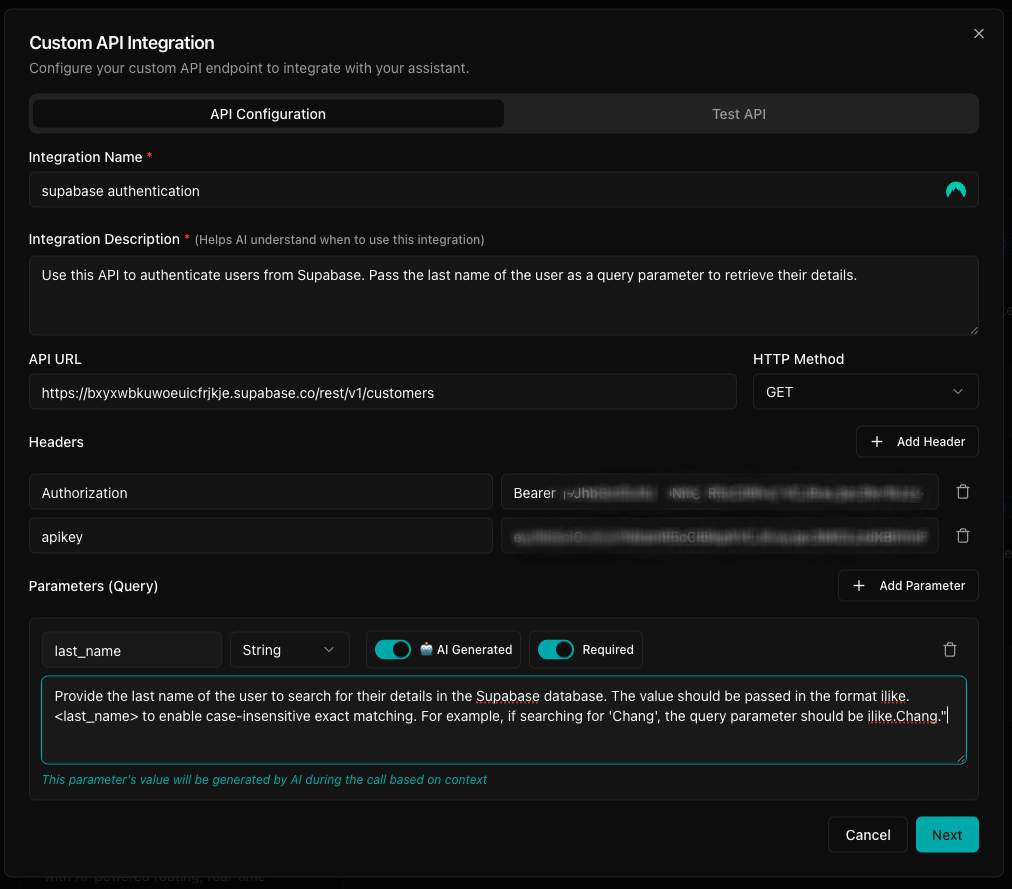
Configure URL, method, and parameters
Set the API URL and HTTP method, then add the query parameters needed for the request. Enable AI Generated on the query parameters so the agent can derive the values from the conversation.
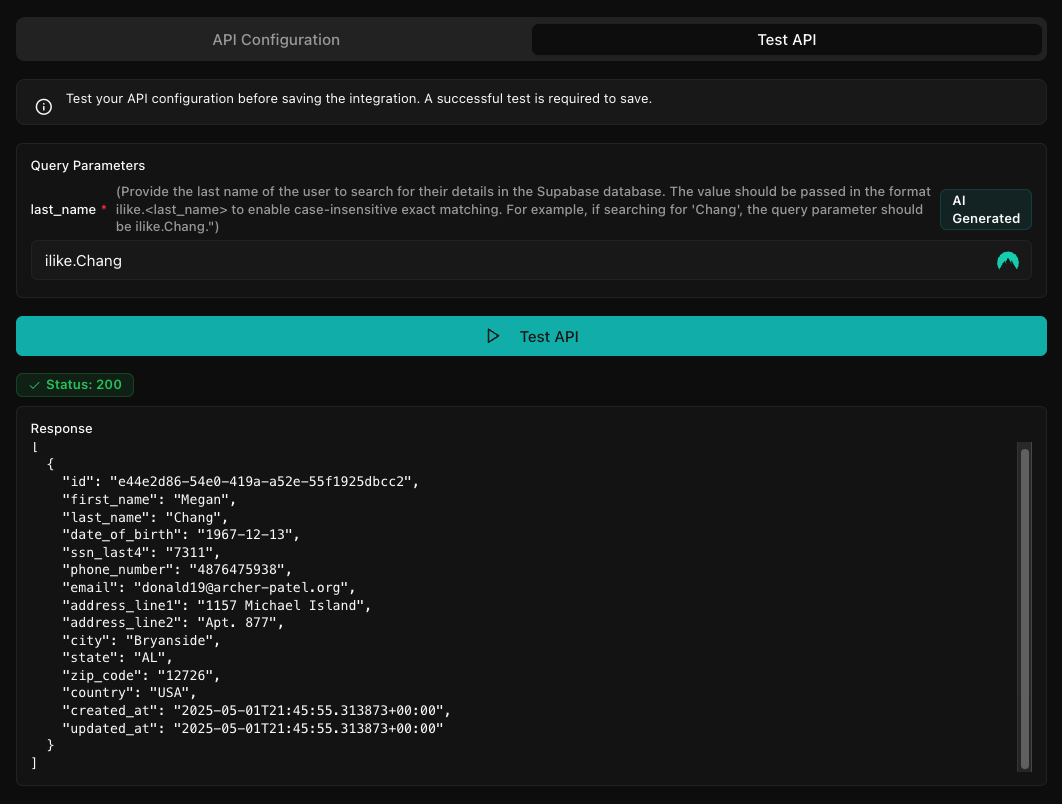
Test and save
Click next to move to the test step, run a sample request, and save the integration once the response is correct.
Other example use cases
- CRM integration: retrieve customer data from Salesforce or HubSpot
- Inventory management: check product availability in real time
- User verification: authenticate users against internal databases
- Weather data: fetch current weather for location-based services
- Booking systems: check availability and make reservations
Pro tips
- Provide detailed descriptions for AI-generated parameters
- Use specific examples in your descriptions
- Test thoroughly before deploying to production