

SaaS OmniSupport agent
Build a voice AI agent for SaaS support with Cal.com, Slack, and Make.com integrations.
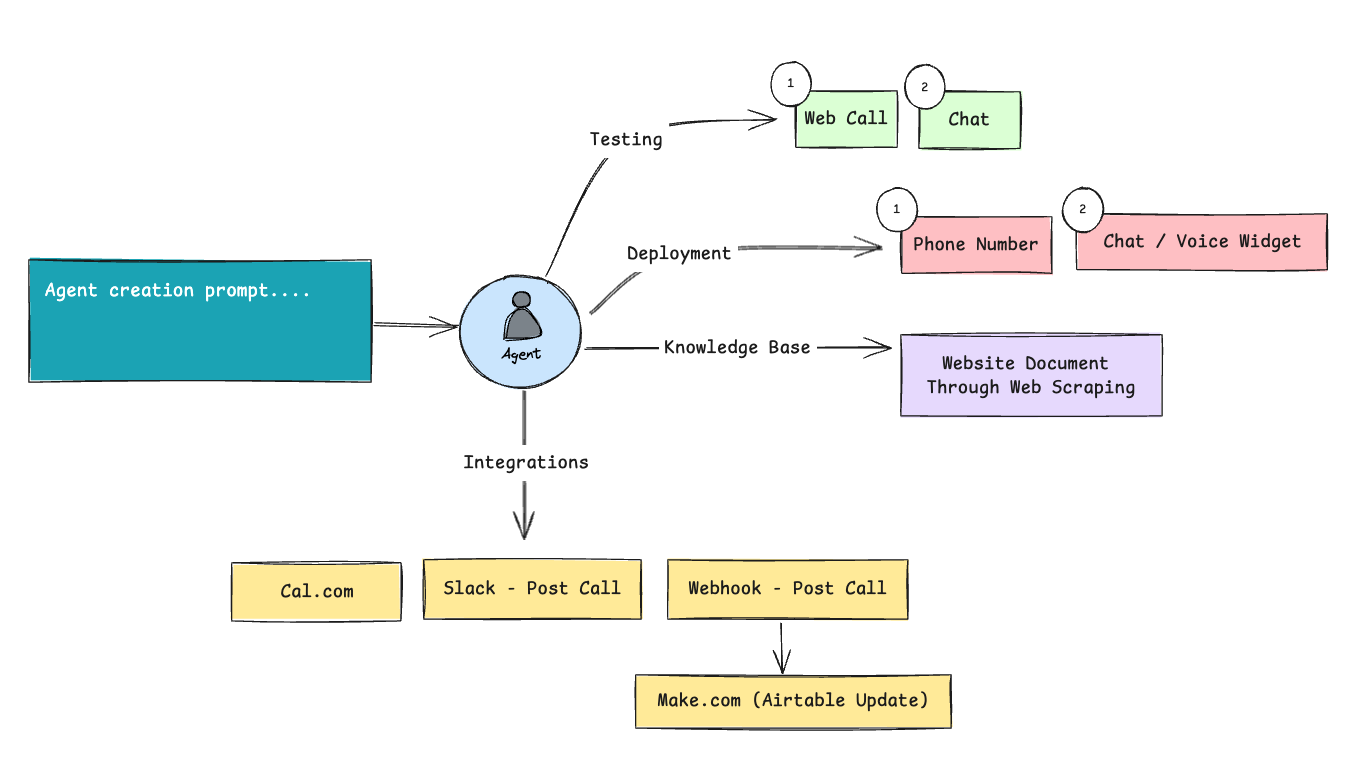
Walk through configuring a complete inbound support voice agent for OmniDimension itself. The agent introduces itself, answers product questions from a scraped knowledge base, books demos via Cal.com, and delivers post-call summaries to Slack and Make.com.
Write the prompt
Start by writing a clear initial prompt that defines the purpose of the bot.
You are OmniSupport, an inbound customer support voice assistant for
OmniDimension. Speak in a friendly, polite, and professional tone.
Your main goals are to:
1. Greet the caller and introduce yourself as OmniSupport.
2. Understand the caller's intent. Whether they want to learn about the
   product, explore features, or book a demo.
3. Provide brief, clear responses about OmniDimension's offerings:
   AI-powered chat and voice agents, workflow automation, integrations.
4. If they request a demo, collect their name, email, and preferred time,
   and confirm the booking.
5. Handle unclear queries with a helpful fallback, asking the user to
   rephrase.
Always end the call with a thank you and a warm closing message.
Website URL: https://www.omnidim.io/
Web scraping
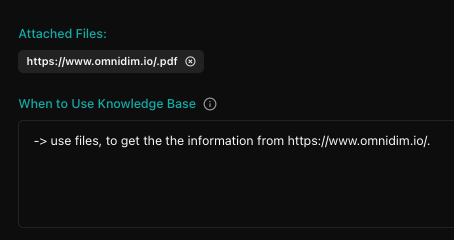
Automatically scrape the website and create a knowledge base from the URL provided in the prompt.
- The bot will automatically extract information from the website
- Create a structured knowledge base for the agent
- Attach the knowledge base to the bot for real-time information retrieval
Cal.com integration
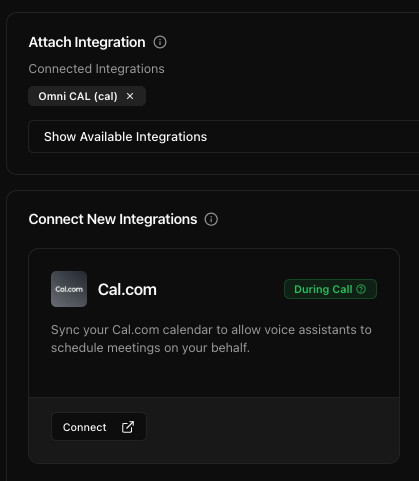
Integrate Cal.com for sales or demo call booking.
- Navigate to the Integrations tab
- Click Connect next to Cal.com
- Complete the integration steps
- Once connected, the calendar will be automatically attached to the agent
See the Cal.com integration guide for the full walkthrough.
Slack integration for post-call
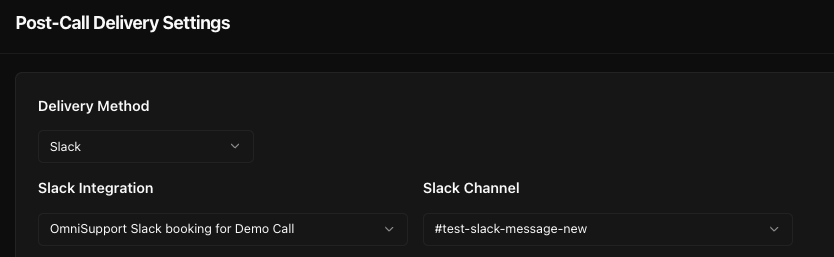
Integrate Slack for post-call delivery.
- Navigate to the Integrations tab
- Click Connect next to Slack
- Complete the integration steps
- Navigate to the Post-Call tab
- Choose Slack as the delivery method
- Choose the channel where you want to send the message
- Configure the details to send (full conversation, summary, extracted variables, etc.)
See Slack integration and post-call actions for full details.
Add a Make.com webhook
Add a Make.com webhook link and configure the scenario to update an Airtable database.
- Create a webhook in Make.com
- Set the webhook URL in your post-call agent configuration
- Test the webhook by sending a sample payload
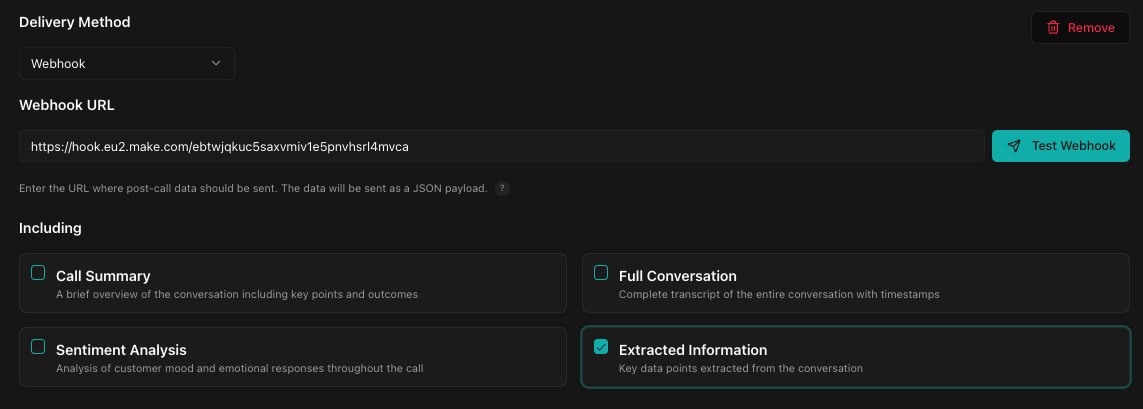
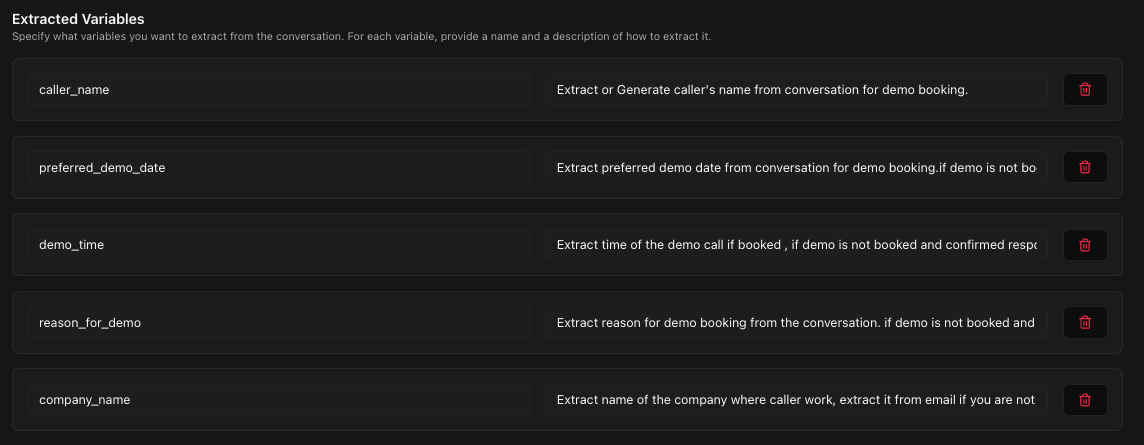
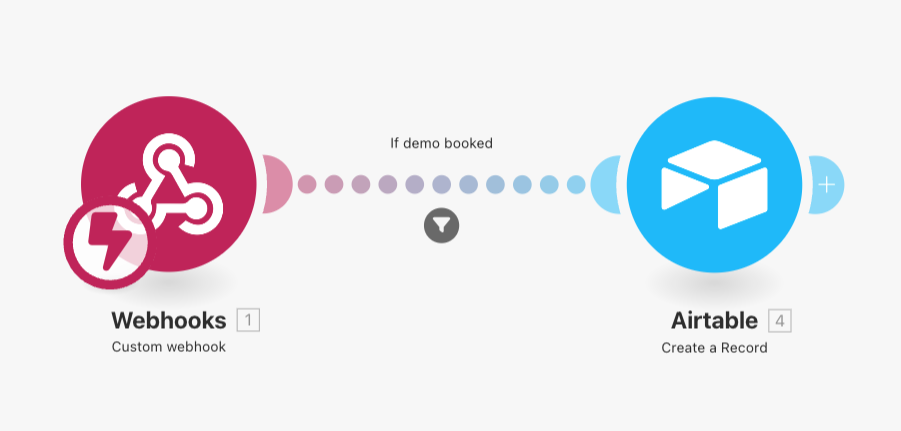
See Make, Zapier, n8n, GHL and post-call actions for the full configuration reference.
Final testing and monitoring
- Re-test the agent via chat and web call to confirm all functionality
- Validate the booking flow, fallback responses, and knowledge base retrieval
- Navigate to the Call Logs section to monitor call interactions with evaluation details