

Travel planning and lead generation
Build an engaging voice agent that helps users plan trips while collecting lead information for your travel business.
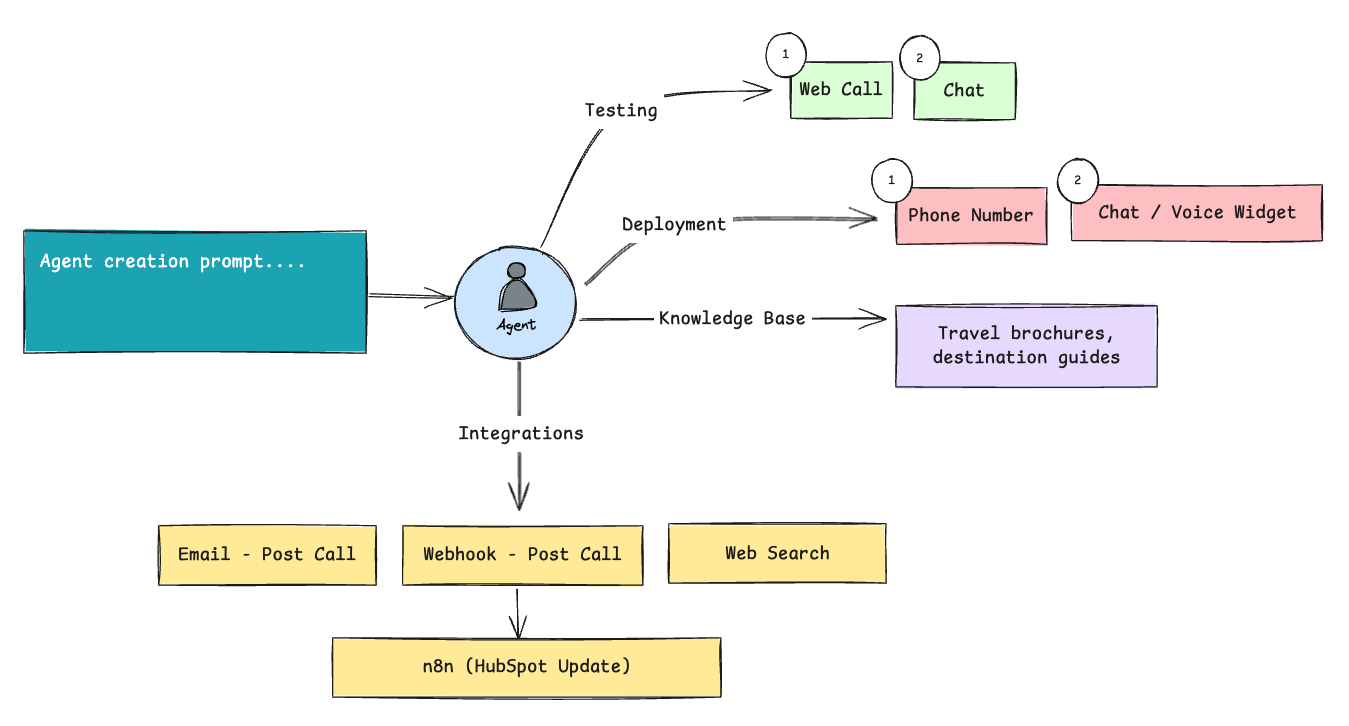
Create a complete travel planning voice agent on OmniDimension. The agent suggests destinations, answers questions from a knowledge base, pulls real-time info via web search, and pushes leads to HubSpot via n8n.
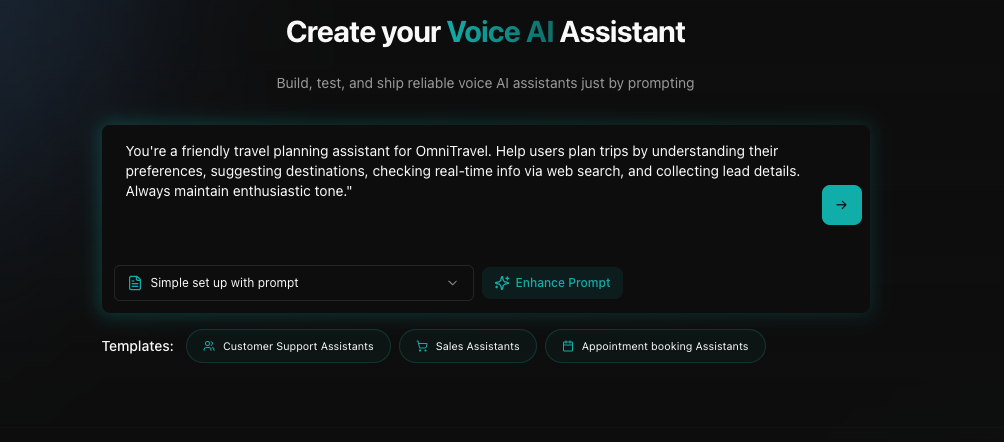
Configure your agent prompt
Start by creating your voice agent with a travel-specific prompt that establishes the agent's role and capabilities.
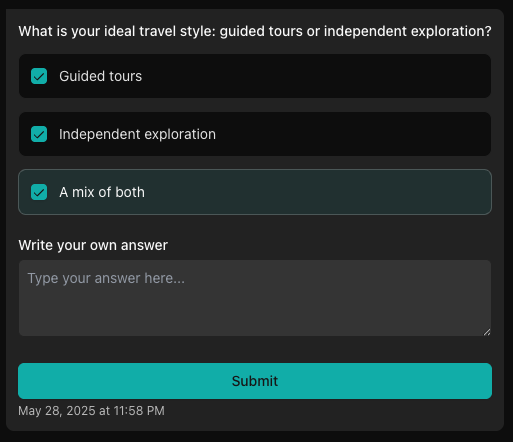
Answer clarifying questions
Complete the agent setup by answering important questions about your travel agency, destination specialties, and lead collection procedures.
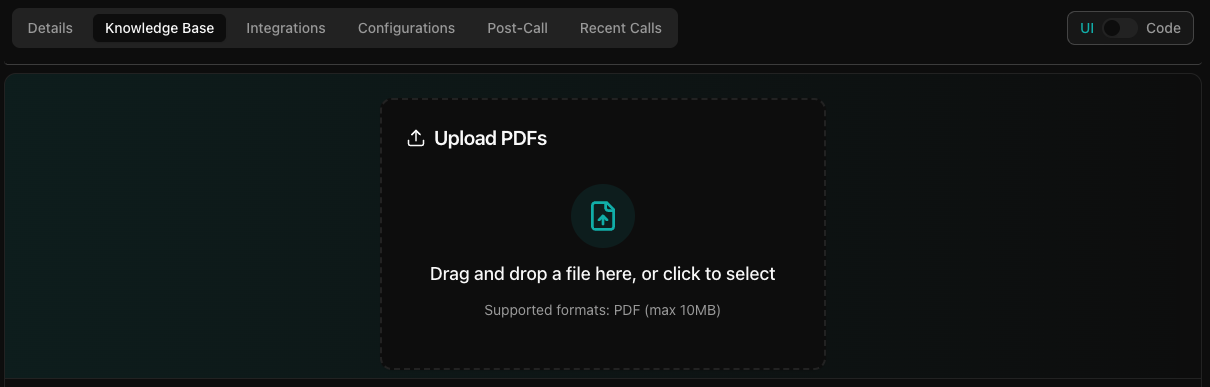
Enhance with knowledge base PDFs
Upload relevant travel documents to improve your agent's knowledge about destinations, packages, and travel policies.
- Go to the Knowledge Base tab and click Upload PDFs
- Upload brochures, guides, package details, and travel requirement documents
- Include files covering destinations, pricing, FAQs, and seasonal tips
- Ensure each PDF is under 10MB in size
Enable web search
Activate web search to allow your agent to provide real-time information about destinations, weather, attractions, and travel advisories.
- Navigate to the Integrations tab
- Toggle Web Search to ON
- Configure the search engine as OpenAI or DuckDuckGo
- Now your bot can provide real-time information about destinations, weather, and travel advisories

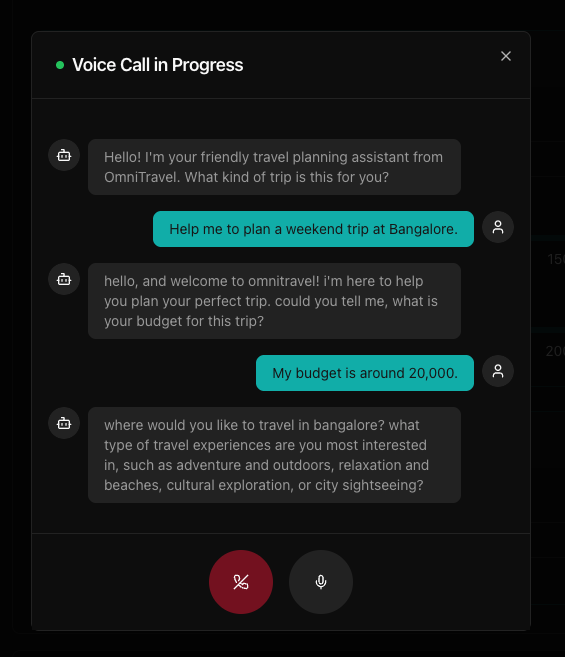
Test your agent via web call
Once your agent is configured, test it through a web call to verify its functionality.
- Open the testing interface and click Test with Web Call
- Try scenarios like destination suggestions, package inquiries, and travel requirements
- Ensure lead info is captured accurately and responses feel natural
Configure post-call settings
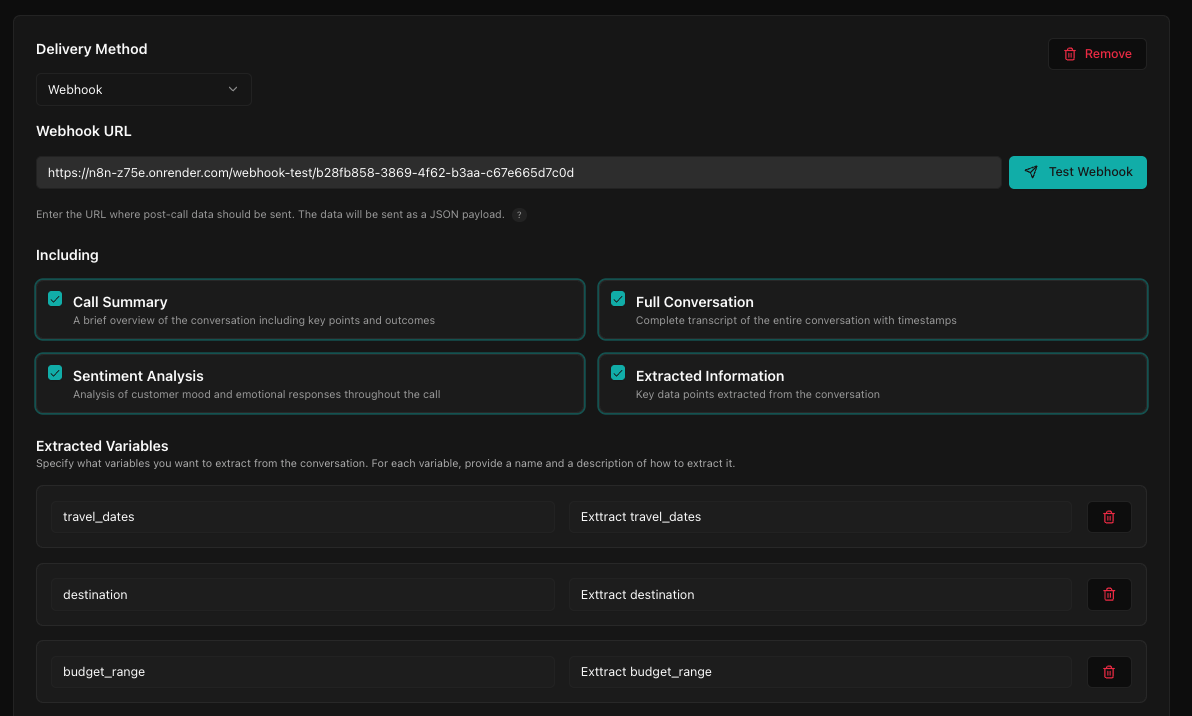
Set up data extraction for valuable lead information from customer calls.
- Go to the Post-Call tab
- Set delivery method to Webhook for n8n integration
- Select data to include: Summary, Full Conversation, Sentiment, Extracted Info
- Add variables to extract from each call under Extracted Variables
Set up an n8n webhook for HubSpot
Create an automation workflow that sends lead information directly to HubSpot CRM.
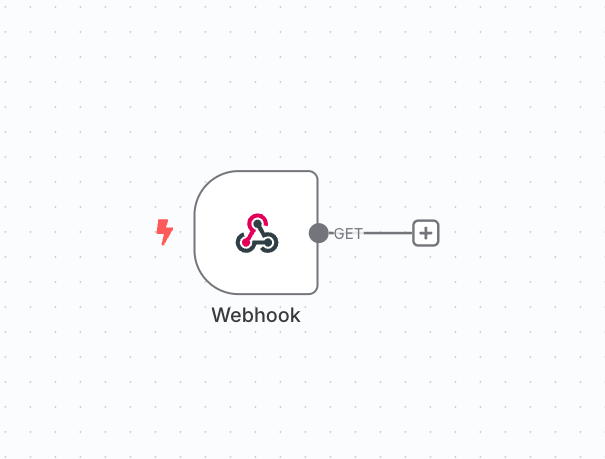
- Log in to your n8n account and create a new workflow
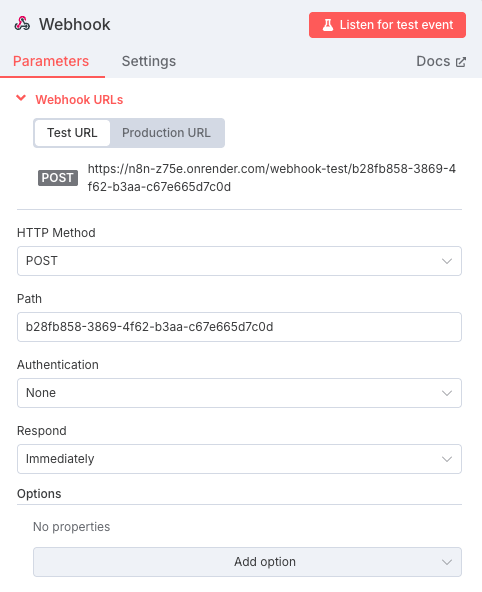
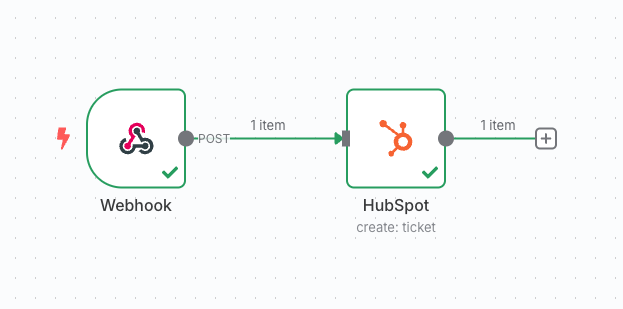
- Add a Webhook node as the trigger and configure it with the POST method
- Copy the generated webhook URL for the OmniDimension post-call settings
- Add a HubSpot node and connect your HubSpot account
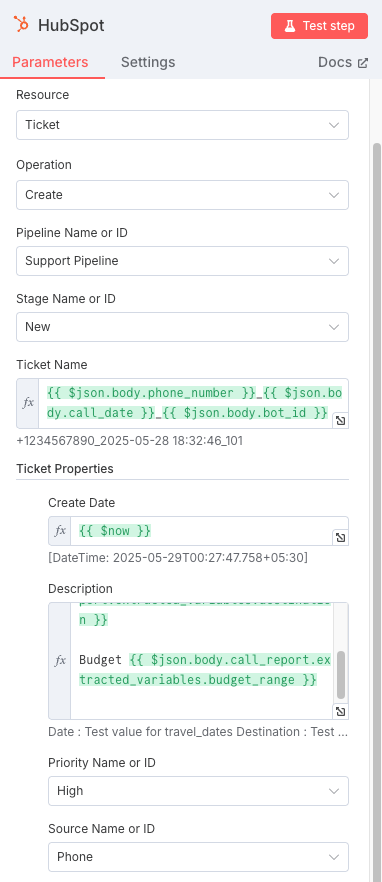
- Select Create/Update operation and choose Tickets as the resource
- Map incoming webhook data to HubSpot contact and ticket fields
- Format dates and fields as needed within the workflow
- Test the integration to verify successful data flow
Customize voice and behavior
Personalize your agent's voice and interaction style to match your travel brand's personality.
- Go to the Voice section and select a provider (for example, Eleven Labs)
- Browse and test voices to find an enthusiastic, friendly tone
- Filter voices by language, accent, and other traits
- Set Behavior to Enthusiastic and Engaging for travel planning
Final testing and deployment
Before going live, conduct thorough testing and prepare for deployment.
- Conduct testing with various travel scenarios
- Verify integrations: n8n to HubSpot, email delivery, web search
- Test lead info extraction accuracy for all the fields