

Connect your domain
Point a custom domain at your white-label platform, with per-provider DNS steps and a troubleshooting guide.
Your platform runs on your own domain. The setup flow under Reseller → White Label shows you the exact DNS record to create (its type, host, and value). This page covers the details: subdomain vs root domain, per-provider steps, and what to do when the check does not pass.
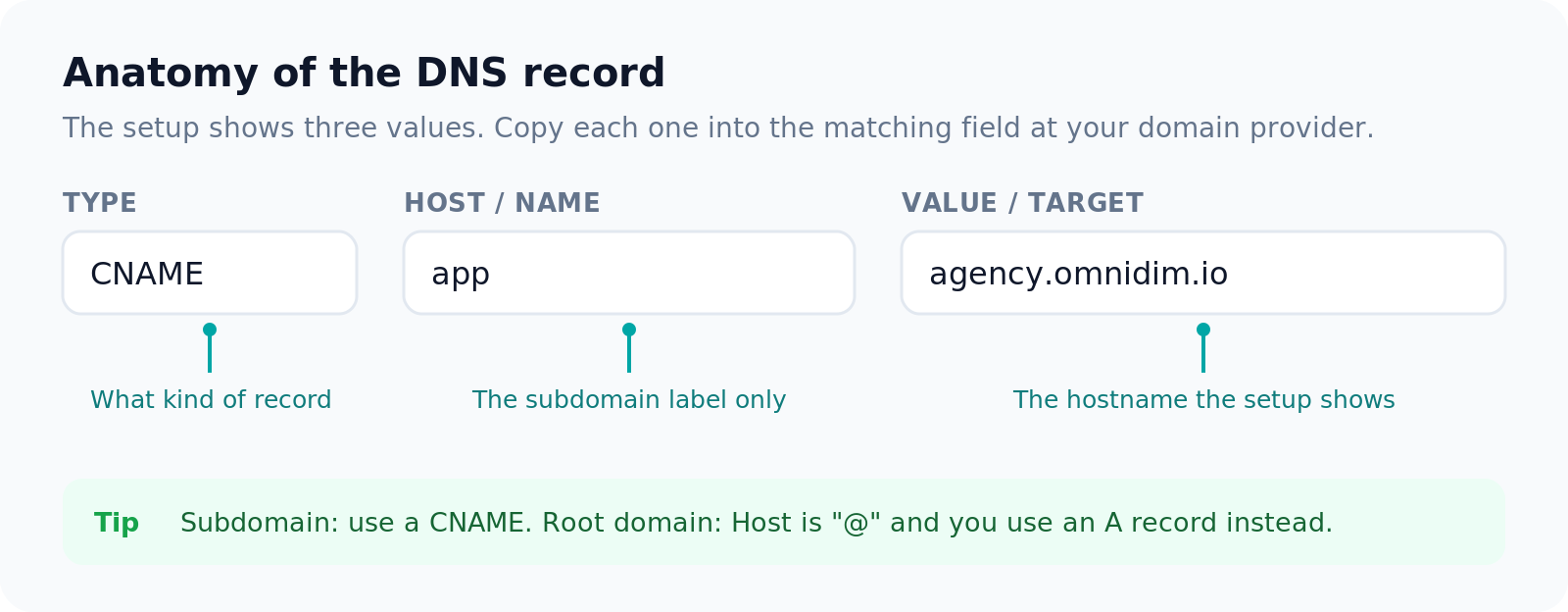
The three values the setup shows map directly onto the fields in your provider's DNS form:
Subdomain or root domain?
The record type depends on the domain you use.
- Subdomain (
app.yourbrand.com): add a CNAME pointing to the hostname the setup shows. This is the recommended path, it works on every provider and keeps our origin hidden. - Root / apex (
yourbrand.com): a CNAME is not valid at a root domain, so add an A record to the IP the setup shows. If your provider supports ALIAS / ANAME (or CNAME flattening), you can point the root at our hostname instead, which keeps the IP hidden.
In your provider's Host (or Name) field, enter just the subdomain label, for
example app for app.yourbrand.com. Some providers want the full hostname
(app.yourbrand.com) instead. Either works. For a root domain the host is usually @.
When in doubt, use a subdomain like app.yourbrand.com. It is the simplest, most
portable option.
Whichever you choose, the host should have only that one record and no AAAA (IPv6) record. We serve over IPv4 only, so a leftover AAAA (some providers add one by default) sends visitors to the wrong place even when your A record is correct.
Per-provider steps
The setup flow always shows the exact record (type, host, value). Below is where to add it on the most common providers, and which ones offer a root-domain record that keeps our IP hidden. For a subdomain the answer is always a CNAME to the setup hostname; the provider differences are really about the root domain.
Cloudflare
- Open DNS → Records → Add record.
- Subdomain: a CNAME with the name set to your subdomain and the target set to the
setup hostname. Root domain: add a CNAME at the root (name
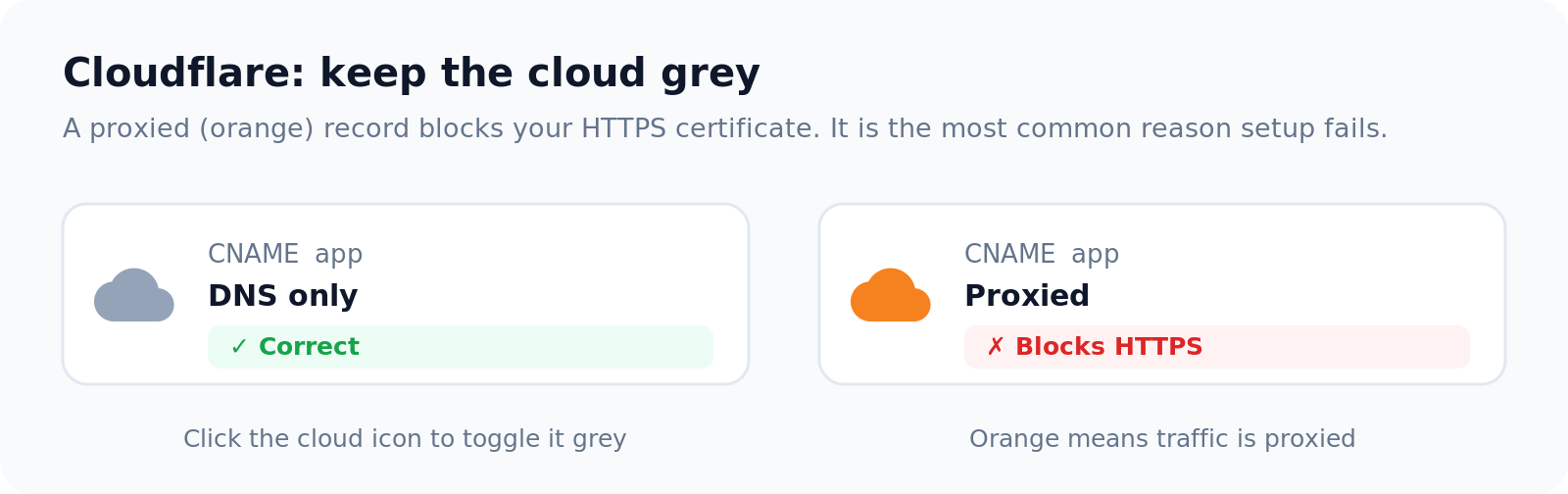
@), Cloudflare flattens it automatically. - Set the proxy status to "DNS only" (gray cloud), not "Proxied" (orange cloud). A proxied record stops us from issuing your HTTPS certificate, this is the single most common reason setup fails. Click the cloud icon on the record to toggle it.
GoDaddy
- My Products → your domain → DNS → Add.
- Subdomain: CNAME, Name = your subdomain, Value = the setup hostname.
- Root domain: GoDaddy has no ALIAS option, so add an A record (Name =
@) to the IP the setup shows.
Namecheap
- Domain List → Manage → Advanced DNS → Add New Record.
- Subdomain: CNAME Record, Host = your subdomain, Value = the setup hostname.
- Root domain: Namecheap supports an ALIAS Record (Host =
@) to the setup hostname, which keeps our IP hidden. If you prefer, an A Record to the IP also works.
AWS Route 53
- Hosted zones → your domain → Create record.
- Subdomain: a CNAME to the setup hostname.
- Root domain: an A record with Alias turned on, routing to the setup hostname.
Squarespace (and former Google Domains)
- Settings → Domains → your domain → DNS settings.
- Subdomain: a CNAME to the setup hostname.
- Root domain: add an A record (Host =
@) to the IP the setup shows.
Hostinger
- Domains → your domain → DNS / Nameservers → Manage DNS records.
- Subdomain: CNAME, Name = your subdomain, Target = the setup hostname.
- Root domain: an A record (Name =
@) to the IP the setup shows. - Delete any AAAA (IPv6) record on the host. Hostinger often adds one by default, and it will send visitors to the wrong site since we serve over IPv4 only.
Porkbun
- Domain Management → your domain → DNS Records.
- Subdomain: a CNAME to the setup hostname.
- Root domain: Porkbun supports an ALIAS record to the setup hostname (keeps the IP hidden), or an A record to the IP.
IONOS
- Domains & SSL → your domain → DNS.
- Subdomain: a CNAME to the setup hostname.
- Root domain: an A record (Host =
@) to the IP the setup shows.
Any other provider
Use the type the setup shows: a CNAME for a subdomain, or for a root domain an A record (always works) or an ALIAS / ANAME record if your provider offers one. Host is your domain; value is what the setup displays.
HTTPS is automatic
You do not manage certificates. Once your record is live and pointing at us, we issue and renew the SSL certificate for you, usually within a few minutes, and your platform serves over HTTPS on your domain.
On Cloudflare, keep the record DNS only (gray cloud), not proxied. Proxying terminates HTTPS at Cloudflare and blocks our certificate from being issued. This is the most common reason a domain does not go live.
Troubleshooting
Most domains go live on the first try. When one does not, it is almost always one of the causes below. The first two cover the large majority of cases.
Next
Back in the dashboard, click Verify and launch once the record is saved. See Set up your platform for the full setup flow.