

CRM
CRM nodes read and update your customer records.
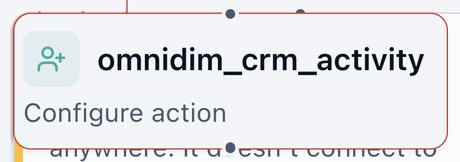
OmniDim CRM Activity
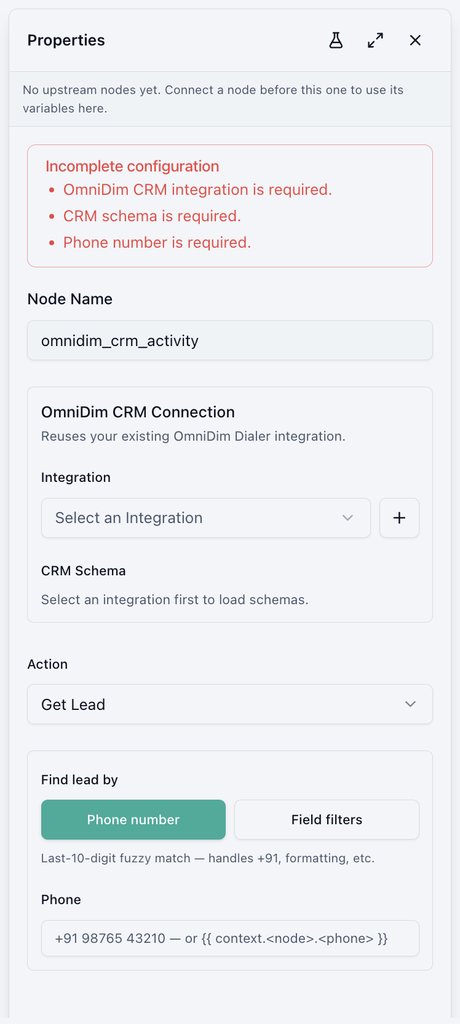
Finds or updates a lead in the OmniDimension CRM.
- Integration and CRM Schema.
- Action, for example Get Lead.
- Find lead by phone number. Matching uses the last 10 digits, so country codes and formatting don't matter.
LeadSquared Update
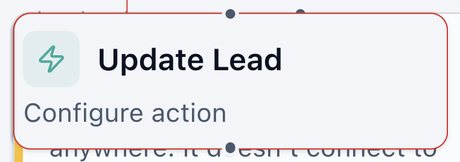
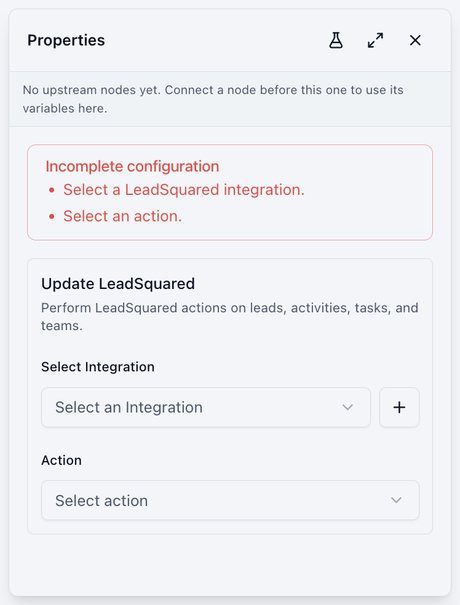
Creates or updates leads, activities, tasks, and team assignments in LeadSquared.
- Integration and Action, then the fields for that action.
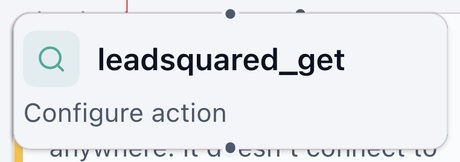
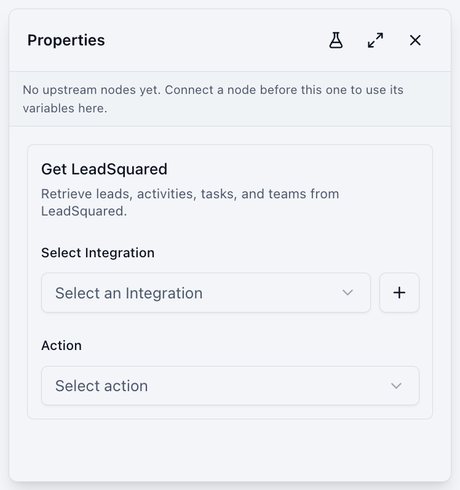
LeadSquared Get
Looks up leads, activities, tasks, or teams in LeadSquared for later nodes.
- Integration and Action.
Zoho Bigin
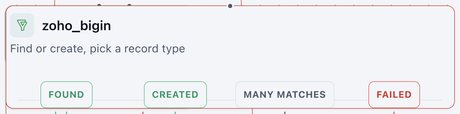
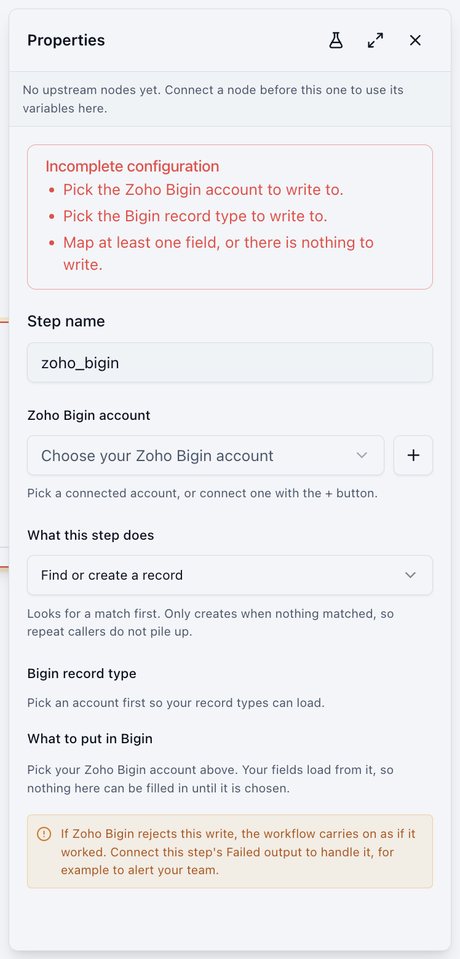
Writes a record in Zoho Bigin. Pick one action:
- find_or_create_record (default): finds a record first, so repeat callers don't create duplicates.
- create_record: always creates a record.
- update_record: changes an existing record. You give the record id.
Exits: FOUND, CREATED, MANY MATCHES, FAILED, SUCCESS. create_record and update_record leave through SUCCESS.
- Zoho Bigin account (connect one with +), Bigin record type, and What to put in Bigin (field mapping).
- If Bigin rejects a write, the workflow carries on. Connect FAILED to alert your team.
Salesforce
Reads and writes records in your Salesforce: finds a record, creates or updates one, adds a follow-up task, logs the call, or adds a note. It works with standard objects (Lead, Contact, Account, Opportunity, Case) and your custom objects. The step runs for real in test runs too, so test against a sandbox or test records.
Connect Salesforce first. See Salesforce.
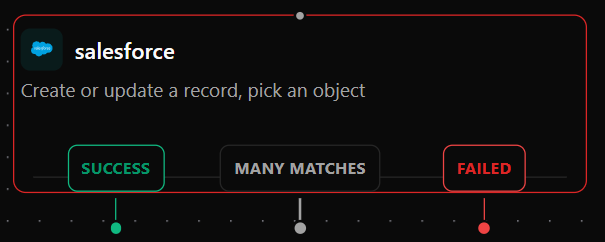
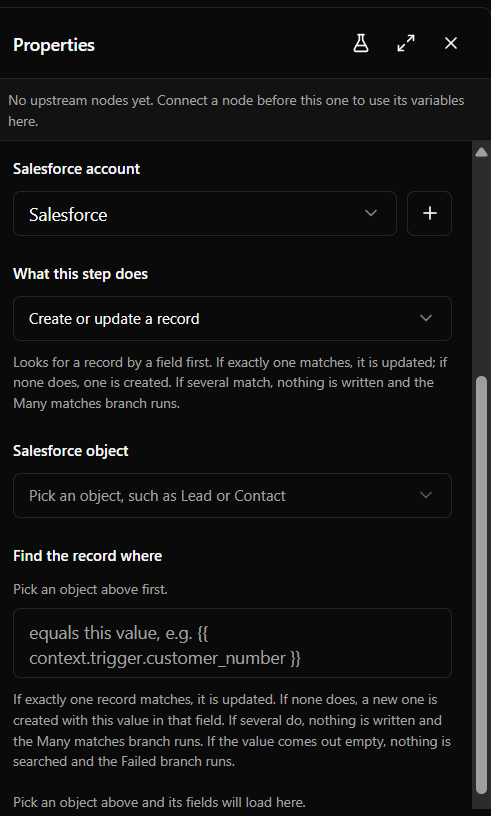
What the step can do
Pick one in What this step does. The exits on the canvas change with it.
| Action | What it does | Exits |
|---|---|---|
| Create or update a record (default) | Looks for a record by a field, such as Phone. One match is updated, no match creates a new record, several matches write nothing. Use it for anyone who may call again, so they aren't added twice. | Success, Many matches, Failed |
| Get a record | Finds one record by its Id or by a field, for later steps to use. | Found, Not found, Many matches (by a field only), Failed |
| Create a record | Always creates a new record. | Success, Failed |
| Update a record | Changes a record that already exists. Needs its Id, usually from an earlier Salesforce step. | Success, Failed |
| Create a follow-up task | Adds a Task for someone on your team, linked to a record. | Success, Failed |
| Log a call | Adds a completed call, dated today, to a record's activity history. | Success, Failed |
| Add a note | Adds a note to a record, for example the call summary. | Success, Failed |
Settings
- Salesforce account: the connection to use. Connect one with +.
- Salesforce object: loaded from your Salesforce, custom objects included (marked custom). Not asked for tasks, logged calls and notes.
- Find it by (Get a record): Its record Id, or A field, such as Phone or Email.
- Find the record where (Get by a field, Create or update): the field to
search and the value it must equal, for example
{{ context.trigger.customer_number }}. If the value comes out empty, nothing is searched and Failed runs. - Which record (Update, task, call, note): the record's Id. Pick an earlier
Salesforce step from the list, or type an Id or a
{{ }}value. A Lead or Contact is linked as the person on a task or call; any other record as what it is about. - Fields: one row per Salesforce field, custom fields included, each with
a fixed value or a
{{ }}value from an earlier step. Empty values are skipped, so a field Salesforce already has is left alone. Typenullto clear a field. - Assign to and Due in (days) (Create a follow-up task): the
Salesforce user who owns the task, and how many days after the step runs it
is due (
0is the same day). Leave Assign to empty for the user the connection signed in as, and Due in empty for no due date. - Note title and Note text (Add a note): the text can use
{{ }}values; one paragraph per line. An empty title gives a note called Note. If the text comes out empty, no note is written and Failed runs.
Phone numbers match in any format
When the field you search by is a phone field, the step finds the record
however the number was saved. +14155552671 finds (415) 555-2671. A web
call has no caller number, so test phone matching with a real phone call.
Handle Failed
If Salesforce refuses a step (a required field is missing, the connection was revoked, a value doesn't fit the field), the workflow carries on down Failed and the run still shows as succeeded. While Failed leads nowhere, the settings panel warns you. Connect it to alert your team, for example with a Slack message or an email.
If the connection itself stops working, the panel shows a banner with a Reconnect button. Your steps keep their settings after you reconnect.
What later steps can use
Read these with {{ context.<step id>.<field> }}:
| Field | Value |
|---|---|
record_id | The Id of the record found or written. |
record | That record's fields, read back from Salesforce after the write, for example {{ context.sf_lead.record.Status }}. |
created | true when Create or update made a new record. |
match_count | How many records matched the search. |
record_ids | On Many matches, the Ids of every record that matched. |
object | The object the step worked on. |
ok | false when the step took Failed. |
error | Why it failed, in plain words. |
{
  "ok": true,
  "branch_taken": "Success",
  "object": "Lead",
  "record_id": "00Q5g00000AbCdEEAV",
  "created": true,
  "match_count": 0,
  "record": {
    "Id": "00Q5g00000AbCdEEAV",
    "LastName": "Demo User",
    "Phone": "+15551234567",
    "Status": "Open - Not Contacted"
  }
}
Example: after every call
A workflow that starts after each call and keeps one Lead per caller:
- Create or update a record on Lead, find where
Phoneequals{{ context.trigger.customer_number }}, with fields such asLastNameandCompany. - From its Success exit, three steps side by side: Log a call, Add a note with the call summary, and Create a follow-up task due in 1 day. Each uses the first step's record in Which record.
- From Many matches and Failed, a Slack message to your team.
Was this page helpful?