

Manage workflows
Organize workflows into folders, duplicate them safely, and use the actions on each row.
Row actions
Each workflow row ends with six buttons.

- Edit opens the builder.
- Executions shows this workflow's runs.
- View published opens the live version, read-only. It is grayed out until you publish.
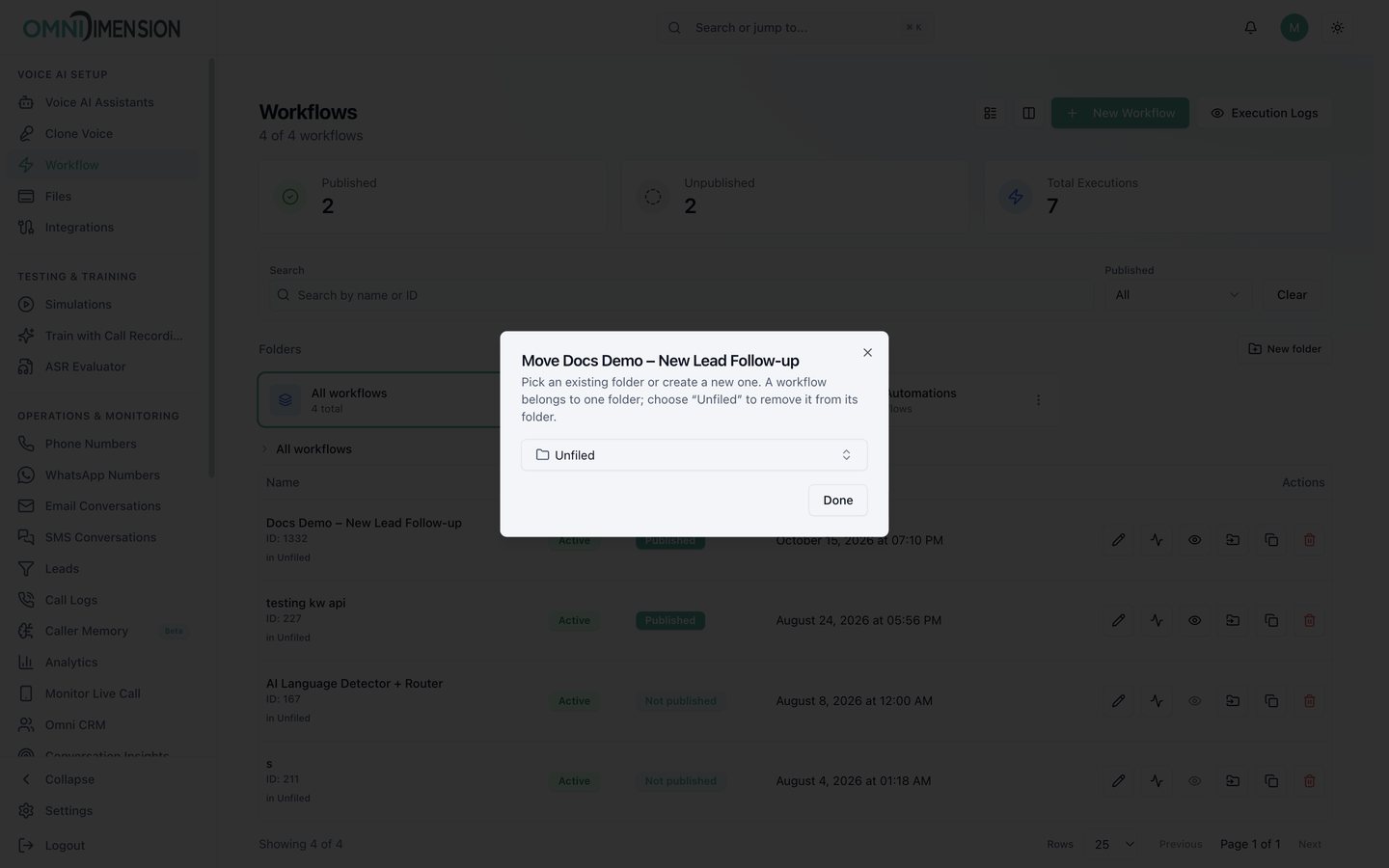
- Move to folder.
- Duplicate makes a copy you can change safely.
- Delete removes the workflow.
Folders
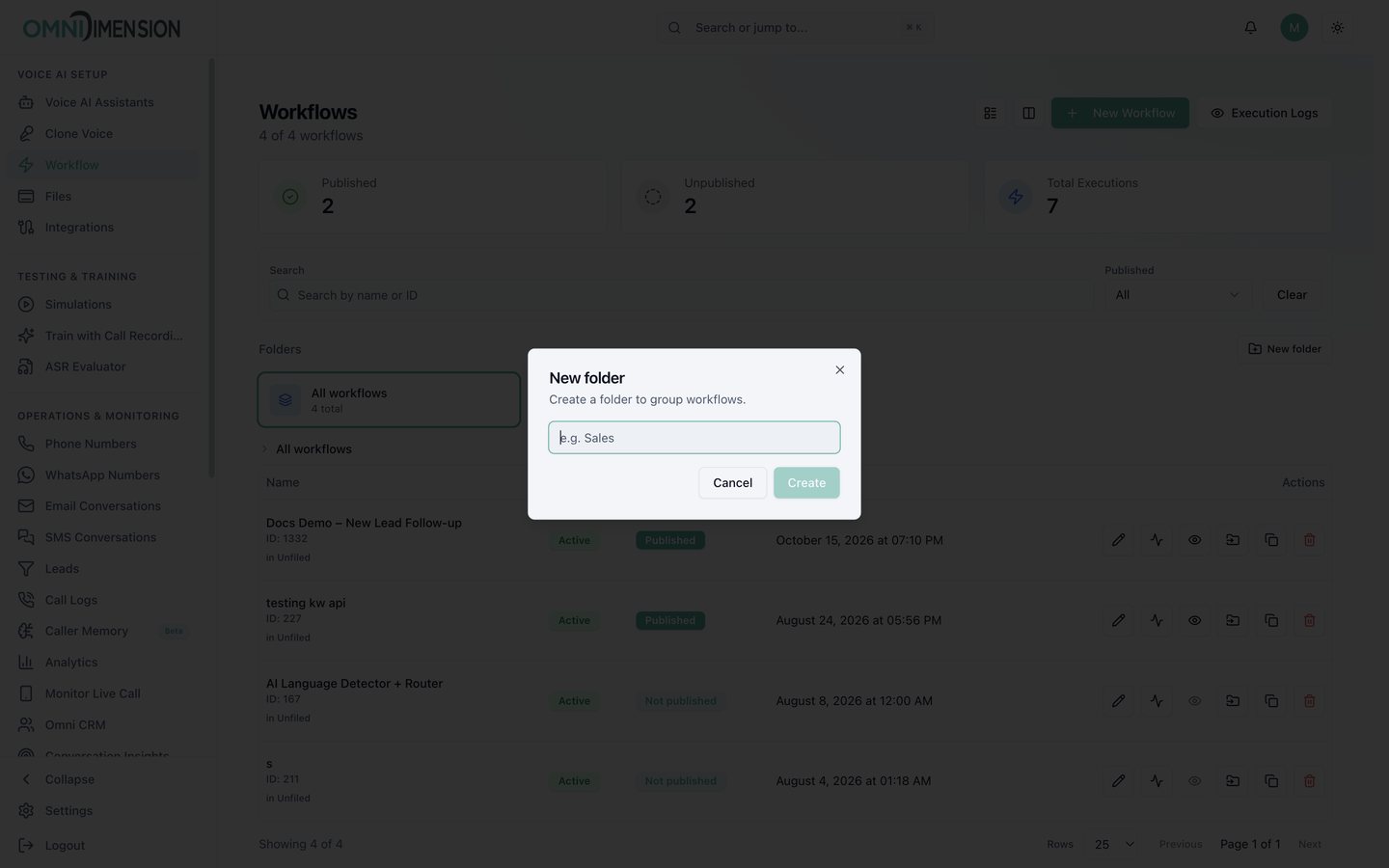
Click New folder, name it (for example "Lead Automations"), then use Move to folder on any row. A workflow belongs to one folder at a time. Choose "Unfiled" to take it out of a folder.
Good habits
- Duplicate a working workflow before big changes, so you can return to the original.
- Name workflows by what they do and for whom, for example "Clinic A, missed call retry".
- Pause a live workflow with Active in the published view instead of deleting it.