

Your first workflow
Build a lead follow-up workflow that calls hot leads with a Voice AI agent and logs cold leads.
This walkthrough builds a common first workflow: when a new lead arrives, check their lead score. If it is above 50, a Voice AI agent calls them right away. Otherwise the lead is logged for nurturing later.
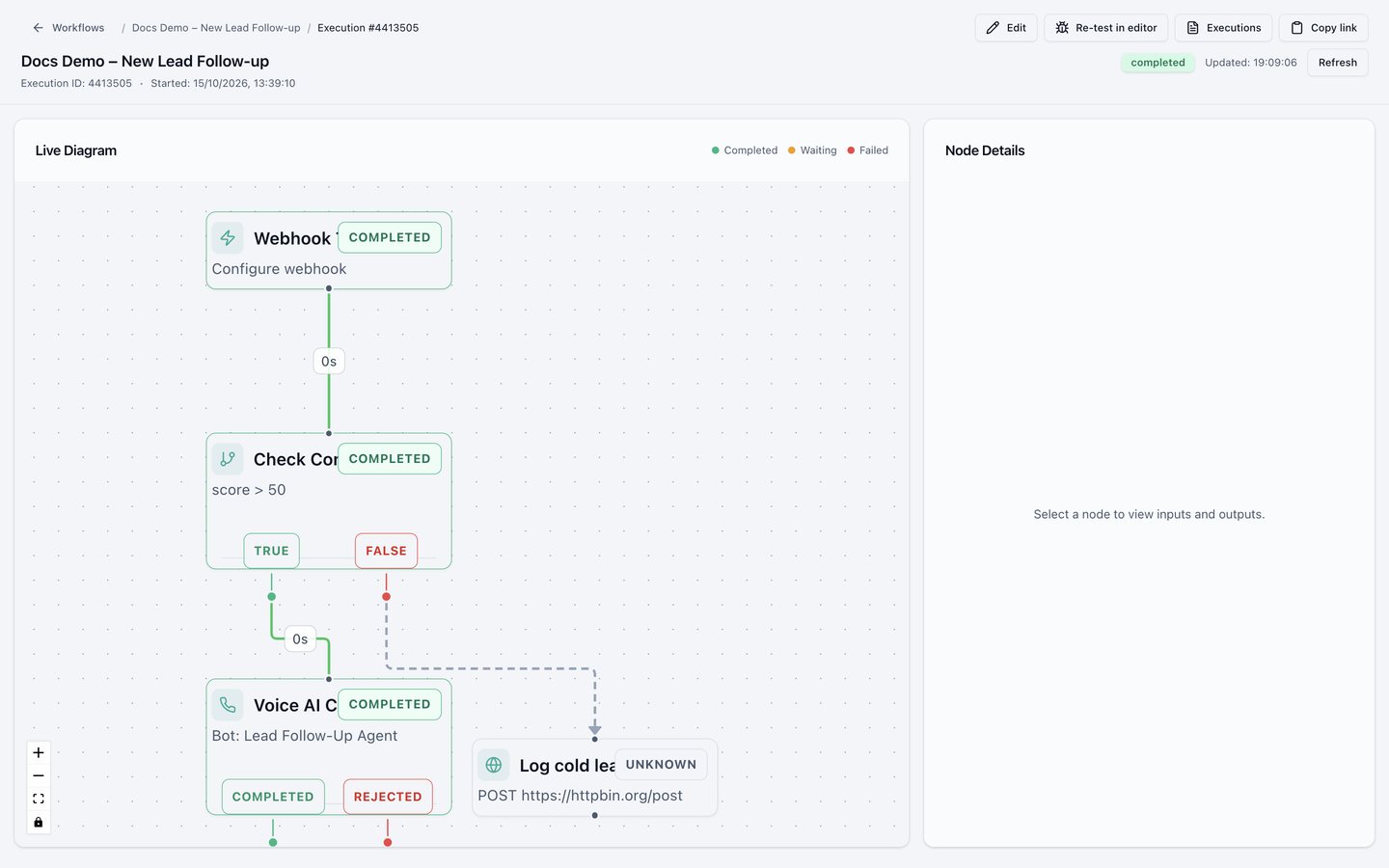
Create a workflow from Blank. It already contains a Webhook Trigger, a Check Condition, and a Voice AI Call.
Receive the lead
The Webhook Trigger receives information sent by your website form, CRM, or any other tool. Nothing to configure yet. You switch on its live link when you publish.
Check the lead score
Click Check Condition. In Field / Variable, type @ and pick the
lead's score from the trigger. Set Operator to greater than and
Value to 50.
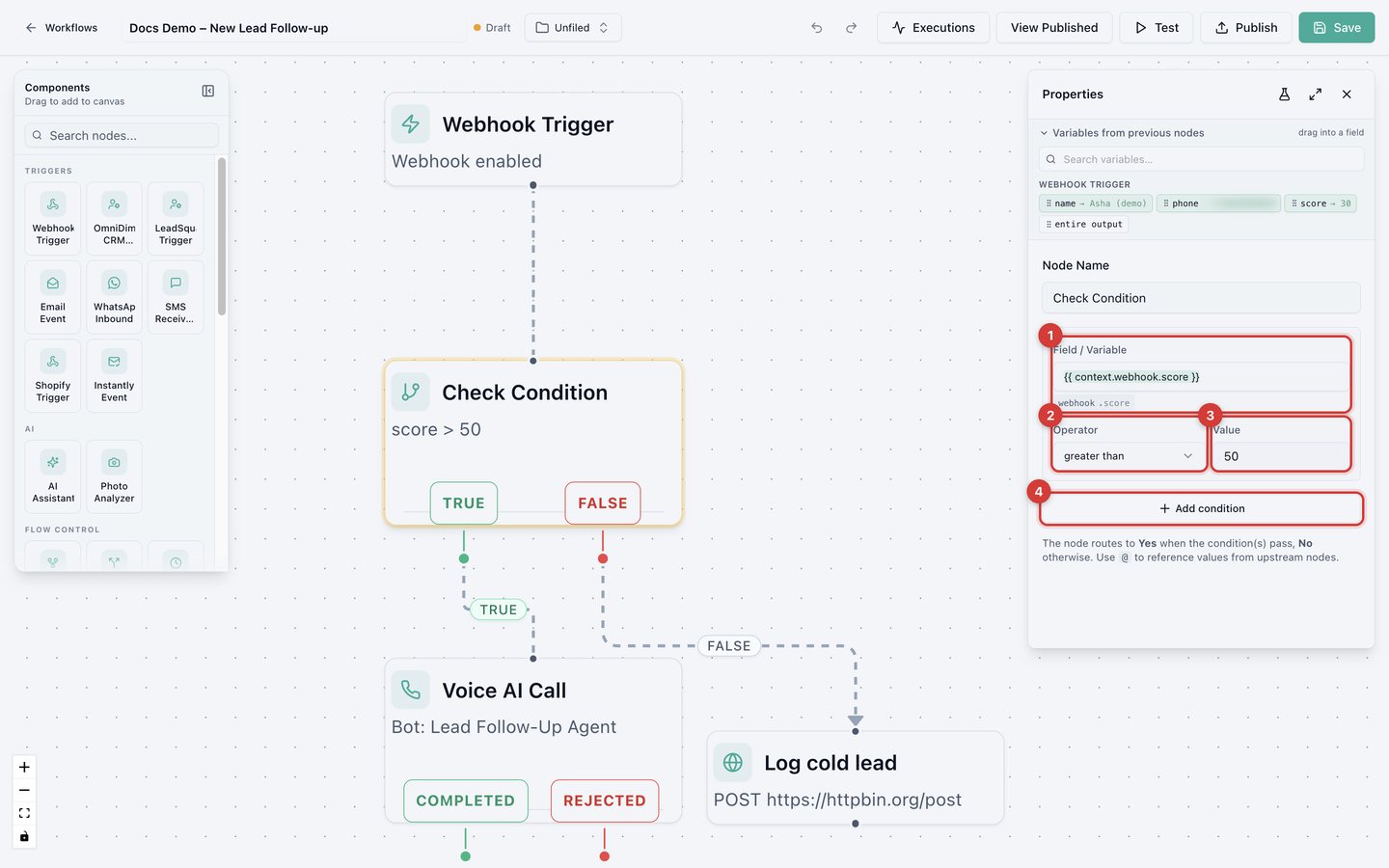
Field (1), operator (2), value (3). Add condition (4) combines several checks with AND or OR.
Call hot leads
Click Voice AI Call and set:
- Select Bot: the agent that makes the call.
- From Number: one of your phone numbers.
- To Number: type
@and pick the lead's phone number from the trigger. - Custom Variables (optional): extra details such as the lead's name or product interest, so the agent can personalize the conversation.
Log cold leads
Drag a Custom API node onto the canvas and connect the FALSE branch to it. Point it at your CRM or sheet to record the lead as "cold, nurture later". Send Email, Slack Message, or Add to Bulk Call work here too.
Condition operators
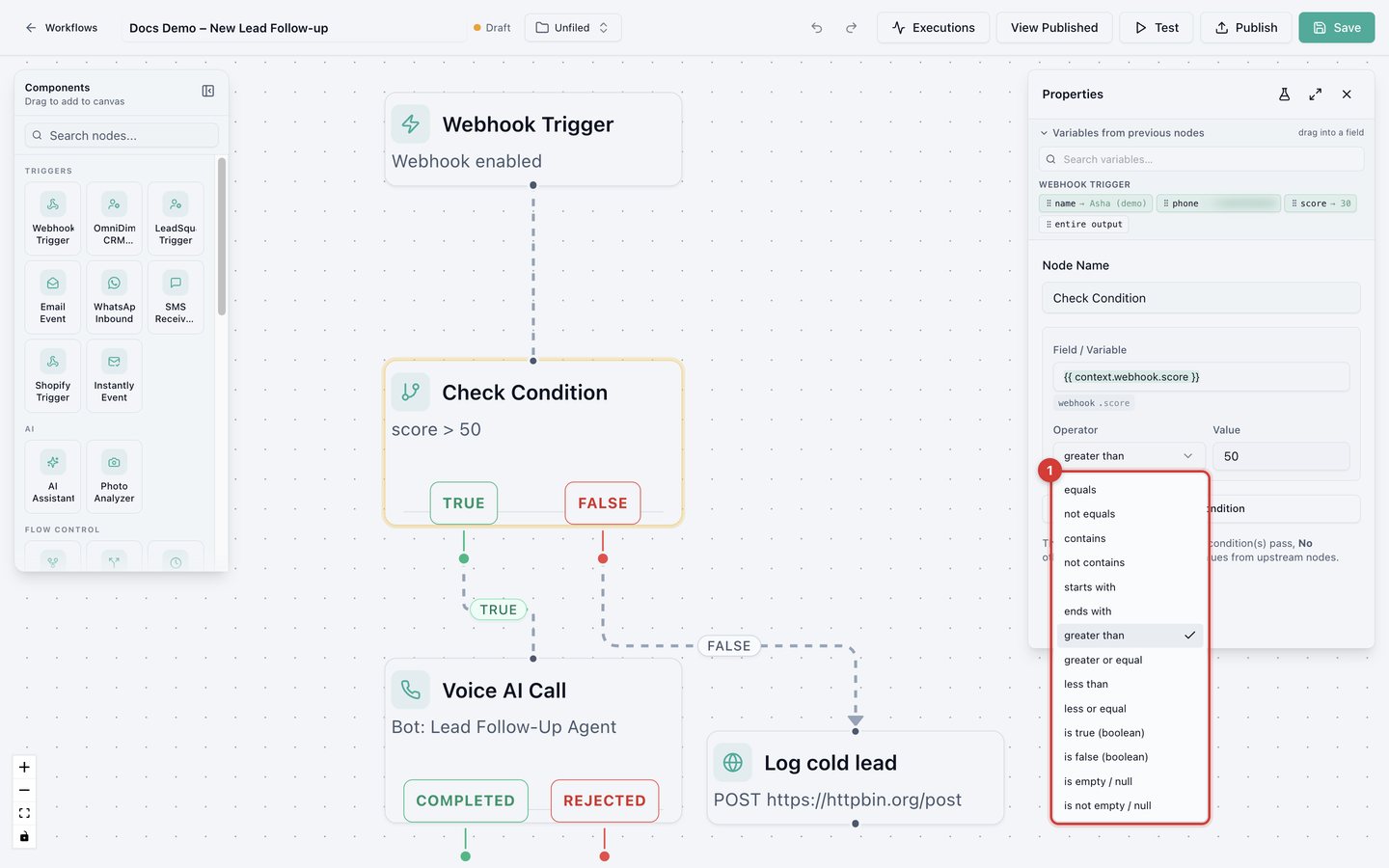
equals, not equals, contains, not contains, starts with, ends with, greater than, greater or equal, less than, less or equal, is true, is false, is empty, is not empty.