

The builder
A tour of the workflow canvas, the node settings panel, connections, and branches.
The builder is a canvas. Nodes are boxes, connections are dotted lines, and work flows from top to bottom.
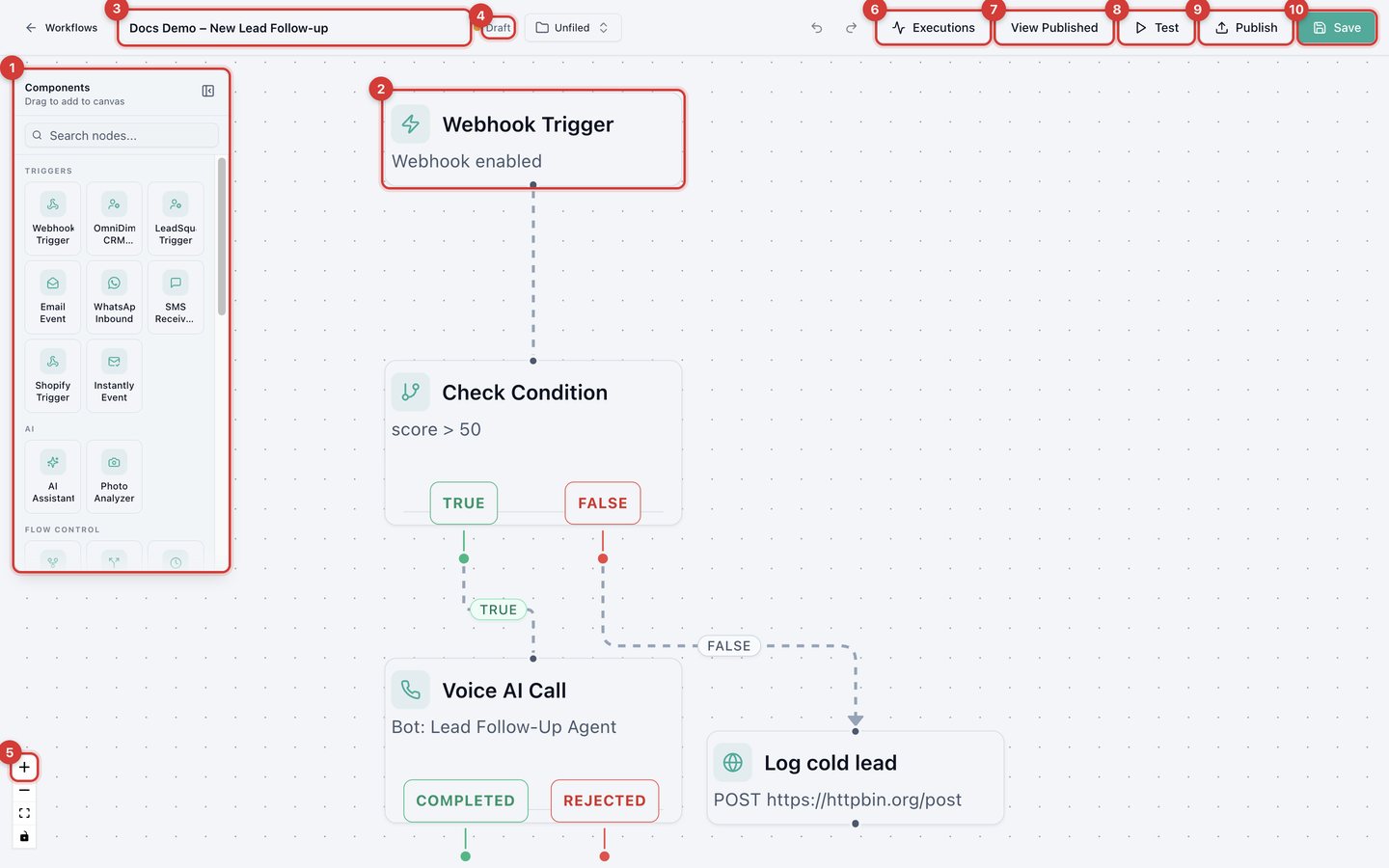
- Components: the library of every node. Drag one onto the canvas, or search for it.
- Canvas: click any node to open its settings. Drag nodes to rearrange them.
- Workflow name: click to rename.
- Status: Draft means you have changes that are not live yet.
- Zoom in or out, fit everything on screen, or lock the canvas.
- Executions lists this workflow's runs.
- View Published appears once something is live.
- Test runs the workflow with sample data you type in.
- Publish makes the current version live.
- Save stores your draft. Leaving the page without saving discards changes.
The curved arrows next to Executions undo and redo canvas changes.
The settings panel
Click any node and its Properties panel opens on the right.
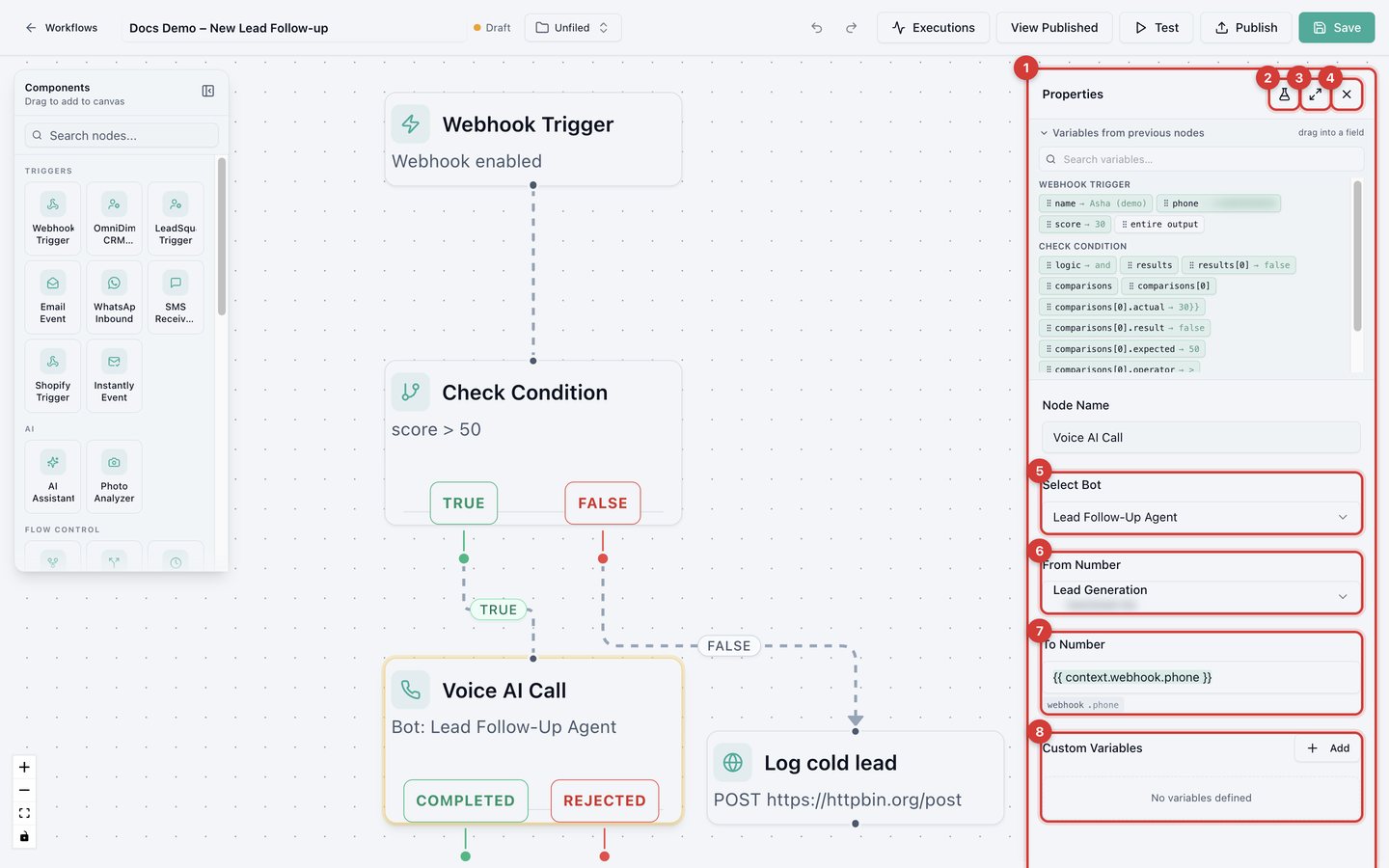
- Variables from previous nodes: information earlier nodes produce. Drag a chip into a field to use it. See Passing data between nodes.
- Test node (flask icon) runs only this node. See AI scoring and routing.
- Expand the panel for more room.
- Close the panel.
- to 8. The node's own settings. For a Voice AI Call: the agent, the number to call from, the number to call, and optional custom variables.
When something is missing, a red Incomplete configuration box at the top of the panel lists exactly what to fix, and the node gets a red outline on the canvas.
Add and connect nodes
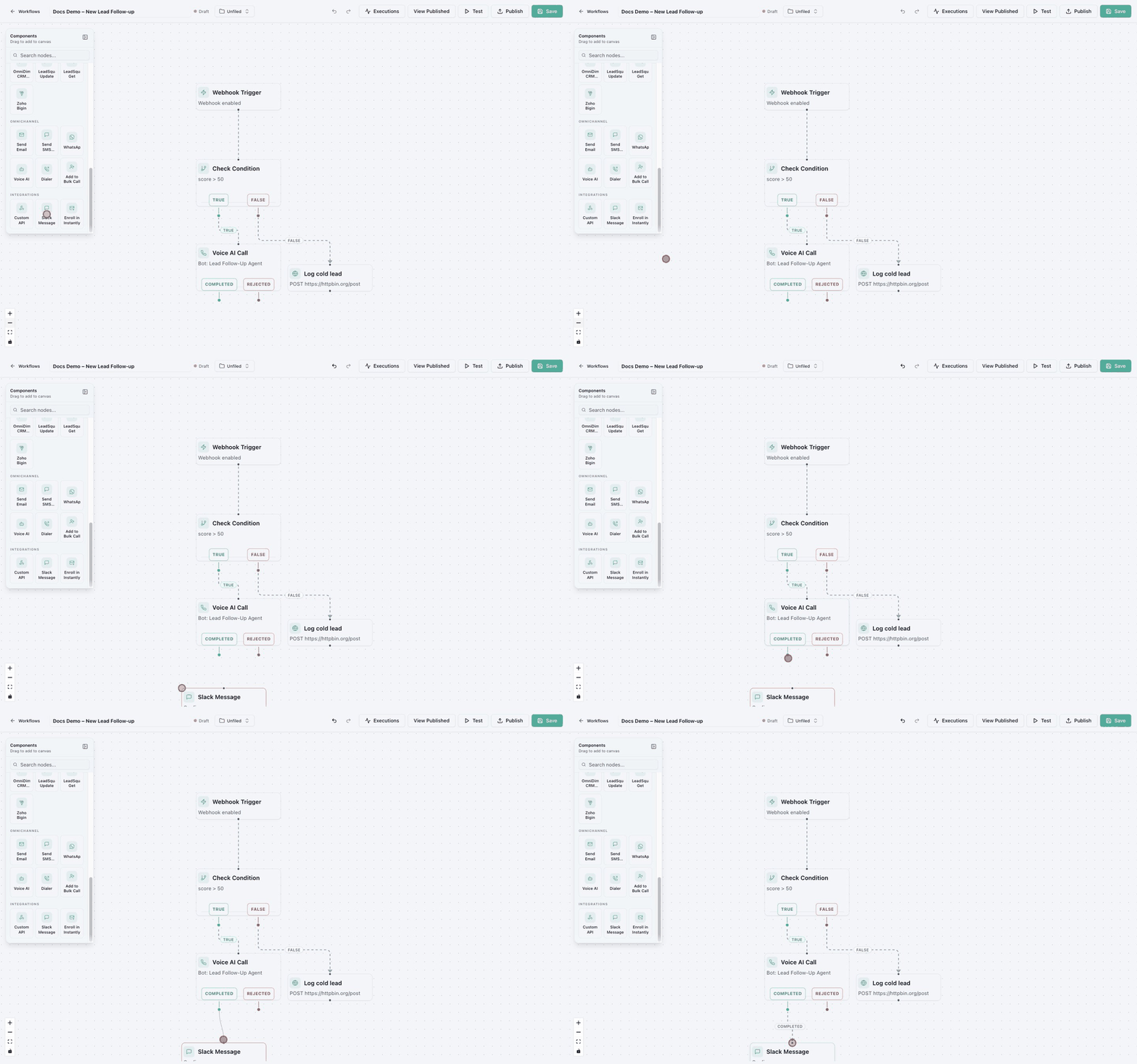
Find the node
Look in Components, or type in Search nodes.
Drop it on the canvas
Drag it onto an empty area.
Connect it
Press on the small dot under the earlier node (or under one of its branch labels), drag to the top dot of the new node, and release.
Configure it
Click the new node and fill in its settings.
Branches
Some nodes have more than one exit. Each exit is labeled, and you connect each one to whatever should happen in that case.
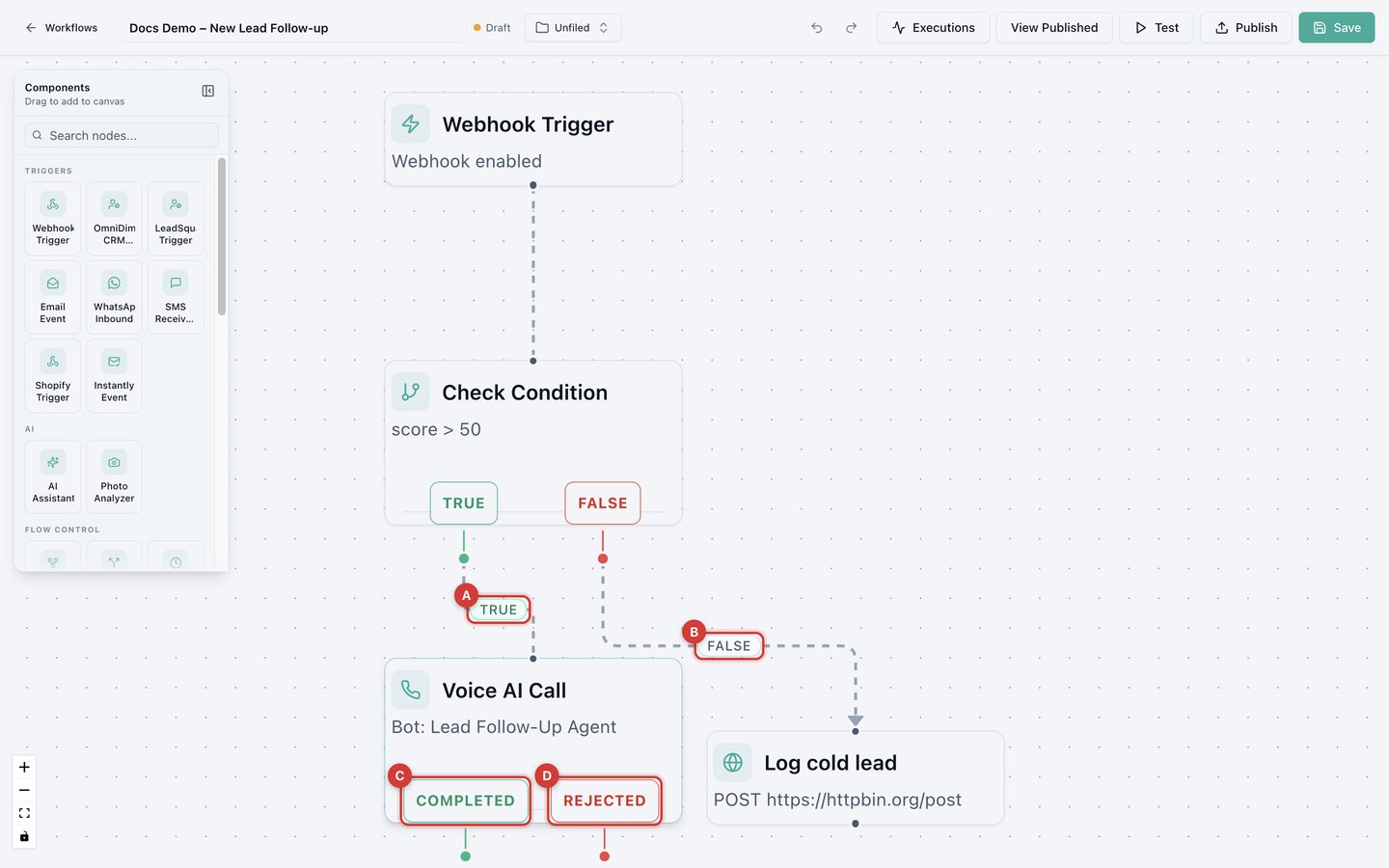
- A and B: a Condition exits through TRUE or FALSE.
- C and D: a Voice AI Call exits through COMPLETED when the call connected, or REJECTED when it failed, was busy, or wasn't answered.
A branch with nothing connected ends the run there.