

Example: from new lead to follow-up
An end-to-end journey with two workflows and a Dynamic Bulk Call campaign. Queue every new lead, let the campaign call them, then act on how each call went.
This example connects two workflows and a Dynamic Campaign into one automated journey, from the moment a lead signs up to what happens after your AI agent has spoken to them.
The journey
| Stage | What happens | Where you set it up |
|---|---|---|
| 1. A lead arrives | Your website or CRM sends the lead to workflow A. | Part 1 |
| 2. The lead is queued | Workflow A adds the lead to the Dynamic Campaign, with their name and interest for the agent. | Part 1 |
| 3. The call happens | The campaign calls the lead on its own schedule: as soon as a line is free, inside your calling hours, with retries. | Part 2 |
| 4. The call ends | The agent's Post-Call setting starts workflow B with the call's results. | Part 3 |
| 5. Follow-up | Workflow B checks how the call went and takes the next action: hot lead, not interested, or try again later. | Part 4 |
You need:
- A phone number with an agent attached. This example uses an Outbound Lead Qualification Agent.
- A Dynamic Campaign on that number. In step 2 of the campaign wizard choose Dynamic Campaign, and in step 3 turn on Auto Retry if you want failed calls retried.
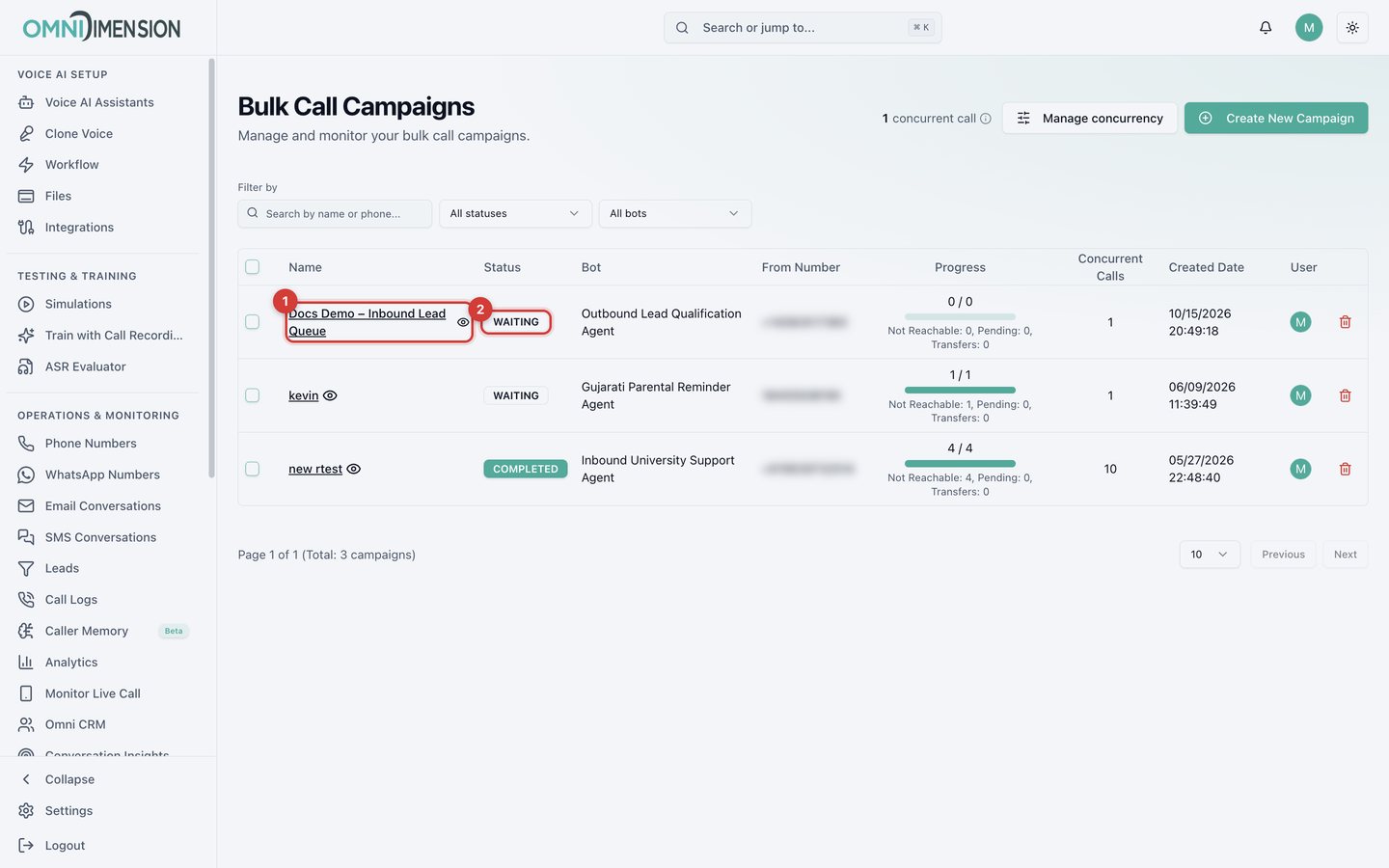
The new campaign (1) shows Waiting (2). It is live and calls each contact as soon as one arrives.
Part 1: Queue new leads (workflow A)
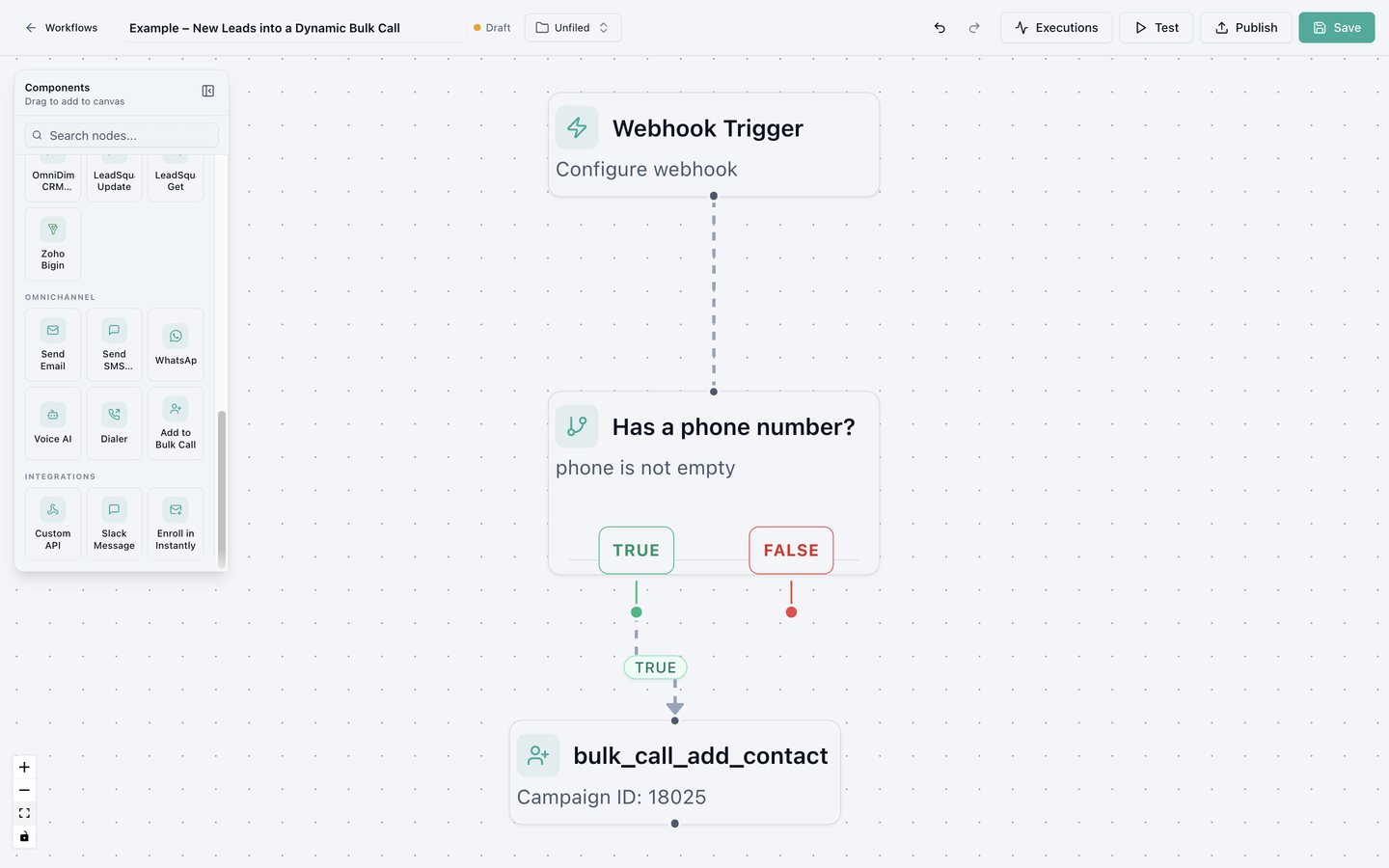
Webhook Trigger receives the lead, Has a phone number? skips leads without a number, and Add to Bulk Call queues the rest in the campaign.
Create the workflow
Click New Workflow, name it "New leads into Dynamic Campaign", and start from Blank. Select the default Voice AI Call node and press Backspace to remove it. The campaign places the call instead.
Skip leads without a phone number
Click Check Condition and rename it "Has a phone number?". In Field /
Variable type @ and pick the trigger's phone field. Set Operator
to is not empty / null.
Add the lead to the campaign
Drag Add to Bulk Call onto the canvas and connect the TRUE branch to it. Then fill in its settings:
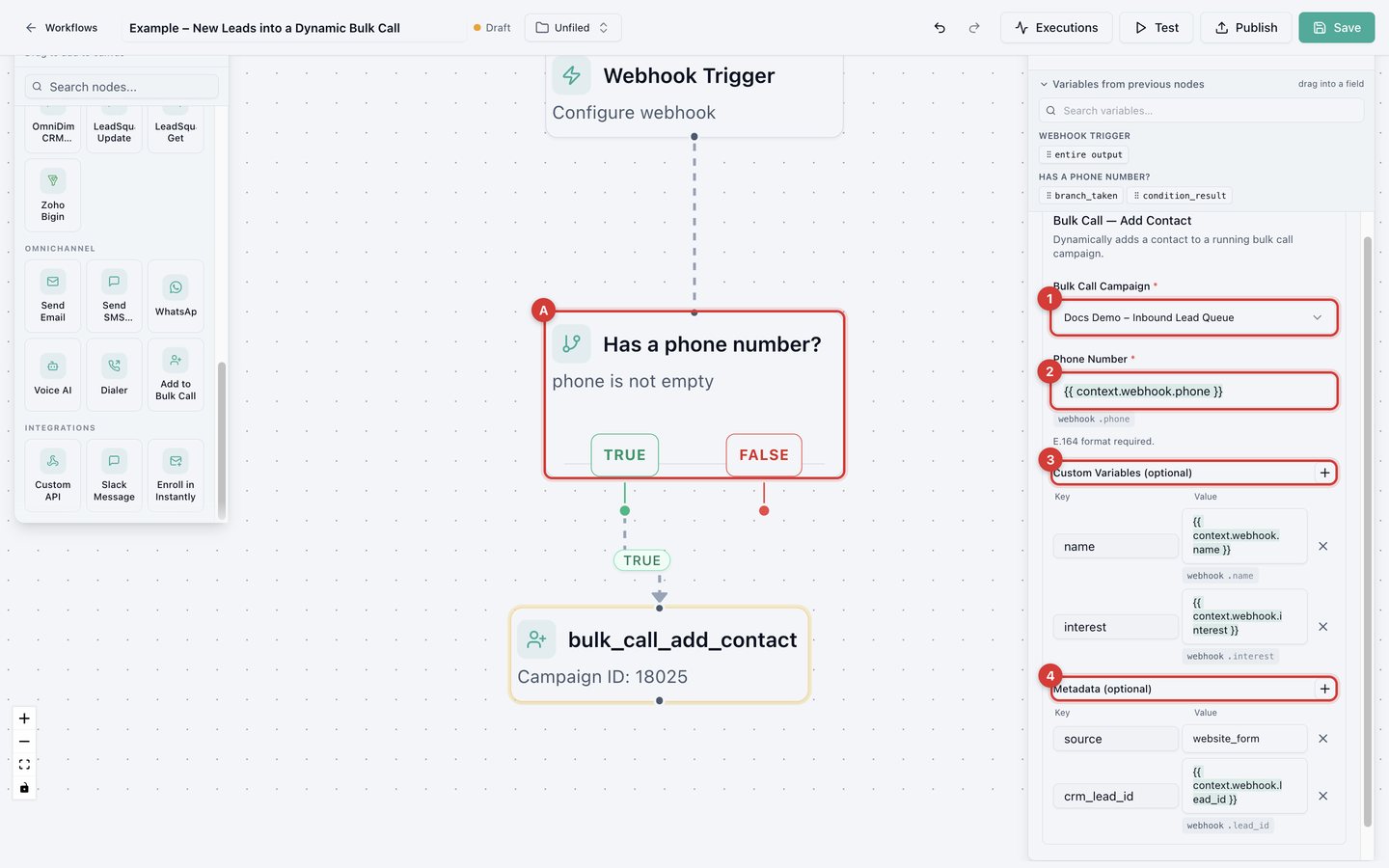
- Bulk Call Campaign: your Dynamic Campaign.
- Phone Number: the trigger's
phonefield, in international format, for example+15551234567. - Custom Variables: details the agent can use in the conversation, here
nameandinterest. Match the variable names your agent's prompt or welcome message uses. - Metadata: tracking values kept with the call but hidden from the agent, here
sourceandcrm_lead_id.
The condition node (A) sends leads without a number down the FALSE branch, so nothing is queued for them.
Test and publish
Click Save, then Test, and enter a sample lead:
{
  "name": "Jane Doe",
  "phone": "+15551234567",
  "interest": "Home Insurance",
  "lead_id": "lead_9876"
}
Then Publish, switch on Webhook Trigger (Production), and paste the live link into your website form or CRM. See Test and publish.
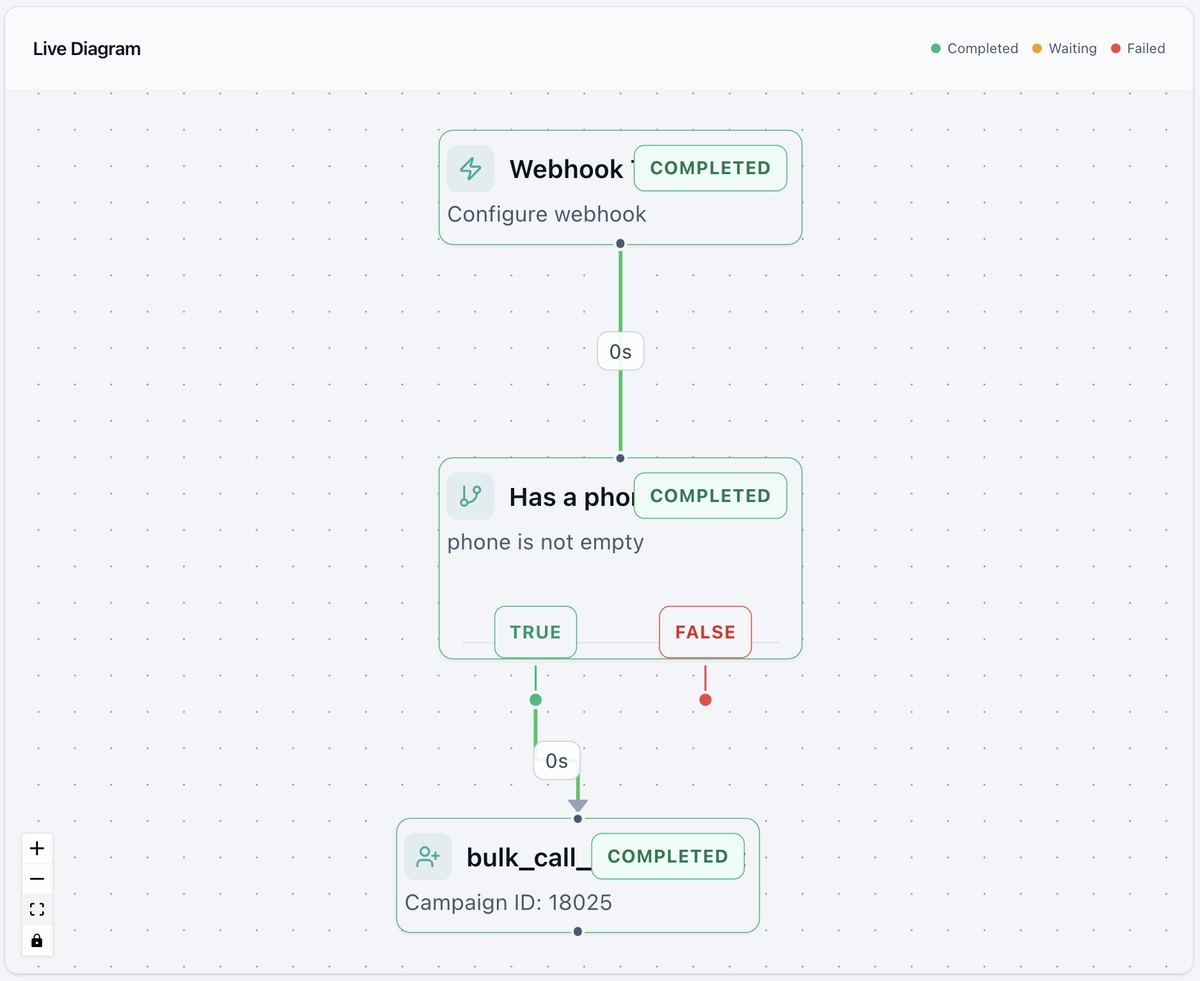
Every node turns green. Open Add to Bulk Call and its Output shows the contact was accepted:
{
  "message": "Contact added successfully (action: calling)",
  "to_number": "+15551234567",
  "custom_variables": { "name": "Jane Doe", "interest": "Home Insurance" },
  "metadata": { "source": "website_form", "crm_lead_id": "lead_9876" }
}Part 2: The campaign calls the lead
You don't build anything here. The campaign decides when each queued lead is called, based on its settings:
- Concurrent calls: how many calls run at once. Extra leads wait in the queue.
- Daily Time Controls: leads added outside your hours wait until the campaign resumes.
- Auto Retry: unanswered or failed calls are retried, up to the limit you set.
- Call Rescheduling: when a lead says "call me later", the campaign calls back then.
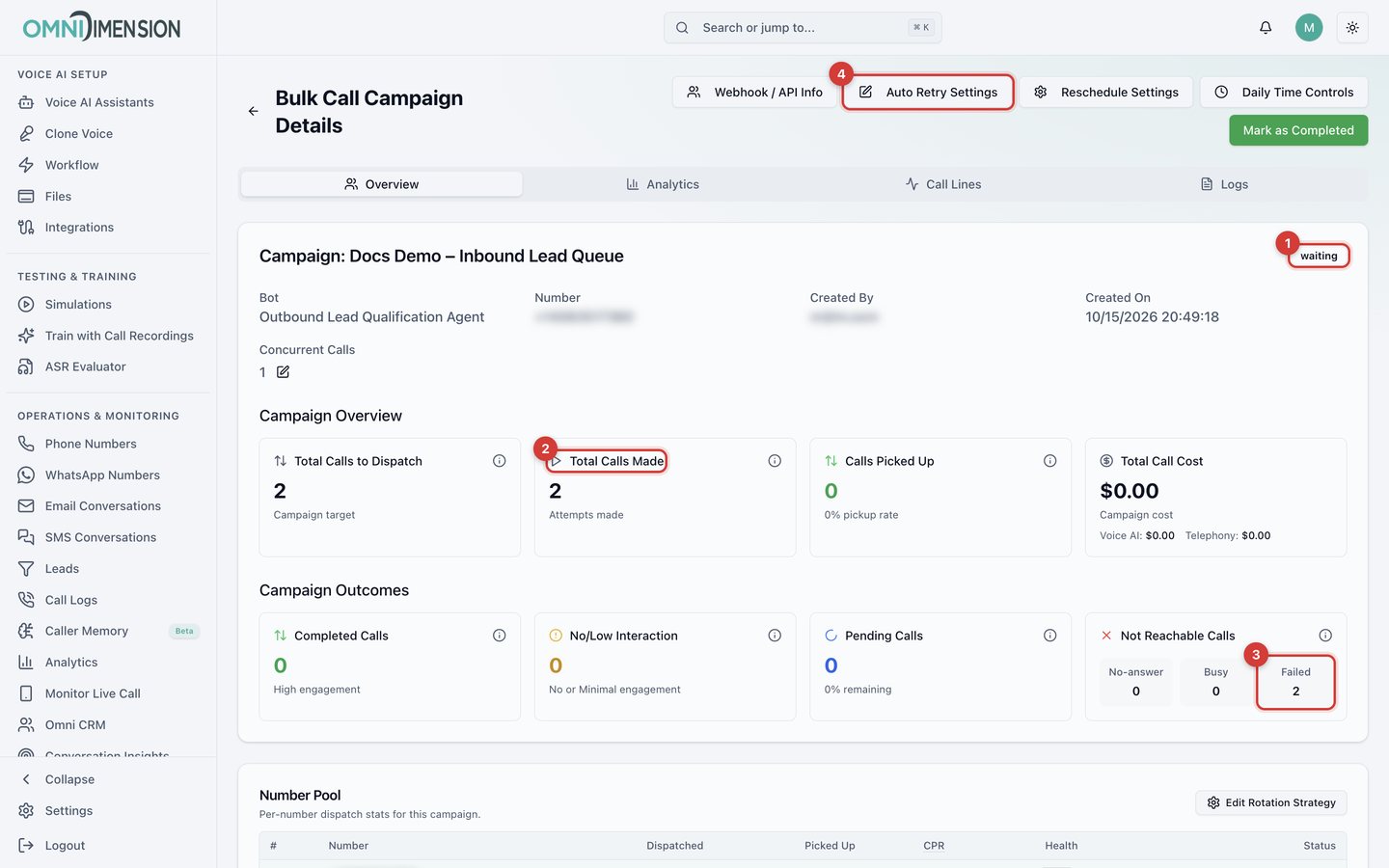
- The campaign returns to Waiting once its queue is empty.
- Total Calls Made counts each attempt.
- Outcomes are split into completed, low interaction, pending, and not reachable. Our test used an unreachable number, so both attempts (the call and one retry) show as Failed.
- Auto Retry Settings changes how often calls are retried.
Part 3: Send call results to a workflow
When a call ends, the agent can start a workflow with that call's results. Open the campaign's agent and set this once; it then applies to every call the agent makes.
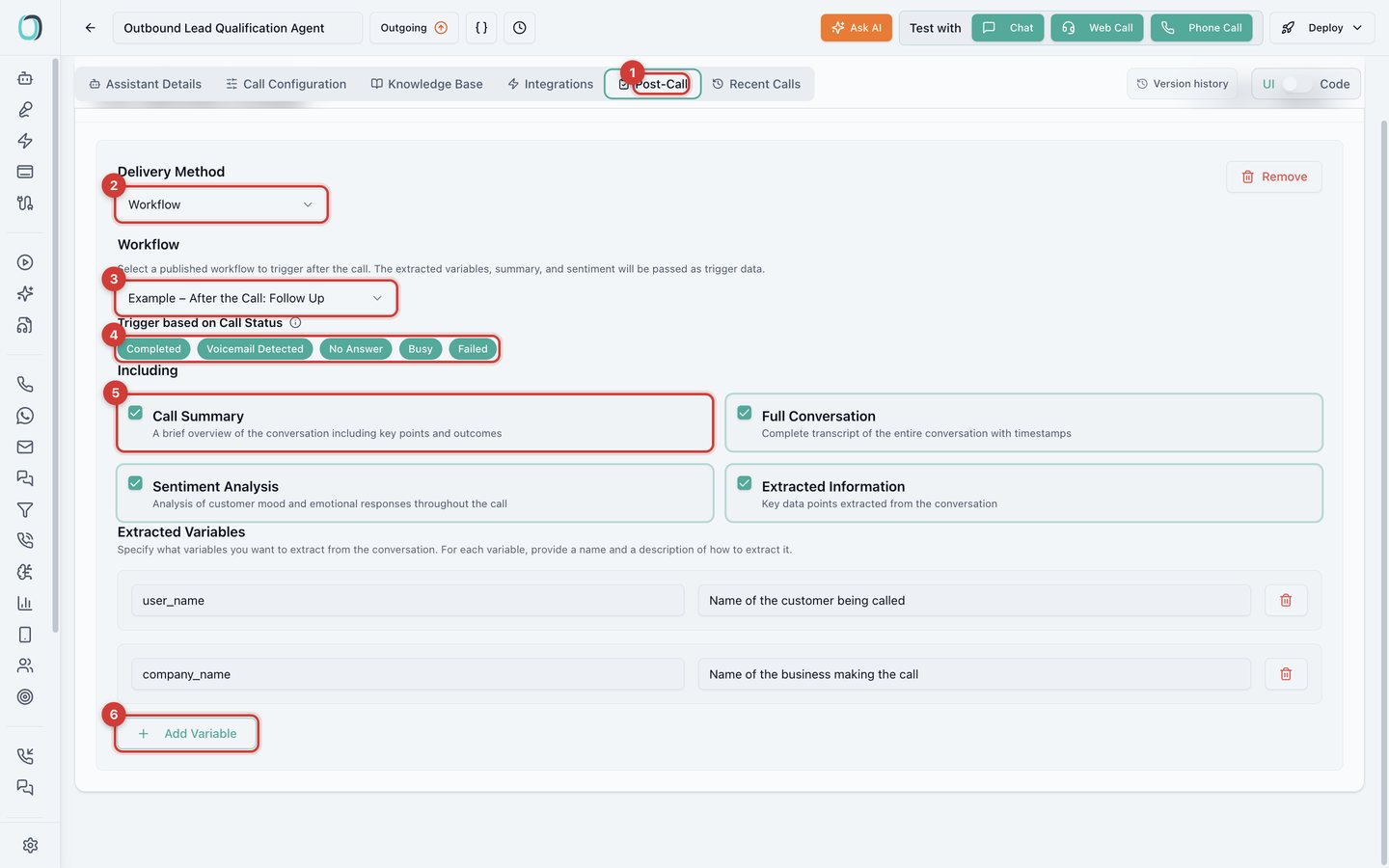
- Open the agent and go to Post-Call.
- Set Delivery Method to Workflow.
- Pick workflow B. Only published workflows appear, so build and publish it first (Part 4).
- Under Trigger based on Call Status, select every outcome you want to handle. Include No Answer, Busy, and Failed if workflow B should also handle missed calls.
- Under Including, keep Call Summary, Sentiment Analysis, and Extracted Information checked.
- Click Add Variable and add
interested, described as: Answer "yes" if the customer wants a quote or a follow-up from the sales team, otherwise "no".
Workflow B then receives the call's results. The ones this example uses:
| Field | What it holds |
|---|---|
call_status | The outcome, for example completed. |
customer_number | The number of the person who was called. |
summary | A short AI summary of the conversation. |
sentiment | Positive, Neutral, or Negative. |
extracted_variables | Your extracted variables, for example extracted_variables.interested. |
call_duration | Call length as minutes and seconds. |
Part 4: Act on the result (workflow B)
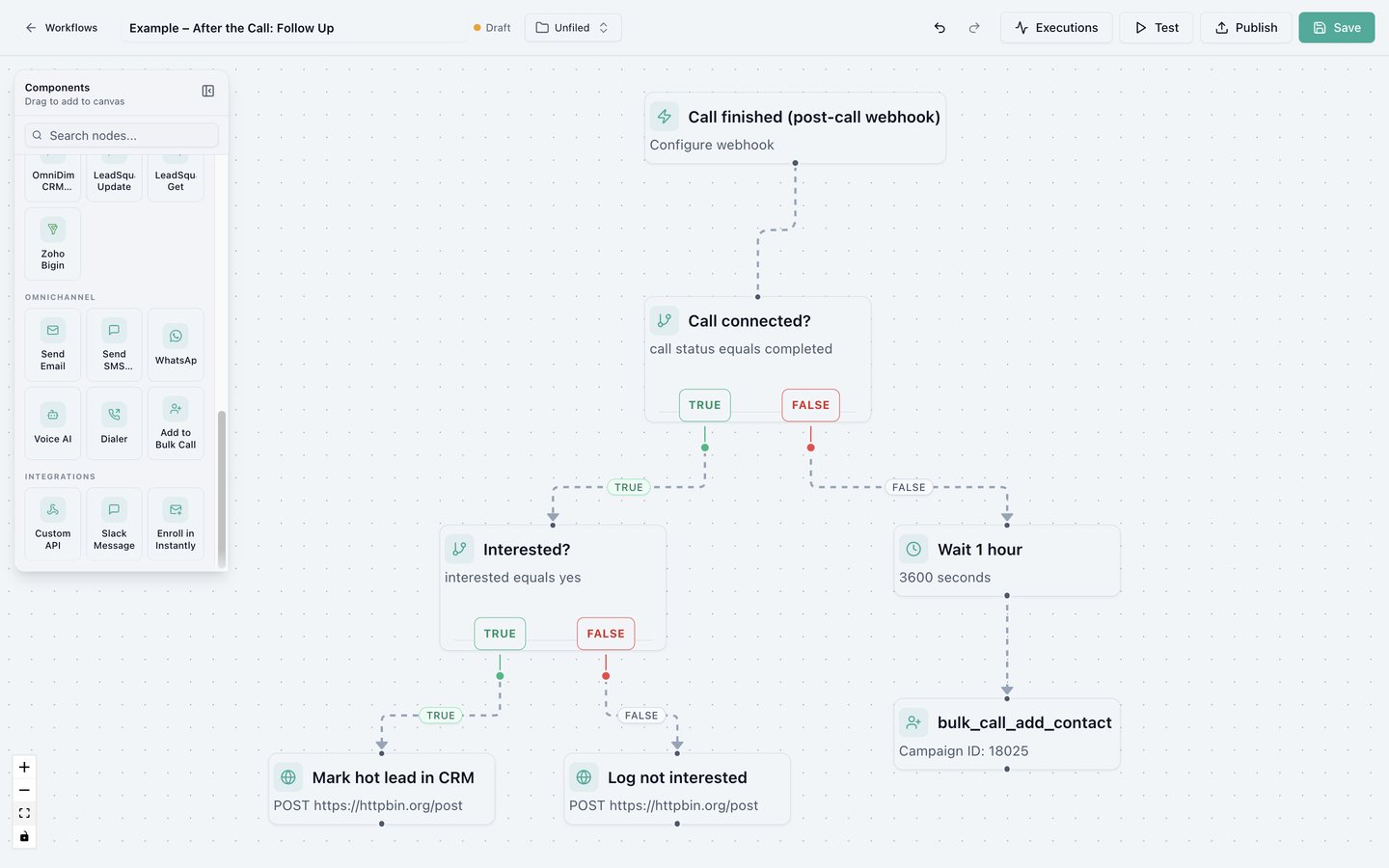
Create the workflow
Create a workflow from Blank named "After the call: follow up", remove the
default Voice AI Call node, and rename the trigger "Call finished". The
trigger receives the call's results as context.webhook.
Did the call connect?
Rename the condition "Call connected?". Field / Variable:
{{ context.webhook.call_status }}, Operator: equals, Value:
completed.
Is the lead interested?
Add a Condition on the TRUE branch named "Interested?". Field /
Variable: {{ context.webhook.extracted_variables.interested }},
Operator: equals, Value: yes.
Act on each answer
- TRUE, a hot lead: tell your team or your CRM. This example uses a Custom API node, "Mark hot lead in CRM", that sends
phone={{ context.webhook.customer_number }},status=hot_lead, andsummary={{ context.webhook.summary }}. Send Email, Slack Message, or a CRM node work the same way. - FALSE, not interested: a second Custom API node, "Log not interested", records the outcome.
Try missed calls again
On the FALSE branch of "Call connected?", add a Delay of 3600 seconds
("Wait 1 hour"), then Add to Bulk Call with the same campaign and
Phone Number {{ context.webhook.customer_number }}. The lead goes back
in the queue an hour later.
Test both paths, then publish
Click Test with a sample of what the agent sends:
{
  "call_status": "completed",
  "customer_number": "+15551234567",
  "summary": "Jane is interested in home insurance and wants a quote this week.",
  "sentiment": "Positive",
  "extracted_variables": { "interested": "yes" }
}
Run it again with "call_status": "no_answer" to try the retry path. The
test box keeps your last sample, so edit it between runs. Then Publish,
and select the workflow in the agent's Post-Call settings (Part 3).
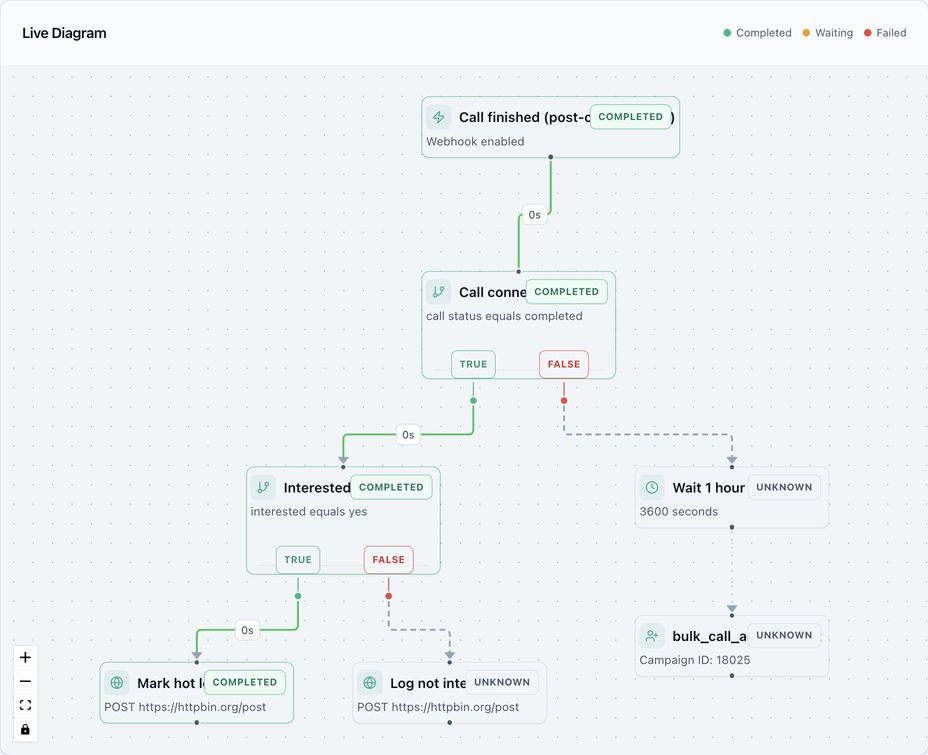
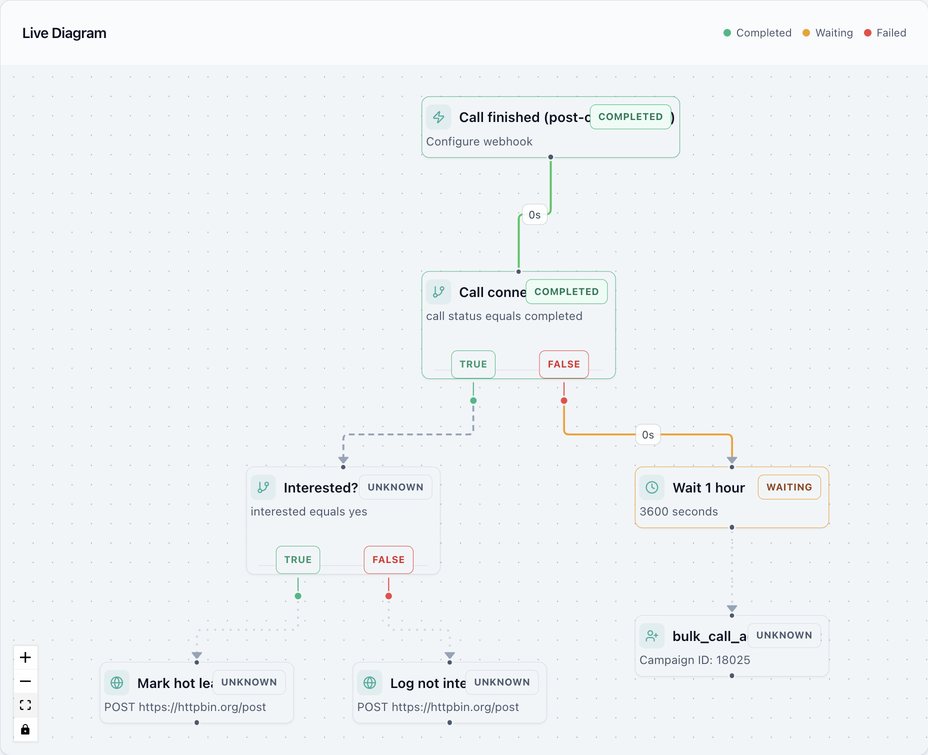
On the left, a hot lead goes through "Call connected?" and "Interested?" to "Mark hot lead in CRM". On the right, a missed call is Waiting on "Wait 1 hour" before it goes back in the queue. A waiting run appears under Waiting in Execution logs. Use Cancel execution on the run page to stop one.
Why workflows instead of the API?
| Webhook API directly | Workflows with Add to Bulk Call | |
|---|---|---|
| API key in your CRM | Required | Not needed. The workflow's live link is enough. |
| Filtering and routing | Build it in your own system | Conditions, Switch, and Time Condition on the canvas |
| Several campaigns | Your system picks the campaign ID | A Switch sends each lead to the right campaign |
| After the call | Poll for results or parse post-call webhooks yourself | Post-Call starts workflow B with the results |
| Visibility | Your own logs | Every run in Execution logs |
Go further
- Avoid endless retries: the campaign's Auto Retry already retries missed calls. Use the workflow retry for a later, separate attempt, and count attempts in the metadata if you add both.
- Several campaigns: replace "Has a phone number?" with a Switch on a field such as
project, with one Add to Bulk Call per case, as the Call Fresh Lead Within 2 Minutes template does. - Callbacks at a set time: when the agent extracts a callback time, use Wait for Time before Add to Bulk Call.
- Close the loop in your CRM: send
summary,sentiment, and your extracted variables to your CRM from workflow B, so every call's outcome lands on the lead's record.